
Amazon Prime Video can automatically start the next episode or begin playing previews when you finish a show or browse the app. If that gets annoying, you can turn off autoplay in your account settings and reduce unwanted playback on most devices.
The exact menu names can vary a little depending on whether you are using a TV, web browser, phone, or streaming device, but the setting is usually tied to your Amazon account rather than a single device.
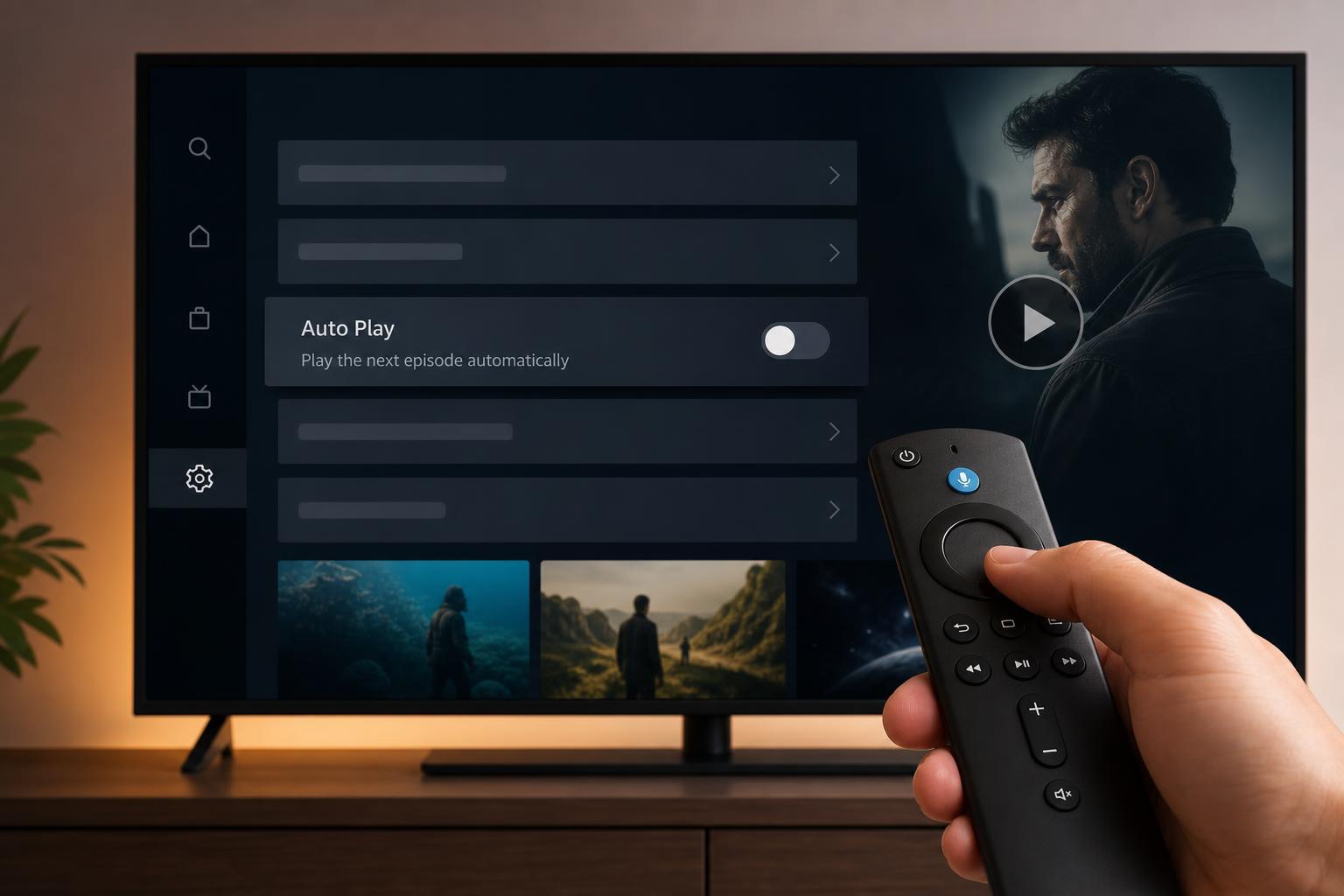
Turn Off Autoplay in Amazon Prime Video
The main autoplay setting controls whether Prime Video starts the next episode automatically and whether preview videos play while you browse.
- Open Prime Video and sign in to your Amazon account.
- Go to your account or profile settings. On a browser, this is usually under your profile icon or account menu.
- Look for Playback, Autoplay, or similar video playback settings.
- Turn off the option for autoplaying the next episode and, if available, the option for autoplaying previews.
- Save the changes and return to your video library.
How to Turn Off Autoplay on a Web Browser
Using the Prime Video website is usually the easiest way to find the setting, especially if the app menu on your TV is hard to navigate.
- Visit Prime Video in your browser and sign in.
- Select your profile icon in the top-right corner.
- Open Account and Settings.
- Choose the Playback tab.
- Disable Autoplay for episodes and disable autoplay previews if those options appear.
- Refresh the page or open another title to confirm the change.
How to Turn Off Autoplay on the Prime Video App
On phones, tablets, and many streaming apps, the setting may be inside the app’s settings menu rather than in the main account page.
- Open the Prime Video app.
- Tap the profile or menu icon.
- Open Settings or the gear icon.
- Find Playback or Autoplay settings.
- Turn off next-episode autoplay and preview autoplay if available.
If Autoplay Still Happens After You Change the Setting
If Prime Video still starts the next episode or previews after you turned the setting off, the problem is usually one of these:
- You changed the setting on a different Amazon account than the one currently signed in.
- The app has not synced the updated account setting yet.
- The device you are using has limited playback settings and only honors some account-level changes.
- You are seeing trailer playback while browsing, which may be controlled separately from next-episode autoplay.
Checking the account name in the app is important, especially on shared TVs or family devices. A different profile can make it look like your setting did not work when the real issue is that another account is signed in.
Related Settings Worth Checking
If your goal is to reduce unwanted playback, a few related settings can help alongside autoplay:
- Turn off preview autoplay if you do not want trailers to begin while browsing.
- Check the TV’s own sleep timer or power-saving settings if the screen stays on too long.
- Review data-saving settings on mobile if autoplay is using more streaming data than expected.
- Make sure accessibility or parental-control settings are not changing how playback behaves.
What to Do If You Cannot Find the Option
If the autoplay setting is missing, the interface may be different on your device version, or Amazon may have placed it under a different menu name. Try the web version first, since it usually has the clearest account settings.
- Sign in to Prime Video on a desktop or mobile browser.
- Open your account settings.
- Look for Playback, Autoplay, or Video Autoplay options.
- If the option is still missing, update the app on your device and check again.
- If needed, test on another device to confirm whether the setting exists for your account.
A Quick Way to Confirm It Worked
After changing the setting, open a show episode and let it finish. If autoplay is disabled, Prime Video should stop at the end instead of immediately starting the next episode. You can also browse a title page to see whether previews still start on their own.





