
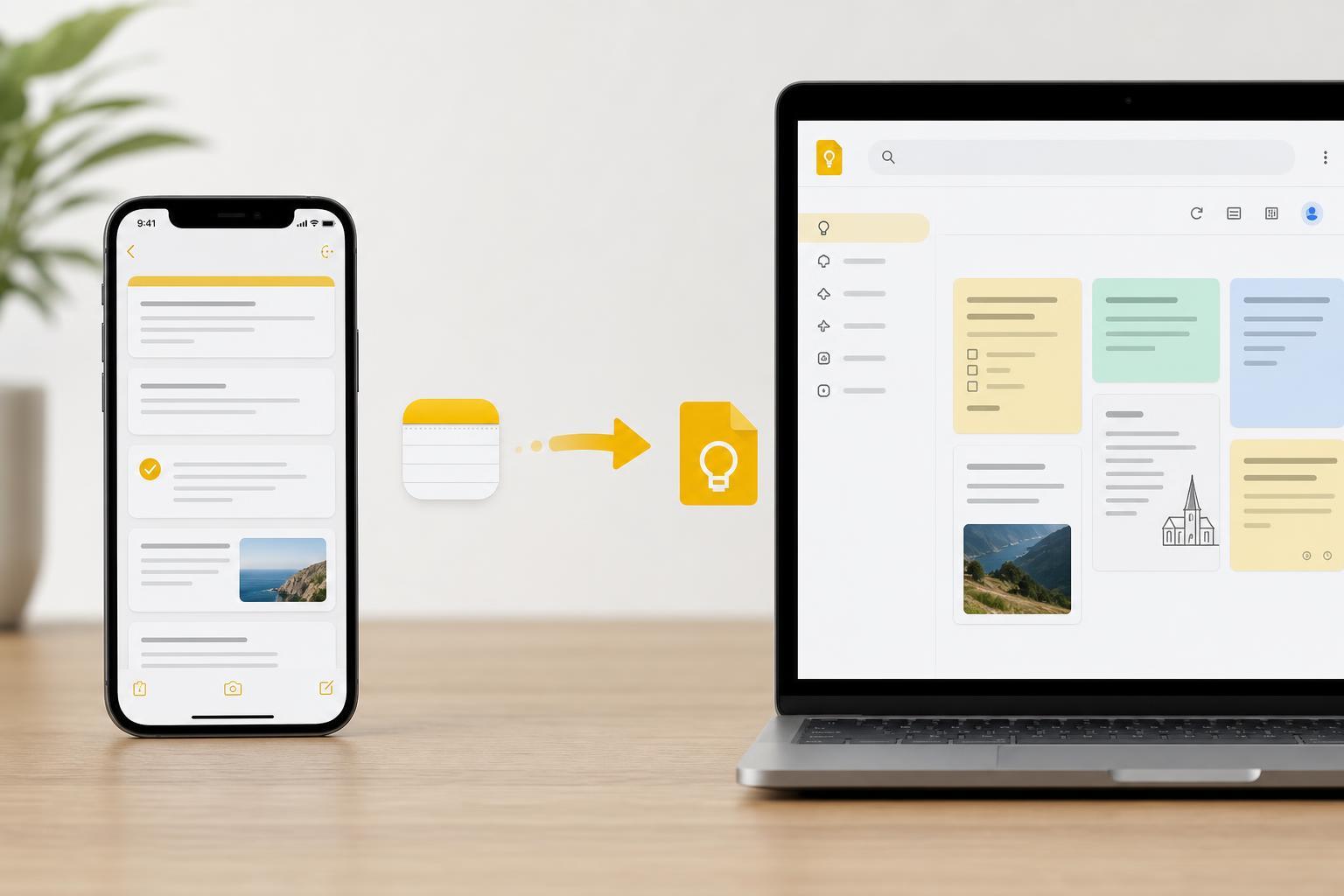
If you are switching from Apple Notes to Google Keep, there is no direct built-in transfer tool that moves everything over in one step. The easiest method depends on how many notes you have, whether they contain images or checklists, and how much formatting you want to preserve.
This guide shows the most practical ways to get your iPhone notes into Google Keep, from transferring a few notes manually to handling a larger collection more efficiently.
What You Need Before You Start
- An iPhone with your Notes app content available
- A Google account signed in to Google Keep
- The Google Keep app installed on your iPhone, or access to Keep in a browser
- Enough time to review notes one by one if you want to preserve content accurately
The Easiest Method: Copy and Paste Each Note
For a small number of notes, manual copy and paste is the most reliable option. It takes more time, but it gives you full control over what gets moved and lets you check each note as you go.
- Open the Notes app on your iPhone.
- Open the note you want to move.
- Tap and hold on the text, then choose Select All if needed.
- Tap Copy.
- Open Google Keep.
- Create a new note and paste the text into it.
- Repeat for each note you want to transfer.
How to Transfer Notes Through the Share Menu
Some notes can be sent directly from the iPhone Notes app to Google Keep using the Share menu. This is often quicker than copying and pasting, especially if you are moving one note at a time.
- Open the note in the Notes app.
- Tap the Share button.
- Look for Google Keep in the sharing options.
- If Keep does not appear, tap More and enable it if available.
- Choose Google Keep, then save the note in Keep.
Moving a Large Number of Notes
If you have many notes, manual transfer can become slow. In that case, it is usually best to organize the notes first and move only the ones you actually need in Google Keep.
- Start with your most important notes, such as passwords, work lists, project ideas, or reminders.
- Skip notes that are already outdated or duplicated.
- Group related notes together so you can recreate them in Keep more quickly.
- Use labels in Google Keep to organize notes after transfer.
What Does and Does Not Transfer Well
Plain text usually moves without trouble. Simple lists often transfer reasonably well too. More complex notes may need cleanup after they are pasted into Keep.
- Usually transfers well: plain text, short lists, basic reminders
- May need cleanup: checklists, headings, bold text, links, and spacing
- May not transfer cleanly: tables, drawings, scanned documents, and embedded file attachments
If You Want to Keep Your Notes on the iPhone Too
If you are not deleting the original notes, you can keep both copies during the transition. That gives you a backup in case anything is missed or reformatted incorrectly.
- Transfer the note to Google Keep.
- Check that the content looks correct.
- Leave the original note in Apple Notes until you are sure you no longer need it.
- Delete old notes only after confirming the transfer is complete.
How to Make the Move Easier
A little cleanup before you start can save a lot of time later. Shortening long notes, removing duplicate entries, and separating mixed topics into individual notes can make Google Keep much more useful after the transfer.
When a Third-Party Export Option May Help
If you need to move a very large collection of notes, you may want to export them through another service or a desktop workflow first. That can be useful when you need more control over formatting or need to archive notes outside Apple Notes before recreating them in Google Keep.
Choosing the Best Transfer Method
- Use copy and paste for the highest reliability.
- Use the Share menu when you want a faster one-at-a-time transfer.
- Use a cleanup-and-recreate approach when you have many notes and only need the important ones.
- Use a third-party workflow only if you need to handle a large archive or more complex formatting.
After You Finish
Once your important notes are in Google Keep, take a few minutes to organize them with labels, colors, and reminders. That will make Keep easier to search and use than a simple imported list of notes.





