
If you think someone may have blocked you on iMessage, the signs are usually subtle. Apple does not send a message saying you were blocked, so you have to look at a pattern of clues instead of relying on one single detail.
This guide explains the most common signs, what they actually mean, and how to avoid confusing a block with a poor signal, a switched-off phone, or a changed Apple ID setting.
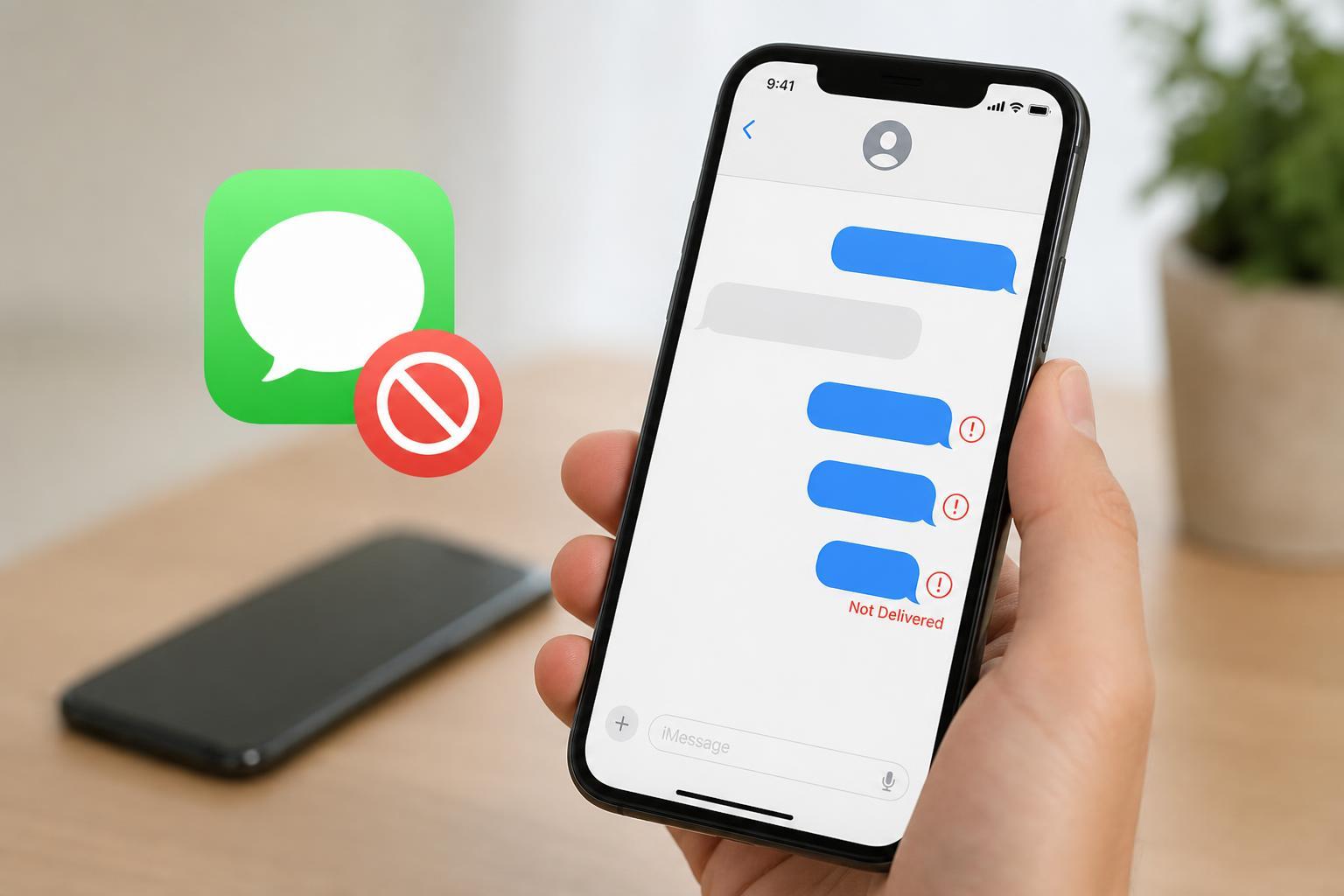
1. Your iMessage bubbles stop showing the usual delivery status
When your messages normally show Delivered or Read, then suddenly stop showing either status for one contact, that can be a clue. It may mean the message was not reaching their device through iMessage.
That said, this clue is not proof by itself. The other person may have turned off read receipts, lost internet access, disabled iMessage temporarily, or changed devices.
2. iMessage turns green when it used to be blue
A blue bubble means your message is being sent as an iMessage. If messages to one person suddenly become green, they may now be going out as SMS text messages instead.
If the number stays green every time you message that person, it is worth paying attention to. Combined with no delivery status and other clues, it becomes more suspicious.
3. Your calls go straight to voicemail or ring only once
If you call the person and the call repeatedly goes straight to voicemail, or you hear only a single ring before it disconnects, that can fit the pattern of a block. Many phones handle blocked calls this way.
However, this can also happen if the person’s phone is off, in airplane mode, out of signal, or set to Do Not Disturb or another Focus mode.
4. FaceTime calls do not connect
If FaceTime calls consistently fail while regular contact methods also seem unreachable, that is another clue. A blocked number often cannot get through by FaceTime either.
Still, FaceTime failures can happen for many harmless reasons, including network issues, Apple ID problems, or the other person disabling FaceTime on their device.
5. Text messages show as sent but never seem to arrive
You may notice that your message appears to send from your phone, but nothing ever comes back and you never see a delivery confirmation. If this happens over and over with the same person, it may indicate blocking.
One helpful clue is comparison. If other contacts receive your iMessages normally while one specific person never does, the issue is less likely to be a general problem with your phone.
6. The person still seems reachable elsewhere, but not from your number
If you can contact the person from another number, email address, or app, but not from your own iPhone number, that can strongly suggest your number has been blocked.
This is one of the clearest clues because it compares one contact path against another. If only your number is failing, the problem is less likely to be random network trouble.
7. The pattern changes suddenly after a disagreement or a silence period
A sudden shift is often more telling than a single technical symptom. If messages used to arrive normally and then, after a conflict or a long period of no contact, delivery status, calling, and FaceTime all stop working at once, blocking becomes more plausible.
That pattern still is not absolute proof, but it can help you interpret the other clues more realistically.
How to check without jumping to conclusions
- Look for a pattern across multiple signs, not just one. A single green bubble or failed call is not enough on its own.
- Compare the results with messages to other iPhone users to make sure iMessage is working normally on your device.
- Check whether the contact might simply be offline, using Do Not Disturb, or having network problems.
- Wait and test again later if the symptoms could be temporary, especially after poor signal or a battery issue.
- If you need a definite answer, accept that iMessage does not provide one. The only reliable confirmation usually comes from the other person directly.
What not to rely on
- A green bubble by itself
- One missed call
- One message without a delivery status
- A FaceTime failure during a weak network connection
- Assumptions based on how quickly someone replies to other apps
When to move on
If several of these clues line up over time, it is reasonable to suspect that you were blocked. At that point, the healthiest next step is usually to respect the silence rather than keep testing it.
iMessage does not offer a built-in way to verify a block, so the goal is not perfect certainty. The goal is to understand the most likely explanation and avoid reading too much into any single message or call.





