
If you use more than one monitor, taking a screenshot of only the screen you want can be surprisingly awkward. Windows 11 makes full-screen captures easy, but the result usually includes every connected display unless you use the right method.
This guide shows the most reliable ways to capture one monitor on a multi-monitor setup, whether you want a fast clipboard grab, a saved image file, or a screenshot of a specific app window on one display.
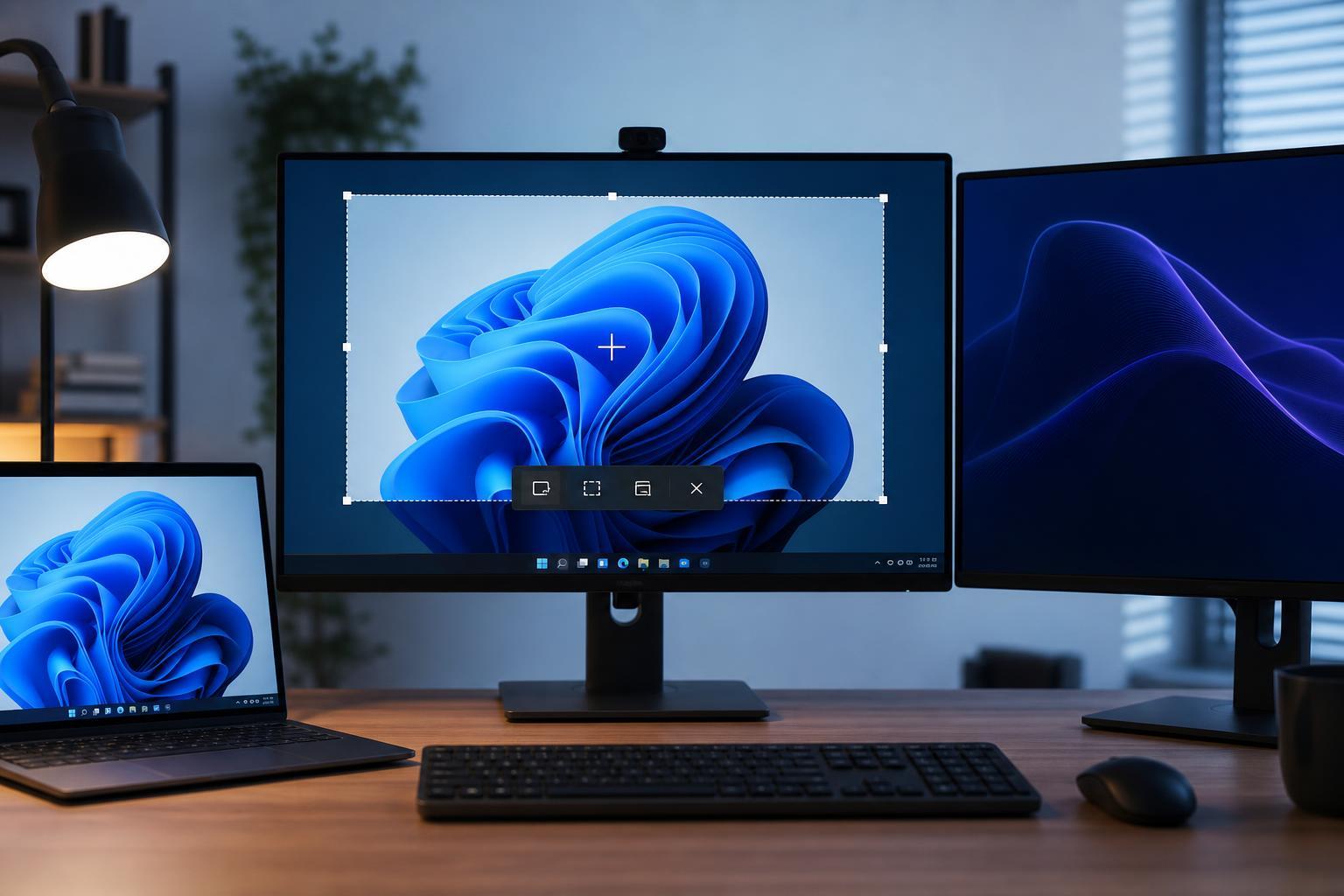
The quickest way: use Snipping Tool in rectangular mode
For most people, the easiest way to capture one monitor is to use the Snipping Tool with a rectangular snip. This lets you drag a box over just the display you want, instead of capturing all monitors at once.
- Press Windows + Shift + S to open the snipping overlay.
- Choose the rectangular snip option if it is not already selected.
- Drag across the monitor you want to capture, covering the full screen area of that display.
- Release the mouse button to take the screenshot.
- Click the notification to edit or save the image, or paste it from the clipboard into an app such as Paint or Word.
Use Print Screen only if your keyboard shortcut is set up for it
Pressing Print Screen by itself usually captures every connected monitor on Windows 11. That is not ideal for a single-display screenshot, but it can still help if you change how the key works or combine it with other tools.
- Print Screen alone: captures the entire virtual desktop across all monitors.
- Alt + Print Screen: captures the active window, which is useful if the window fills one monitor.
- Windows + Print Screen: saves the whole desktop to the Screenshots folder.
- Print Screen plus Snipping Tool settings: can open the snipping overlay instead of taking an immediate full-screen capture.
If you only want one app window, capture the active window
Sometimes you do not need the entire monitor, just the program currently open on that screen. In that case, Alt + Print Screen is often the simplest option because it captures only the focused window.
- Click the window you want to capture so it becomes active.
- Press Alt + Print Screen.
- Open an image editor such as Paint if needed.
- Paste the screenshot with Ctrl + V.
- Crop or save the image as needed.
How to make sure you capture the right monitor
When you use a multi-monitor setup, the most common mistake is dragging a snip too far and including part of a second screen. A little setup can make the process much easier.
- Maximize the window or content you want before taking the screenshot.
- Use rectangular snips for full-monitor captures and window snips for app-only captures.
- If your monitors are arranged differently in Settings, make sure the mouse movement matches the on-screen layout.
- Set the monitor you want to capture as the primary display if you often work on it alone.
Saving screenshots directly to a file
If you prefer not to paste screenshots into another program, use Windows + Print Screen for a quick save. Just remember that this captures the whole desktop across all displays, so it is best when you plan to crop the image afterward.
For single-monitor screenshots, Snipping Tool is still the better choice because it can be saved directly after capture without recording the other displays.
When a third-party tool is worth using
Windows 11 tools are enough for most users, but third-party screenshot apps can be useful if you take a lot of monitor-specific screenshots or need extra control over file naming, annotation, or delay timers.
- Better shortcut customization
- Built-in annotation tools
- Delayed captures for menus and tooltips
- Automatic save options
- Quick upload or copy features
Common problems and how to avoid them
- The screenshot includes both monitors: use rectangular snip or Alt + Print Screen instead of Print Screen alone.
- The snip feels misaligned: check display scaling and monitor arrangement in Settings > System > Display.
- The capture is blank or black: some protected video or hardware-accelerated apps may block screenshots.
- The screenshot is too small or blurry: capture the monitor at native resolution and avoid resizing before saving.
The best method for most people
If your goal is simply to capture one monitor on Windows 11, use Windows + Shift + S and make a rectangular snip. It is the most direct way to select just one screen in a multi-monitor setup, and it avoids extra cropping later.
Use Alt + Print Screen when you only need the active window on that monitor, and use Windows + Print Screen when you want the entire desktop saved quickly and do not mind editing afterward.





