
If your X account is protected, only approved followers can see your posts. Making your account public removes that restriction so anyone can view your profile and posts, even if they do not follow you.
This guide shows how to unprotect your tweets on X, what the setting changes, and what to check before you make your account public.
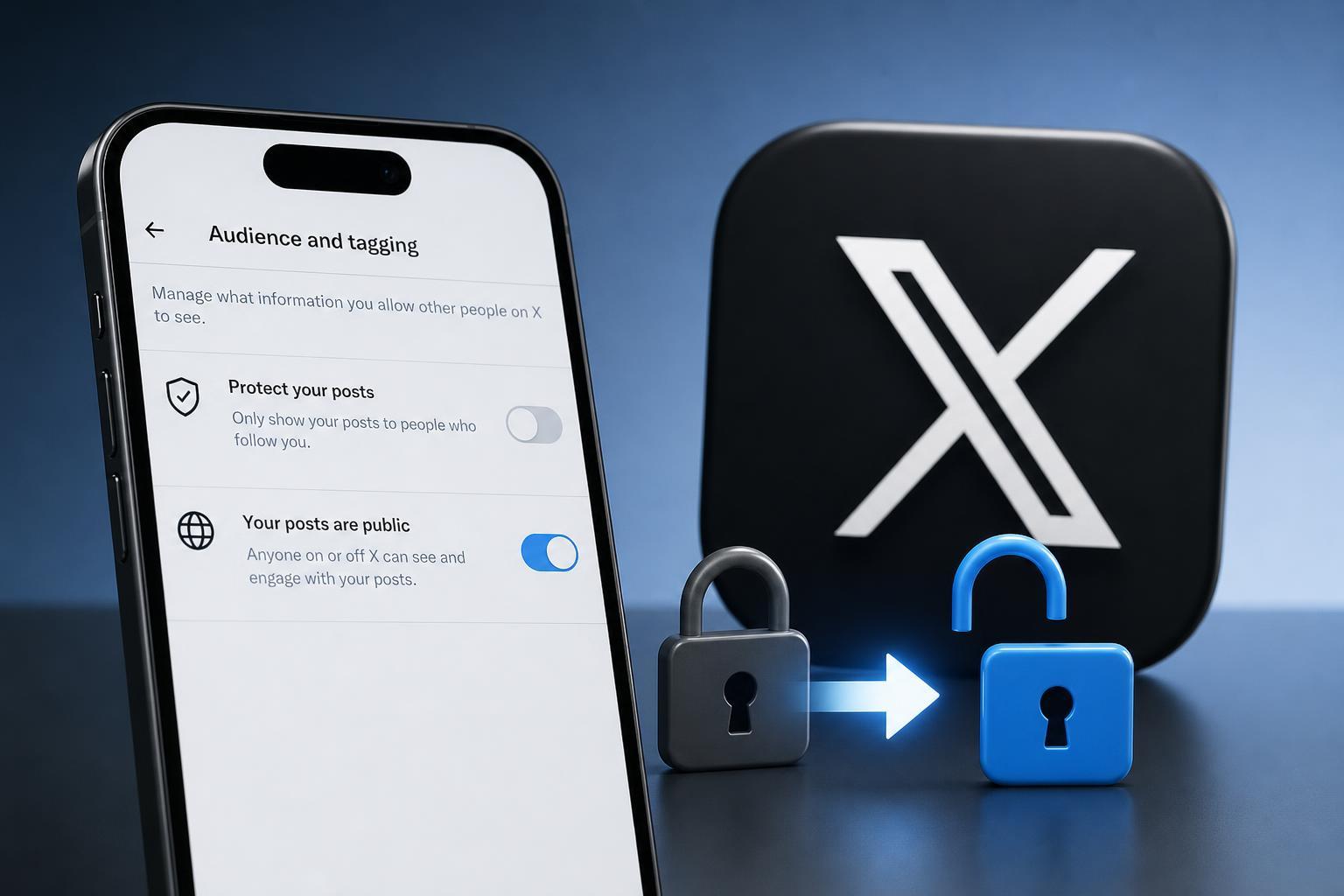
What Changes When You Make Your Account Public
When you turn off tweet protection, your posts become visible to anyone on X and, depending on your other privacy settings, may also be discoverable outside the platform. People can see your profile, posts, replies, and media without needing approval to follow you.
- Anyone can view your posts and profile information
- New followers do not need approval
- Your protected-post setting is removed
- Older public activity may become easier to find through search or sharing
How to Unprotect Your Tweets on X
- Open the X app or go to X in a web browser and sign in.
- Select your profile icon or menu button.
- Open Settings and privacy.
- Go to Privacy and safety.
- Open Audience, media, and tagging or Posts, depending on the version you see.
- Find the option labeled Protect your posts or Protect your Tweets and turn it off.
- Confirm the change if X asks you to.
After this setting is disabled, your account becomes public immediately. You do not need to wait for a review period or additional approval.
How to Check That Your Account Is Public
- Visit your profile while signed out, or ask someone who does not follow you to view it.
- Look for your posts without logging in to a follower-approved account.
- Check whether the lock icon has disappeared from your profile.
If the lock icon is gone and posts are visible without approval, your account is public.
Things to Consider Before Making the Change
- Your current followers will remain followers after the change.
- Anyone can reply, repost, or quote your public posts based on your post settings.
- Old protected posts may become visible once your account is public.
- If you want to stay private later, you can turn protection back on from the same menu.
If You Do Not See the Privacy Option
If the menu looks different, update the X app first or try the desktop website. Some privacy settings move around depending on app version and platform. If you are using an organization-managed or restricted account, some options may be limited.
- Update the X app to the latest version
- Try the desktop site if the mobile app layout is different
- Sign out and back in if the settings menu is not loading correctly
- Check whether your account is managed by a business, school, or organization
When Making Your Account Public Makes Sense
A public account is usually the better choice if you want more reach, easier sharing, and a profile that people can view without asking to follow you. A protected account is better if you want tighter control over who sees your activity.





