
Excel’s automatic date conversion can be frustrating when you type something that looks like a date, such as 1-2, 3/4, or 10-12, and Excel changes it into a date format you did not want. This happens because Excel tries to interpret the entry based on its built-in formatting rules.
The good news is that you can prevent it in several ways, depending on whether you are entering data manually, pasting it in, or importing it from another source.
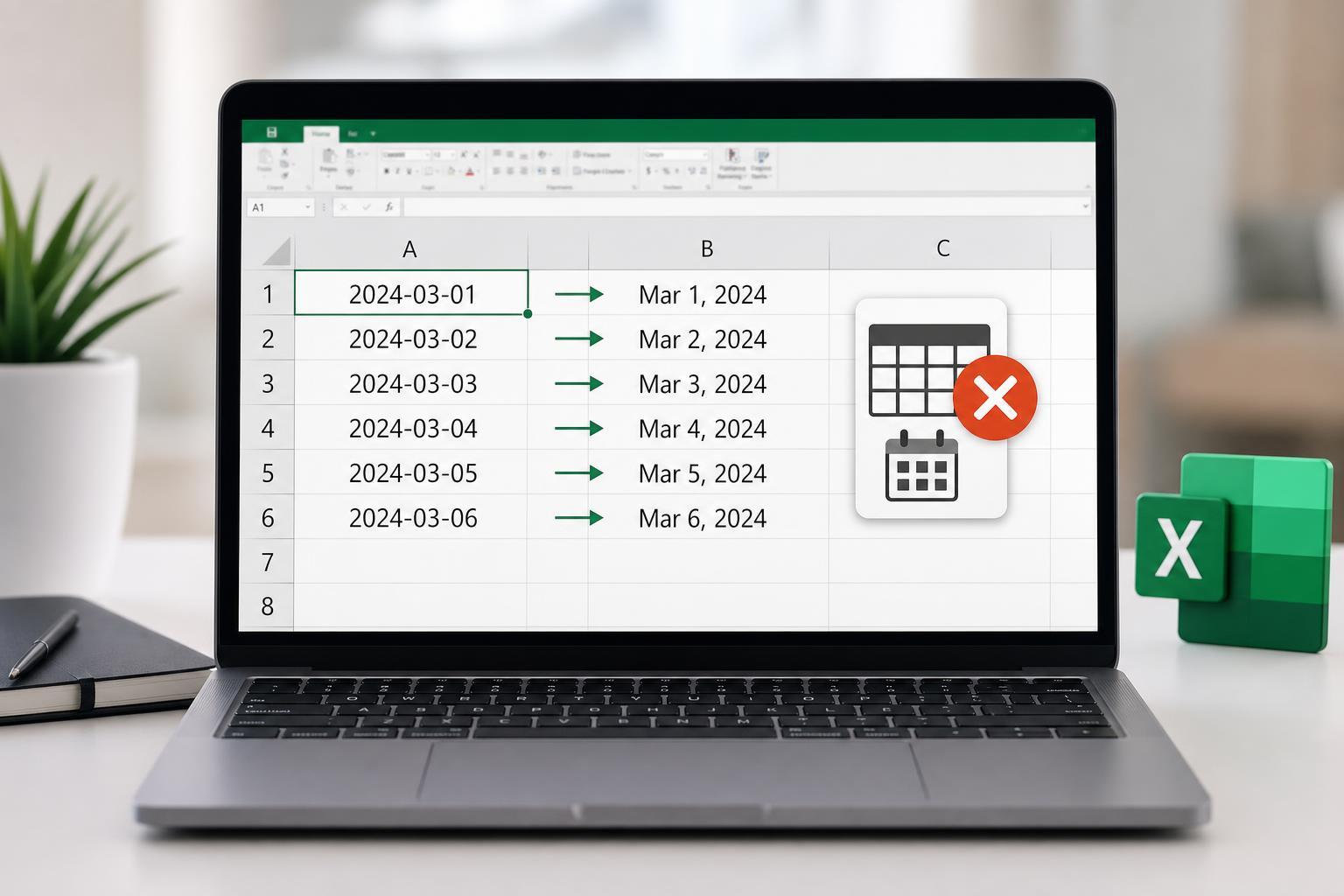
Why Excel Changes Your Entry to a Date
Excel treats many inputs as dates because dates are a common spreadsheet value and Excel tries to guess the intended format automatically. If your entry matches a pattern Excel recognizes, it may convert it before you finish editing the cell.
- Entries like 1-2, 3/4, or 10-12 can be read as dates
- Cells formatted as Date may force new entries into date format
- Pasted data can inherit date formatting from the source or destination
- Regional settings can change how Excel interprets slashes and hyphens
The Best Ways to Stop Autoformatting as Date
- Format the cells as Text before entering anything. Select the cells, open the Number Format dropdown on the Home tab, and choose Text. Then type your values. This is the most reliable fix for manual entry.
- Start the entry with an apostrophe. For example, type '1-2 or '03/04. Excel displays the value without the apostrophe and keeps it as text.
- Use a leading space only if you are sure you need a visual workaround. This is less reliable than an apostrophe and can cause problems when sorting or exporting data.
- If you are pasting data, use Paste Special and choose Values or Text where appropriate. This helps avoid bringing over unwanted date formatting.
- If the problem happens in imported data, make sure the import step assigns the column as Text instead of Date. This is especially important in CSV imports or Power Query workflows.
How to Format Cells as Text Before Typing
This is the safest method when you know in advance that Excel should not interpret the entries as dates.
- Select the cells or entire column where you plan to enter the data.
- On the Home tab, open the Number Format drop-down.
- Choose Text.
- Enter your values normally.
- If some values were already entered, re-enter them after changing the format so Excel stores them as text.
Using an Apostrophe to Force Text
Typing an apostrophe before the value tells Excel to treat the entry as text instead of trying to interpret it as a number or date.
- Type '1-2 to keep the exact characters visible as 1-2
- Type '03/04 to prevent Excel from converting it to a date
- Useful for one-off entries or small amounts of data
- Less practical if you need to enter many values this way
If Excel Already Converted the Value
If Excel has already changed your input into a date, switching the cell format alone may not restore the original value. You usually need to undo the conversion by re-entering the data as text.
- Select the affected cell.
- Change the format to Text.
- Delete the incorrect date value.
- Type the original value again, using Text format or an apostrophe.
- Press Enter to confirm the text version.
What to Do When Pasting Data into Excel
Pasting from another program can trigger the same problem, especially if the source contains values that resemble dates.
- Use Paste Special to control what gets pasted
- Paste into cells that are already formatted as Text
- If available, use import tools instead of direct paste for large datasets
- Check the pasted results immediately for unwanted date conversion
Preventing Date Autoformatting During Imports
When importing CSV files, text files, or data from other sources, Excel may guess the column type incorrectly. This is common when the column contains values that look like dates but are really codes, IDs, or labels.
- Use the import wizard or Power Query when possible.
- Set the affected column type to Text during the import step.
- Review the preview carefully before finishing the import.
- If Excel still guesses incorrectly, import into a blank sheet and correct the column type there.
Common Situations Where This Matters
- Part numbers such as 1-2 or 10-12
- Product codes with slashes or hyphens
- Inventory labels and serial numbers
- School, lab, or office data that uses date-like codes
- Anything that must stay exactly as typed
When You Should Let Excel Use Dates
Not every automatic date conversion is a problem. If you are entering actual dates for schedules, invoices, logs, or timelines, Excel’s date handling is useful and usually saves time.
Quickest Fix to Try First
If you only need a simple answer, format the target cells as Text before typing or pasting anything. If you are handling just one value, use an apostrophe before the entry. Those two methods solve most cases without requiring deeper changes.





