
If you want to appear in a Zoom meeting without turning on your camera, Zoom can show your profile picture instead of a blank tile or live video. This is useful for privacy, low-bandwidth connections, or times when you simply do not want to be on camera.
The exact behavior depends on whether your video is off, whether you have a profile picture set in Zoom, and whether the meeting host has restricted participant video. Here is how to set it up correctly and make sure it appears during a meeting.
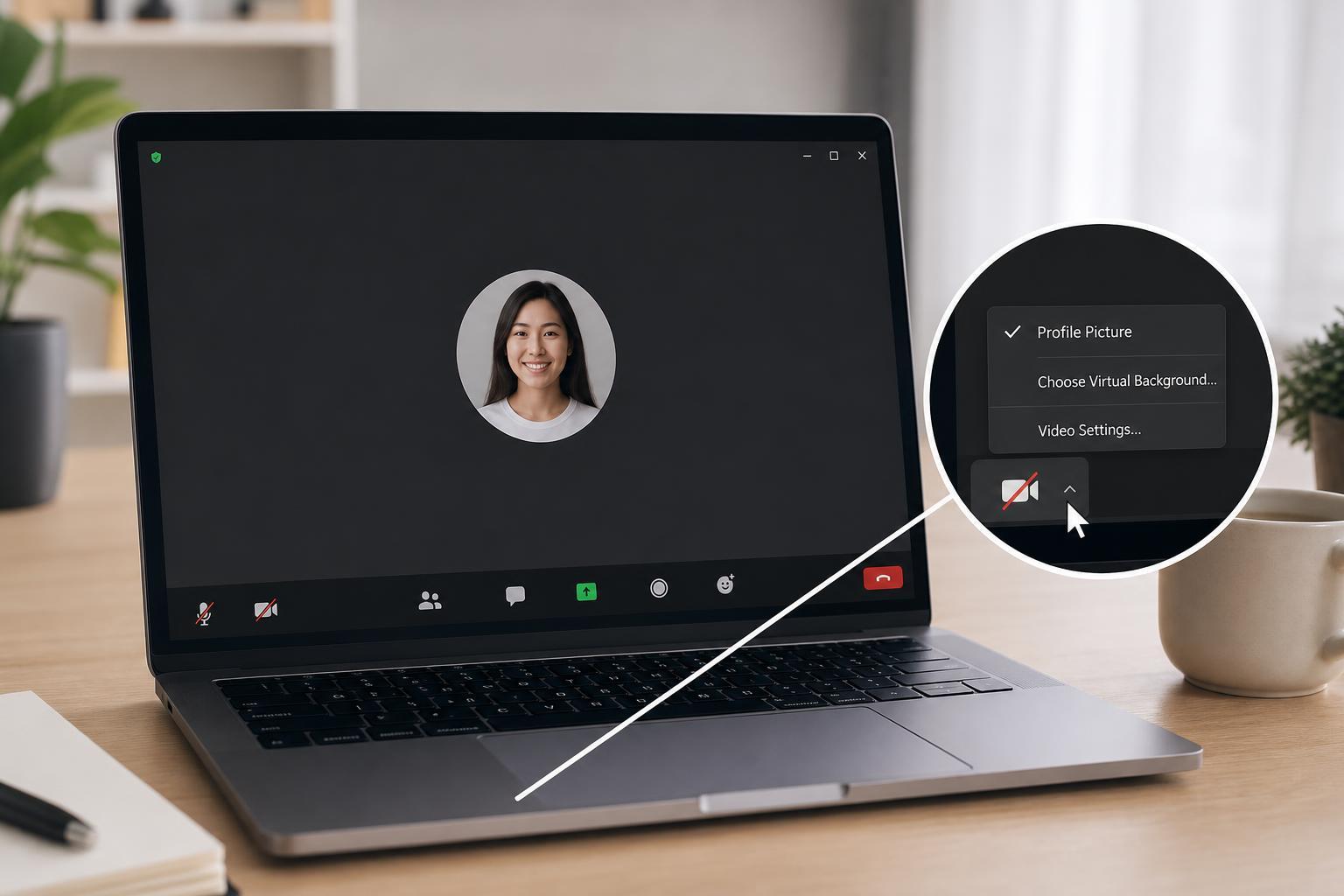
Set a Profile Picture in Zoom First
Zoom can only show a profile picture if one is already attached to your account. If you have never uploaded one, the meeting tile may show your initials instead.
- Sign in to your Zoom account in the Zoom desktop app or on the Zoom web portal.
- Open your profile settings.
- Choose your profile picture or avatar option.
- Upload a clear image and save the change.
- If prompted, make sure the picture is visible to your Zoom account and not restricted to a different sign-in method.
Turn Off Your Camera Before or During the Meeting
To show your profile picture, your live video needs to be off. Once the camera is disabled, Zoom should replace the video feed with your profile image if the account has one.
- Before joining, look for the 'Turn off my video' option in the join screen and enable it.
- If you are already in the meeting, click or tap the camera icon labeled 'Stop Video'.
- Wait a moment for Zoom to switch from the live camera feed to your profile picture.
- If you still see initials instead of the picture, leave and rejoin after confirming the correct account is signed in.
Why the Profile Picture May Not Appear
If Zoom is not showing your picture, the cause is usually one of a few common settings or account issues rather than a problem with the meeting itself.
- No profile picture has been uploaded to the signed-in Zoom account
- You joined the meeting while not signed in, or signed in with the wrong account
- The host has disabled participant profile pictures or restricted non-video behavior
- Your app is out of date and not syncing the latest account settings
- The camera is still on, so Zoom continues showing live video instead of the profile image
Check Zoom Meeting Settings That Can Affect Display
Some meeting hosts and organizations use settings that change how participants appear. These controls can limit whether a profile image shows up when video is off.
- Allow participants to self-select display names and pictures
- Require sign-in before joining a meeting
- Disable participant video on entry
- Use organization-managed Zoom accounts with restricted profile settings
- Hide profile photos in meetings for security or policy reasons
If You Are Using the Zoom Desktop App
The desktop app is usually the easiest place to verify your profile photo and video behavior.
- Open Zoom and sign in.
- Select your profile icon in the top-right corner.
- Open your profile or settings page and confirm that a picture is uploaded.
- Join a meeting with video off.
- If needed, stop your camera during the meeting and confirm that the profile picture appears.
If You Are Using the Zoom Mobile App
On a phone or tablet, the same general rule applies: your camera must be off for the profile picture to show.
- Open the Zoom app and sign in to the correct account.
- Check that a profile photo is saved to that account.
- Join the meeting with your video disabled.
- If you are already in the call, tap 'Stop Video'.
- If the app still shows initials, leave the meeting and join again after confirming the account and photo.
When You Still See Initials Instead of a Photo
If Zoom shows initials, it usually means the account photo is missing, unavailable, or not being used for the current session.
- The account has no uploaded image
- The image was not saved correctly
- You are logged into a different Zoom account than the one with the photo
- The meeting was joined before the account synced properly
- The host or organization blocks profile photos in meetings
How to Make Sure It Works Consistently
If you want your profile picture to appear every time you join a meeting with video off, keep these habits in place.
- Use one Zoom account consistently
- Keep your profile photo uploaded and current
- Join meetings while signed in instead of as a guest when possible
- Turn off video before joining if you want the picture to show immediately
- Update Zoom periodically so account and meeting settings stay in sync
Best Way to Use a Profile Picture in Zoom
A profile picture works best when it is clear, well-cropped, and easy to recognize on a small meeting tile. A simple head-and-shoulders photo usually looks better than a busy background or distant image.
What to Do If the Host Requires Video
If the host has turned on a setting that requires participants to keep video on, you may not be able to use a profile picture instead. In that case, Zoom can block or limit your ability to stay off camera.
If this happens, check the meeting rules or ask the host whether camera use is mandatory. If the meeting is under your control, review the host settings before scheduling future sessions.





