
Facebook Messenger can share your screen during a call, which is useful for walking someone through a problem, showing a presentation, or watching something together. The exact steps depend on whether you are using Messenger on a computer or on a mobile device, and audio support can vary depending on the app version and platform.
This guide explains how to start screen sharing in Messenger, how to include sound when that option is available, and what to check if the other person cannot hear anything.
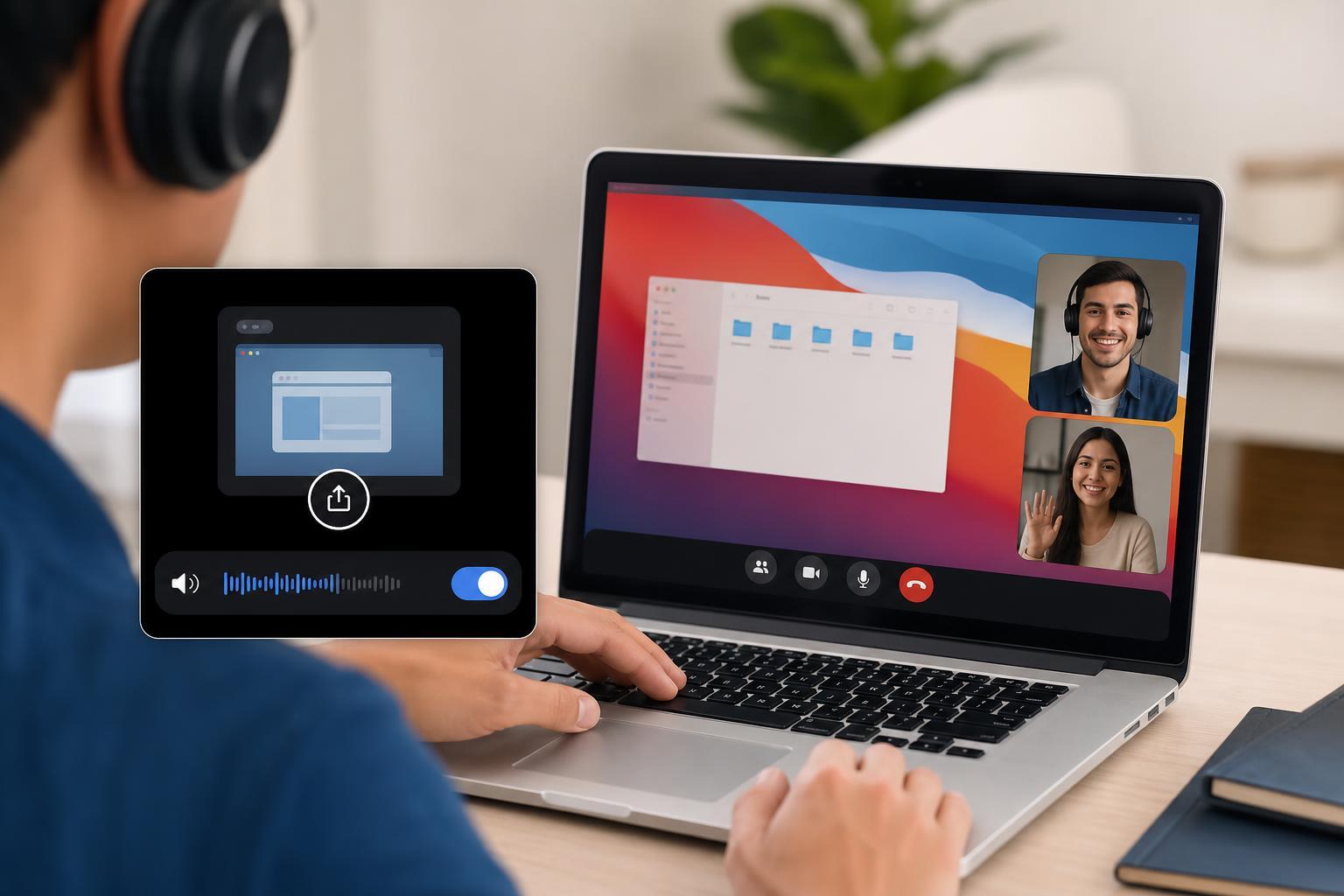
What You Need Before You Start
- A Messenger voice or video call in progress
- The Messenger desktop app or a supported web browser for the best screen sharing experience
- A stable internet connection
- Permission for your browser or app to capture your screen
- If you want audio, a device and app version that support system audio or call audio sharing
How to Share Screen in Messenger on a Computer
- Start a voice or video call in Facebook Messenger.
- During the call, look for the screen share icon or the "Share your screen" option.
- Click it and choose whether to share a full screen, a specific application window, or a browser tab, depending on what Messenger offers in your version.
- If you see an audio sharing option, enable it before starting the share.
- Confirm the selection so the other person can see your screen.
If you are using the browser version, Messenger may ask for permission to record or share your screen. You usually need to approve the browser prompt before the call can see your display.
How to Share Screen on Messenger Mobile
- Open Messenger and start a voice or video call.
- Tap the screen share option if it appears during the call.
- Follow the prompt to begin broadcasting your screen.
- Accept any system prompt that asks for recording or screen capture permission.
- Return to the call once sharing starts.
Mobile screen sharing is more limited than desktop sharing, and audio support can depend on the device and OS. Some devices let the other person hear app audio, while others only share the screen image.
How to Share Audio With Your Screen
Whether audio can be shared depends on what you are sharing and which version of Messenger you are using. In many desktop setups, you may be able to include tab audio or system audio when you choose a browser tab or an app window. On mobile devices, audio support is less consistent and may not be available in every call.
- Before starting the share, check whether Messenger offers an audio or sound-sharing toggle.
- If you are sharing in a browser, look for an option that includes tab audio or system sound.
- Make sure the app, browser, and operating system are not muted.
- If the other person still cannot hear anything, stop sharing and start again after checking the available audio options.
If Screen Share Works But Audio Does Not
- You shared a full screen instead of a browser tab or app window that supports audio
- Your browser did not get permission to capture sound
- The call volume is low or muted on either device
- Your computer is outputting sound to the wrong speaker or headset
- Messenger on your device does not support audio sharing in that mode
- The other person has their call volume muted
- End the share and start it again, choosing the option most likely to carry audio.
- Check your system volume and the volume inside Messenger.
- If you are in a browser, confirm that the tab or site is not muted.
- Try another supported browser or the Messenger desktop app if available.
- If the problem only happens on mobile, test the same call from a computer to see whether audio sharing works there.
If the Screen Share Option Is Missing
- You are not in a call yet
- Your Messenger app is out of date
- Your browser is not supported for screen sharing
- The feature is not available in your region or on your device
- Permissions for screen recording or sharing are blocked by the operating system
- Start an actual voice or video call first.
- Update Messenger to the latest version.
- If you are using a browser, try Chrome or another supported browser.
- Check your system privacy settings for screen recording or screen capture permission.
- Restart the app only if needed after changing permissions or updating the software.
Best Practices for a Clean Screen Share
- Close apps and tabs you do not want others to see
- Turn off sensitive notifications if possible
- Use a headset if you want clearer call audio
- Keep the window you want to show open before you start sharing
- Use a specific app window or browser tab when possible instead of sharing the whole desktop
When Screen Sharing in Messenger Is the Right Choice
Messenger screen sharing is most useful when you need a quick way to guide someone through something in real time. It is simpler than sending repeated screenshots, and with the right setup it can also carry audio so you can show media, instructions, or app behavior more clearly.
If the feature is unreliable on your device, the fastest fix is often to switch from mobile to desktop, or from the browser to the Messenger app, and then test audio again using a tab or window share.





