
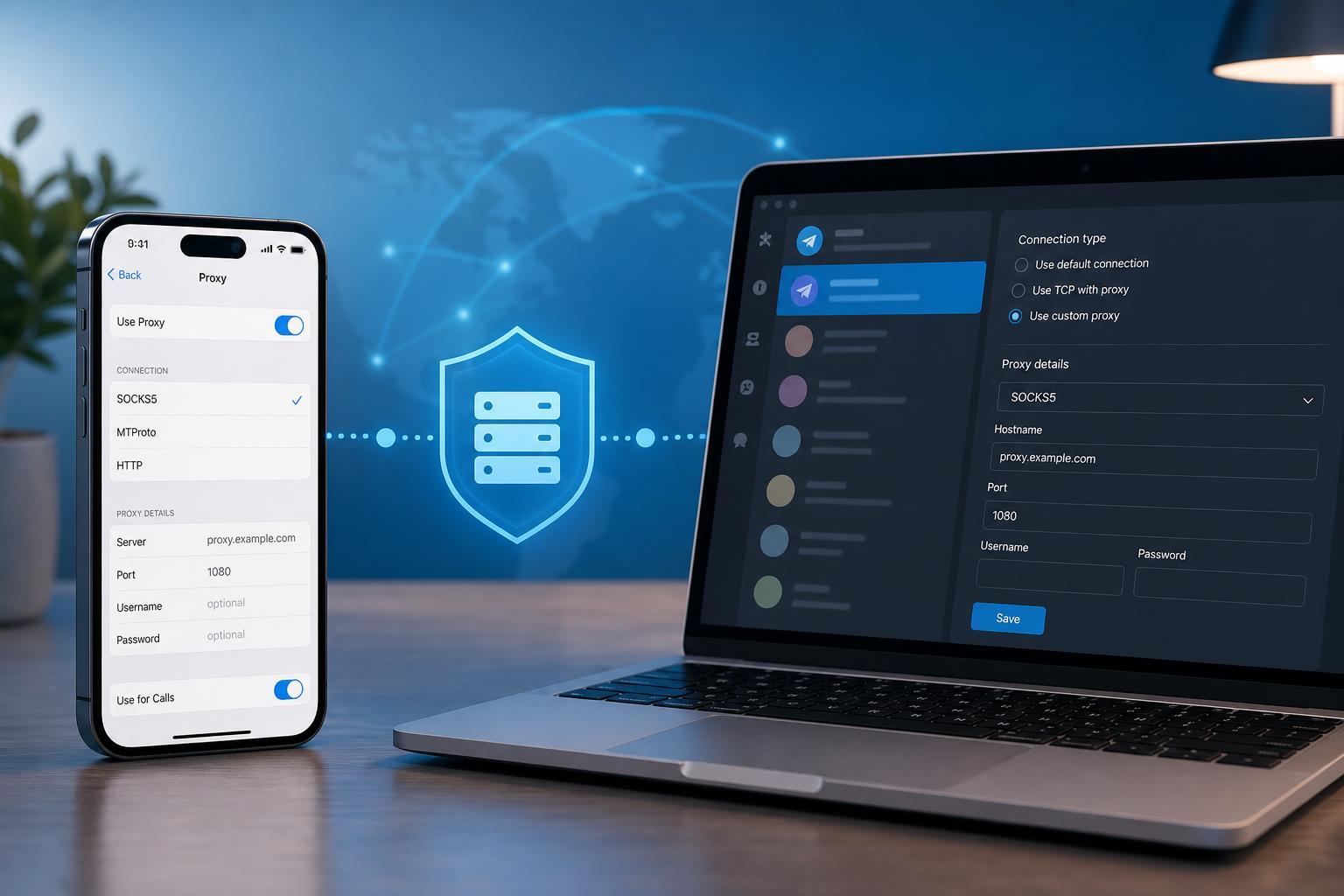
Telegram includes built-in proxy support that can help you connect when your network blocks the app or when you want to route Telegram traffic through a different server. The setup process is straightforward once you know where to find the proxy settings, but the steps vary a little between mobile and desktop apps.
This guide shows you how to configure a proxy in Telegram on Android, iPhone, Windows, macOS, and Linux, and explains what to check if the connection does not work right away.
What You Need Before You Start
- A Telegram app installed on your phone or computer
- A proxy server address
- The proxy port number
- The proxy type supported by Telegram, usually SOCKS5 or MTProto
- If required, a username and password or a proxy secret key
Set Up a Proxy on Telegram for Android
- Open Telegram and tap the menu icon in the top-left corner.
- Go to Settings.
- Scroll down and open Data and Storage.
- Tap Proxy Settings.
- Turn on Use Proxy.
- Tap Add Proxy and choose the proxy type you were given, such as SOCKS5 or MTProto.
- Enter the server address and port.
- If the proxy requires login details, enter the username and password. For MTProto, enter the secret if provided.
- Save the proxy and make sure it is enabled.
Set Up a Proxy on Telegram for iPhone and iPad
- Open Telegram and tap Settings in the bottom-right corner.
- Tap Data and Storage.
- Select Proxy.
- Turn on Use Proxy.
- Tap Add Proxy.
- Choose SOCKS5 or MTProto based on the proxy information you have.
- Fill in the server, port, and any required authentication details.
- Save the proxy and make sure Telegram is connected through it.
Set Up a Proxy on Telegram Desktop
- Open Telegram Desktop.
- Click the three-line menu in the top-left corner.
- Select Settings.
- Open Advanced.
- Scroll to the Connection section.
- Click Connection Type or Use Proxy.
- Choose SOCKS5 or MTProto.
- Enter the proxy server address and port.
- Add the username and password if the proxy uses authentication, or enter the MTProto secret if required.
- Save the settings and test the connection.
On some desktop versions, the proxy controls may appear directly in Settings rather than under Advanced. The labels can differ slightly between Windows, macOS, and Linux builds.
How to Check Whether the Proxy Is Working
- Telegram connects normally and loads chats without timing out
- You can send messages and receive media
- The proxy status inside Telegram shows as active or connected
- The app no longer reports connection errors on the network you were using
SOCKS5 vs MTProto: Which One Should You Use?
- Use SOCKS5 if your proxy provider specifically gives you a standard proxy host, port, and optional username and password.
- Use MTProto if the provider gives you a Telegram proxy link or a secret key.
- Do not mix the two formats, because the wrong type will not connect properly.
Common Problems and Fixes
- Double-check the server address and port for typing mistakes
- Make sure you selected the correct proxy type
- Confirm that username and password fields are filled in if the proxy requires them
- If using MTProto, verify that the secret is correct and complete
- Try a different network to rule out a local ISP or Wi-Fi block
- Remove the proxy and add it again if the saved settings look wrong
How to Remove or Change a Telegram Proxy
- Open Telegram settings.
- Go back to the Proxy or Connection settings screen.
- Disable the active proxy or switch to a different one.
- If needed, delete the saved proxy entry and add a new server with the correct details.
- Reconnect and confirm that Telegram is loading normally.
Using a Proxy Link in Telegram
If someone gives you a Telegram proxy link instead of manual server details, tapping the link usually opens Telegram and offers to add the proxy automatically. Review the details before enabling it, especially the source of the link and the proxy type.
When a Proxy Is Useful
- Accessing Telegram on networks that block it
- Working around temporary connection restrictions
- Using a Telegram-specific proxy shared by a trusted source
- Separating Telegram traffic from your regular internet use
A proxy can help Telegram connect, but it is not a universal fix for all network problems. If other apps also have trouble connecting, the issue may be with your internet connection, router, or DNS rather than Telegram itself.





