
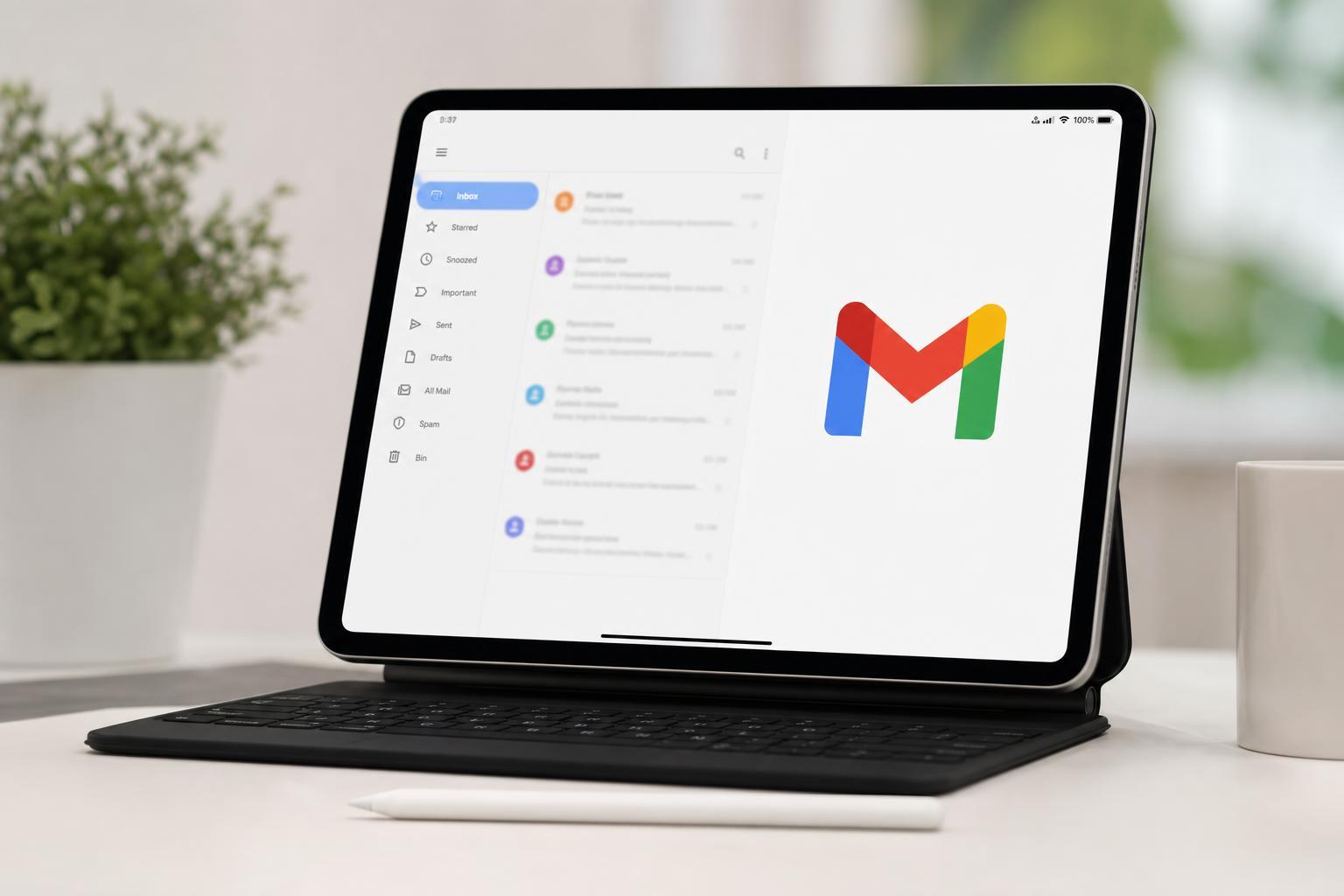
You can use Gmail on an iPad in two main ways: through Apple’s Mail app or with the official Gmail app. Both options work well, but they offer slightly different experiences depending on whether you want a simple inbox, Google features, or easier access to multiple Gmail accounts.
This guide walks through both methods, shows what to check before you begin, and explains the most common setup problems so you can get your email working quickly.
Before You Start
To set up Gmail on an iPad, you only need your Gmail address and password. If you use two-step verification on your Google account, be ready to approve the sign-in on another device or enter a verification code when prompted.
- A working internet connection on the iPad
- Your Gmail email address
- Your Google account password
- Access to your phone or other device if two-step verification is enabled
Option 1: Add Gmail to the iPad Mail App
This is the easiest choice if you want Gmail to appear alongside other email accounts in Apple Mail.
- Open the Settings app on your iPad.
- Scroll down and tap Mail.
- Tap Accounts, then tap Add Account.
- Select Google from the list of account providers.
- Enter your Gmail address and tap Next.
- Enter your password and complete any verification steps.
- Choose which Google services you want to sync, such as Mail, Contacts, Calendars, or Notes.
- Tap Save if you are prompted to finish the setup.
Option 2: Use the Gmail App
The Gmail app is the best choice if you want the full Google email experience, including Gmail’s labels, search tools, and account switching.
- Open the App Store on your iPad.
- Search for Gmail and install the official Google Gmail app.
- Open the app after installation.
- Tap Sign in.
- Enter your Gmail address and tap Next.
- Enter your password and follow the on-screen verification steps.
- Allow notifications if you want alerts for new messages.
Which Setup Method Should You Choose?
Use Apple Mail if you want a simple built-in email app that can manage Gmail and non-Gmail accounts together. Use the Gmail app if you want Gmail’s full feature set and the closest experience to using Gmail in a browser.
- Choose Mail if you want one app for all email accounts
- Choose Gmail if you want Google’s built-in organization tools
- Choose Mail if you prefer Apple’s interface and system integration
- Choose Gmail if you need faster switching between Gmail accounts
If Gmail Does Not Sign In
If the account will not add, the problem is often related to sign-in approval, an old password, or a temporary Google security check.
- Double-check that the Gmail address and password are correct.
- If two-step verification is enabled, confirm the login on your phone or enter the code Google sends you.
- Make sure the iPad is connected to the internet.
- If you recently changed your Google password, try signing in again with the new one.
- Remove the account and add it again if the sign-in process gets stuck.
If New Emails Are Not Appearing
If Gmail is signed in but messages are not updating, the issue is usually sync or notification related.
- Open Settings and check that Mail is allowed to refresh in the background if you use Apple Mail.
- In the Gmail app, make sure notifications are enabled if you expect alerts.
- Check that the account is still signed in and not showing a warning message.
- Open the inbox and pull down to refresh.
- Confirm that the iPad has Wi-Fi or mobile data access.
How to Add More Than One Gmail Account
Both Apple Mail and the Gmail app can handle multiple Gmail accounts. This is useful if you separate work, school, and personal email.
- In Apple Mail, go to Settings > Mail > Accounts > Add Account and sign in to each Google account one at a time.
- In the Gmail app, tap your profile picture and choose Add another account.
- Follow the same sign-in steps for each account.
- Switch between accounts from the account menu or profile icon.
Managing Gmail After Setup
Once Gmail is on your iPad, you can make a few small changes to improve how it behaves.
- Adjust notification settings so you only get alerts for important mail
- Choose whether contacts and calendars should sync with the iPad
- Set your default email app if you want links to open in Gmail instead of Mail
- Organize mail with labels, folders, or filters depending on the app you use
A Simple Way to Decide
If you want the fastest setup, add Gmail through Apple Mail. If you want the most complete Gmail experience, install the Gmail app and sign in there. Either way, once your account is added successfully, your inbox should start syncing within a few moments.





