If your Android phone uses the same sound for every alert, it can be hard to tell whether a message came from email, messaging, social media, or a work app. The good news is that many Android phones let you set different notification sounds for different apps, and in some cases even different sounds for different types of alerts inside the same app.
The exact steps depend on your phone brand and Android version, but the general idea is the same: open the app’s notification settings, find the notification category you want to change, and assign a sound to it. If your phone does not support app-specific sounds directly, there are still a few workarounds.
What Android Can and Cannot Do
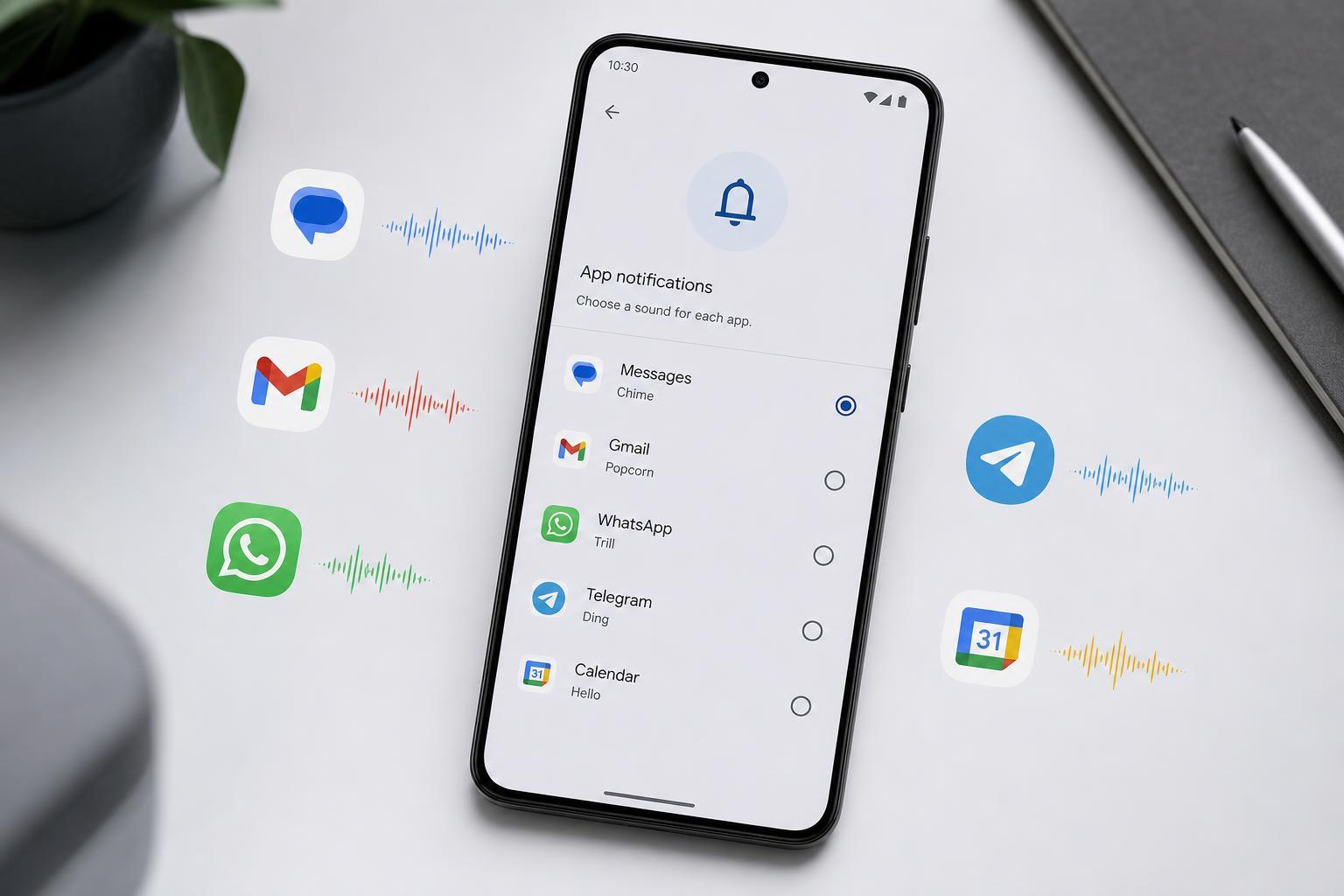
Android notification controls vary by app and by phone manufacturer. Some phones let you choose a custom sound for each app notification channel, while others only let you change the global system notification tone. Modern Android versions often support per-app notification channels, which is the feature that makes this possible.
If an app supports notification channels, you may be able to assign one sound for chat messages, another for mentions, and another for marketing alerts or reminders. If the app does not expose channels, the sound options may be limited to the app’s own settings or Android’s default notification tone.
Set a Different Notification Sound for an App
- Open Settings on your Android phone.
- Tap Apps, Apps & notifications, or Applications depending on your device.
- Select the app you want to customize.
- Tap Notifications.
- Look for a notification category, channel, or type of alert.
- Tap Sound and choose the tone you want for that app or notification type.
- Save the change and repeat for any other apps you want to customize.
On some phones, the path may be slightly different. Samsung, Google Pixel, OnePlus, Xiaomi, and other brands sometimes place the notification controls in different menus, but the target is still the app’s notification settings.
Change Notification Sounds From Inside the App
Many messaging and social apps also include their own notification settings. This is often the easiest place to customize sounds because the app may let you control different alert types separately.
- Open the app you want to customize.
- Go to its Settings or Notifications menu.
- Choose the category you want to change, such as messages, group chats, mentions, calls, or reminders.
- Select Sound or Notification tone.
- Pick a tone and save your changes.
This method is especially useful for apps like messaging platforms, email clients, calendars, and task managers, because they often have more detailed controls than Android’s main settings screen.
If You Use Samsung, Pixel, or Another Major Brand
Some Android manufacturers add their own notification menus. The feature is usually still there, but it may be labeled differently.
- Samsung: often uses a detailed Notifications screen with per-category controls.
- Google Pixel: usually follows the standard Android layout and often shows notification channels clearly.
- OnePlus and other brands: may place app notification controls in a customized settings menu.
- Xiaomi, Oppo, and similar phones: may hide some app permissions and notification options under additional menus.
If the App Does Not Offer Custom Sounds
Not every app supports custom notification sounds. In that case, your options are more limited, but you may still be able to improve how alerts are handled.
- Use the app’s built-in notification categories if available.
- Turn certain alerts off so only the most important ones make noise.
- Keep the app on a different vibration pattern if your phone supports it.
- Use a third-party automation app only if you are comfortable with extra setup and potential battery impact.
Set a Custom Sound for Messages and Contacts
If your main goal is to recognize who is contacting you, you may not need to change every app. Some messaging and phone apps let you set custom tones for specific conversations or contacts.
- Open the Messages or Phone app you use.
- Open the contact or conversation you want to customize.
- Look for Notification, Sound, or Custom tone.
- Choose a unique sound for that person or thread.
- Repeat for important contacts if needed.
This is useful when you want your family, work contacts, or urgent messages to stand out without changing every app on the phone.
How to Tell Whether Your Change Worked
After changing a notification sound, test it if possible. Send a test message, set a reminder, or wait for the next alert from that app. If the sound is unchanged, the app may be overriding the system setting or using a notification channel you did not edit.
- Check whether you changed the correct notification category.
- Make sure the app is allowed to send notifications.
- Confirm the phone is not in Do Not Disturb mode.
- Look for separate sound settings inside the app itself.
Troubleshooting Common Problems
If you still cannot set different sounds, the most likely reason is that the app or phone does not expose that level of control. In that case, try these practical checks.
- Update the app, because older versions may not support notification channels properly.
- Update Android system software if an update is available.
- Check app permissions and notification permissions.
- Make sure battery optimization is not blocking the app from behaving normally.
- Reset the app’s notification settings only if you are comfortable reconfiguring them afterward.
Best Way to Organize Notification Sounds
The easiest setup is usually to reserve one sound for urgent alerts, one for messaging apps, and the default tone for everything else. That keeps your phone easy to understand without making every app sound completely different.
If you only customize a few important apps, you are more likely to notice the alerts that matter most and ignore the ones that do not need immediate attention.
What If Your Phone Still Won’t Allow It?
If your Android phone does not support per-app notification sounds the way you want, the limitation may be due to the app, the manufacturer’s software, or the Android version you are using. In that situation, the most realistic options are to use app-level notification controls, rely on vibration patterns, or choose a phone brand and Android version with stronger notification management.
For most users, though, the needed controls are already built in—you just have to find the right app notification category and change its sound separately from the main system tone.