
Android Developer Options is a hidden settings menu, so it can be confusing when you cannot find it at all. In most cases, the feature is still available and just needs to be enabled correctly, but sometimes a device-specific setting or software issue gets in the way.
This guide walks through three practical ways to fix Android Developer Options not showing up, from checking the correct path in Settings to clearing out issues that can block the menu from appearing.
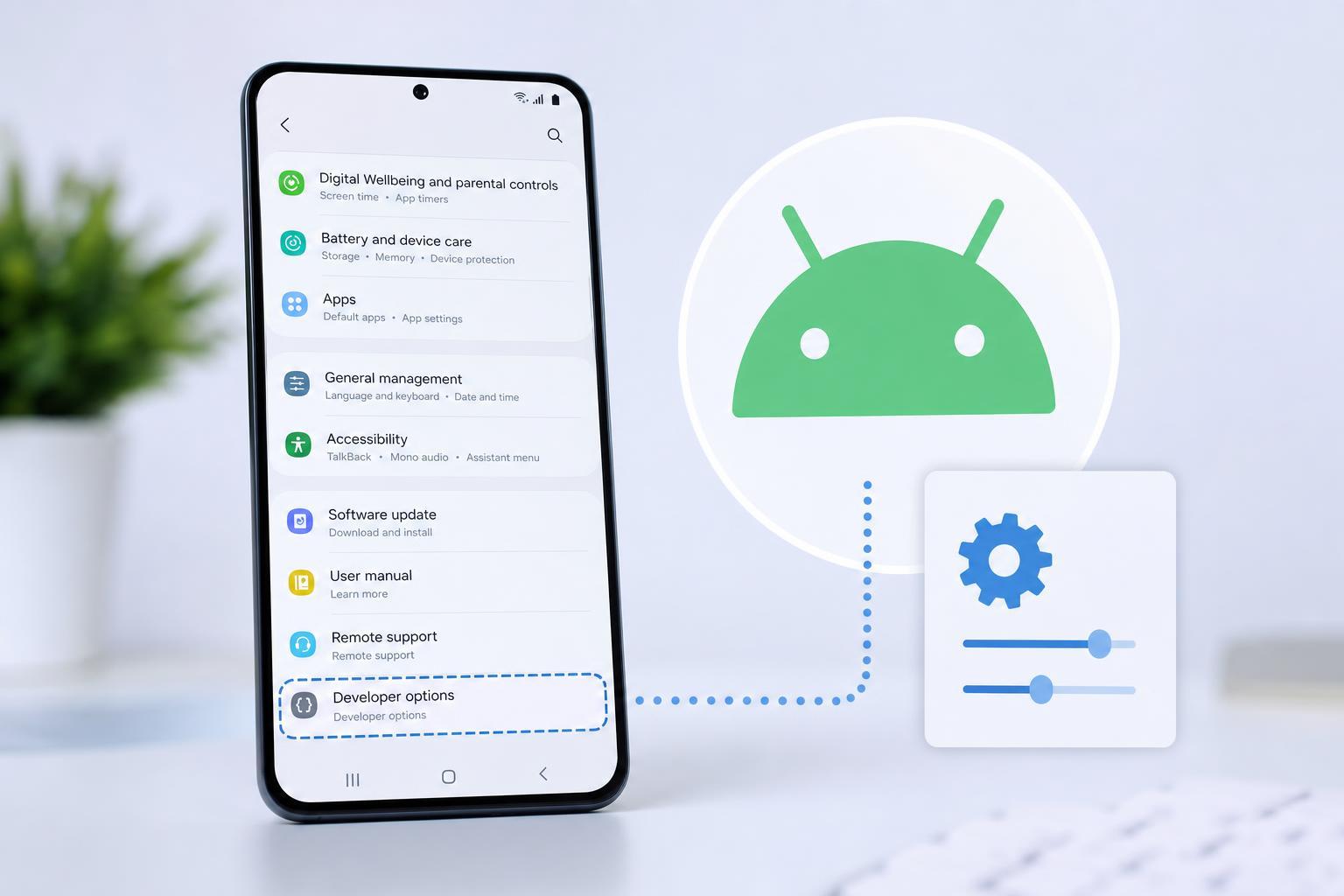
1. Make Sure You Are Enabling It the Right Way
On Android, Developer Options does not appear until you tap the Build number enough times in the correct place. The location can vary slightly by phone brand, but it is usually inside the About phone or About device section.
- Open Settings.
- Go to About phone, About device, or System > About phone.
- Find Build number or Software information.
- Tap Build number seven times in a row.
- Enter your PIN, password, or pattern if prompted.
- Go back to the main Settings screen and look for Developer options, usually under System or Additional settings.
2. Look for Device-Specific Menu Differences
Android is not identical across all brands. Samsung, Google Pixel, Xiaomi, OnePlus, Motorola, and others may hide the menu in different places even though the feature works the same way.
- Samsung: Settings > About phone > Software information > Build number
- Pixel: Settings > About phone > Build number
- Xiaomi/Redmi/Poco: Settings > About phone > All specs > MIUI version or Build number
- OnePlus: Settings > About device > Version > Build number
- Some Android tablets: Settings > System > About tablet > Build number
If Developer Options still does not appear after unlocking it, use the Settings search bar and search for "Developer options" or "Build number." Some devices also place it under System, Additional settings, or Advanced settings rather than directly under Settings.
3. Check for Restrictions, Corruption, or Missing Updates
If the menu should be there but still will not show, the problem may be caused by a restriction, a modified system interface, or a software glitch affecting Settings.
- Check whether parental controls, work management, or admin policies are restricting advanced settings.
- Open Settings search and confirm that Developer options is not simply hidden in another category.
- Install any available Android system updates, since outdated builds can sometimes cause Settings menus to behave oddly.
- If your phone recently changed launcher, theme, or system customization tools, temporarily disable them and check again.
- As a last resort, back up your data and reset Settings or restore the device to its default configuration if the menu remains unavailable.
How to Confirm It Is Working
Once Developer Options appears, open it and check for common items such as USB debugging, OEM unlocking, animation scales, and background process limits. If you see those settings, the menu has been enabled successfully.
- USB debugging: used for connecting the phone to development tools
- OEM unlocking: may be required for bootloader-related tasks on some devices
- Animation scale options: often changed for performance testing or faster navigation
- Background process limit: useful for testing app behavior under memory pressure
When the Menu Still Will Not Appear
If you have confirmed the correct steps and the menu is still missing, the phone may be restricted by your carrier, employer, or device administrator. In that case, the issue is usually not a normal Android settings problem and may require removing management policies or contacting the device administrator.
For most personal phones, though, the fix is usually as simple as finding the correct Build number screen and tapping it enough times. Once you know where your device hides that option, Developer Options should stay available unless something later changes the system settings.





