
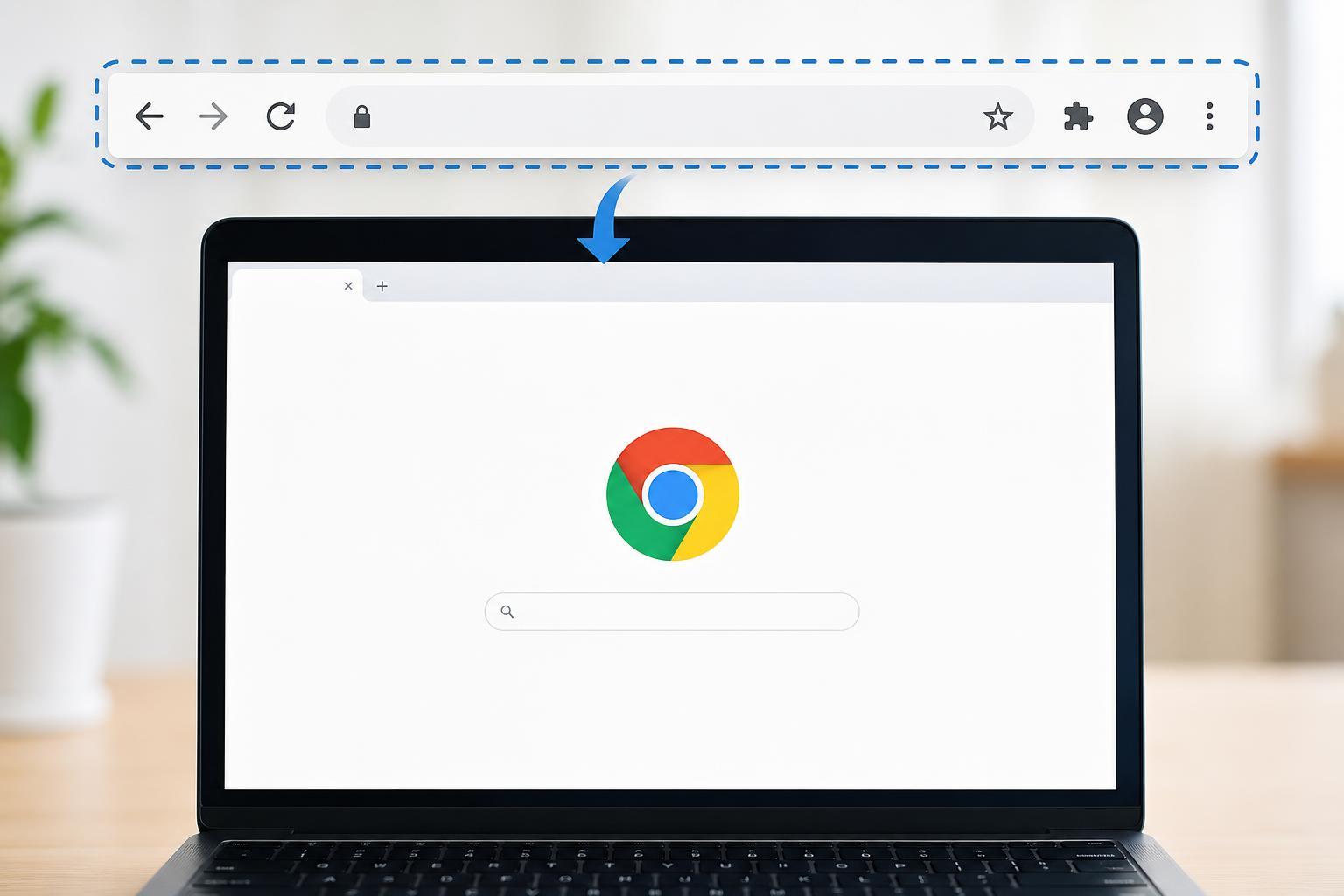
If the Google Chrome toolbar has disappeared, the cause is usually simple: full-screen mode, a hidden bookmarks bar, an extension issue, or a corrupted browser setting. The fix depends on which part of the toolbar is missing, since Chrome uses the word “toolbar” to refer to a few different interface elements.
This guide walks through the most likely causes and shows how to bring back the address bar, bookmarks bar, and other Chrome controls without changing more than you need to.
First, Identify What Is Actually Missing
Before you try a fix, check which part of Chrome has disappeared. Different missing elements have different solutions.
- Address bar and tabs are gone: Chrome may be in full-screen mode.
- Bookmarks bar is missing: it may simply be turned off.
- Extension icons are missing: the extensions may be hidden or disabled.
- The whole top bar looks unusual: a browser setting, profile issue, or display problem may be involved.
Exit Full-Screen Mode
If the address bar, tabs, and controls are all missing, Chrome may be running in full-screen mode.
- Press F11 on Windows or Command + Control + F on Mac to toggle full-screen mode off.
- If you are on a laptop and F11 does not work, try holding the Fn key as well.
- Move your mouse to the very top of the screen to see whether the browser controls appear temporarily.
Turn the Bookmarks Bar Back On
If your bookmarks disappeared but the tabs and address bar are still visible, the bookmarks bar is probably turned off.
- Open Chrome.
- Select the three-dot menu in the top-right corner.
- Go to Bookmarks.
- Choose Show bookmarks bar.
- You can also press Ctrl + Shift + B on Windows or Command + Shift + B on Mac to toggle it instantly.
Restore Missing Extension Icons
If only your extension icons are missing from the top-right of Chrome, they may be hidden behind the Extensions menu or pinned off the toolbar.
- Click the puzzle-piece Extensions icon near the top-right of Chrome.
- Look for the extension you want to restore.
- Click the pin icon next to it to keep it visible on the toolbar.
- If the extension is not listed, check whether it is still installed and enabled under the Extensions menu.
Check Whether Chrome Is Running in a Restricted Window Size
Sometimes the toolbar looks missing because the Chrome window is too small, maximized oddly, or partially hidden behind display scaling issues.
- Maximize the Chrome window if it is only partially expanded.
- Drag the window edges to make sure the top controls are not hidden.
- If you use multiple monitors, move Chrome to the main screen and check whether the toolbar appears normally.
- Turn off any unusual display scaling or zoom settings if Chrome looks clipped.
Reset Chrome’s Interface Settings
If Chrome still looks wrong, one of its settings or a browser feature may be interfering with the toolbar layout.
- Open Chrome settings from the three-dot menu.
- Go to Appearance.
- Check whether the Home button, bookmarks bar, or theme settings need to be turned back on.
- If the browser still looks unusual, use the Chrome reset option to restore settings without deleting your Google account data.
Disable Problematic Extensions
A bad extension can hide interface elements, change how Chrome looks, or interfere with the toolbar loading correctly.
- Open the Extensions menu.
- Turn off recently added or suspicious extensions one by one.
- Restart Chrome after disabling each one if needed.
- If the toolbar returns, re-enable extensions gradually to identify the one causing the problem.
Update or Reinstall Chrome if Needed
If none of the interface fixes work, Chrome itself may be corrupted or outdated.
- Open the three-dot menu and go to Help.
- Select About Google Chrome.
- Let Chrome check for updates and install any available update.
- If the toolbar is still missing afterward, reinstall Chrome after backing up any important local data.
What If Chrome Looks Normal but the Toolbar Is Still Gone?
If the tabs, address bar, and buttons are visible but a specific toolbar item is missing, the problem is usually limited to one feature rather than Chrome itself.
- Bookmarks bar missing: toggle it on from the Bookmarks menu or with the keyboard shortcut.
- Extension icon missing: pin the extension again from the Extensions menu.
- Home button missing: enable it in Appearance settings.
- Profile icon or menu missing: check for window size issues, custom themes, or a browser glitch.
When to Try a New Chrome Profile
If Chrome works correctly in another profile, the issue may be tied to one user profile rather than the whole browser installation.
- Open Chrome and click your profile icon.
- Create a new profile or sign in with a different one.
- Check whether the toolbar appears normally in that profile.
- If it does, your original profile may have a damaged setting or extension conflict.
How to Narrow Down the Problem
If you are not sure which fix to try first, use these clues to identify the cause faster.
- Only the top controls are missing: likely full-screen mode.
- Only bookmarks are gone: likely the bookmarks bar setting.
- Only extension icons are gone: likely a pinning or extension issue.
- Chrome looks clipped or cramped: likely a window or display scaling problem.
- The browser behaves strangely after a change: likely an extension or profile setting.
Common Shortcut Reference
These shortcuts are often the quickest way to restore missing toolbar elements in Chrome.
- F11: toggle full-screen mode on Windows
- Ctrl + Shift + B: show or hide the bookmarks bar on Windows
- Command + Shift + B: show or hide the bookmarks bar on Mac
- Click the puzzle icon: manage extensions and pin them to the toolbar
Getting Chrome Back to Normal
In most cases, a missing Chrome toolbar is caused by a simple display mode change or a hidden interface setting rather than serious damage. Start with full-screen mode and the bookmarks bar, then move on to extensions, window size, and browser settings if needed.
If the problem keeps returning, pay attention to what changed just before it happened, such as a new extension, a Chrome update, or a display change. That usually points to the fastest permanent fix.





