
If someone on Snapchat is harassing you, impersonating someone else, sending spam, or sharing harmful content, you can report their account or a specific message, Snap, or Story. The process is quick, but what happens next depends on what you reported and whether Snapchat finds a violation.
This guide explains how to report a person on Snapchat, when to block them instead, and what you can realistically expect after you submit a report.
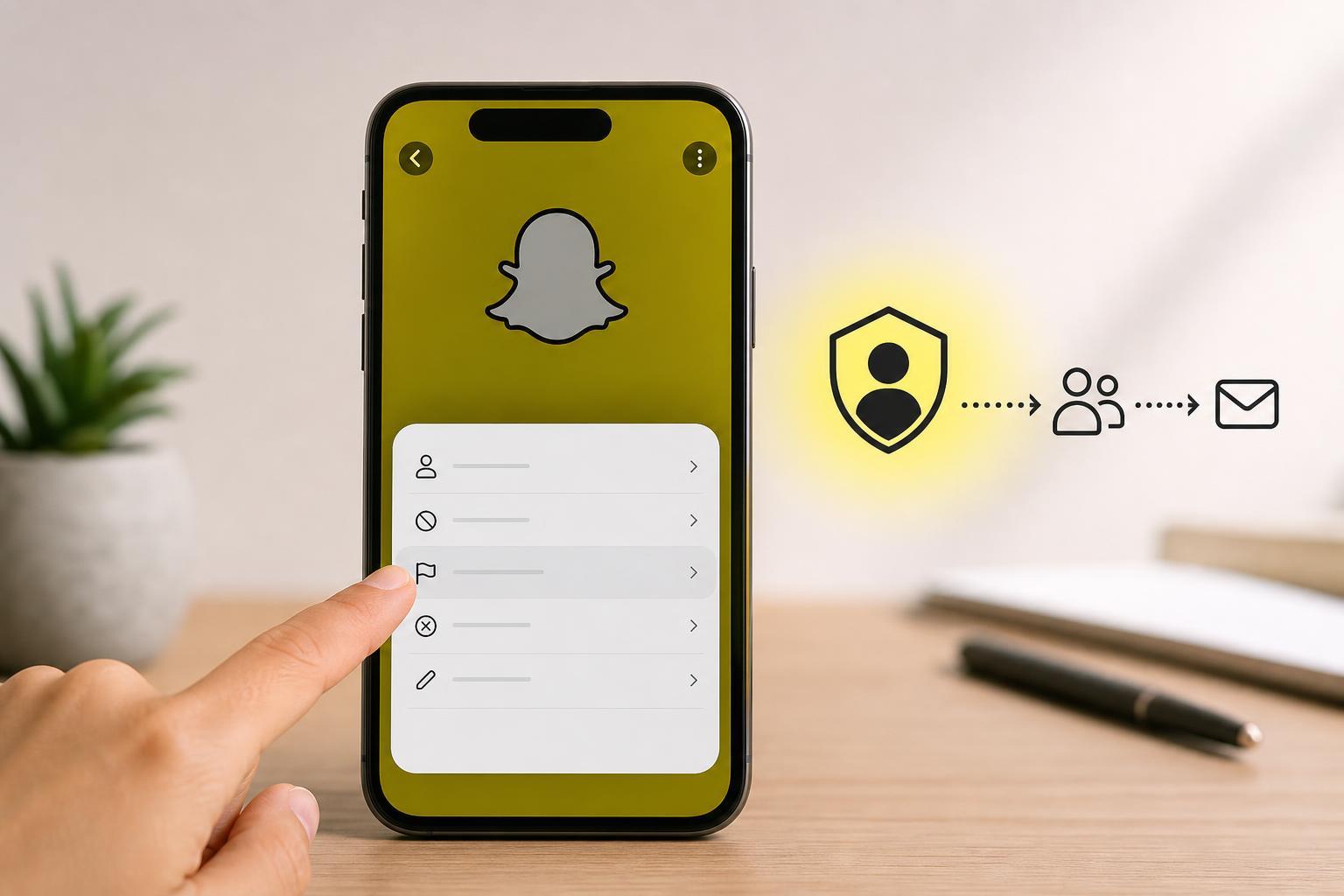
What You Can Report on Snapchat
Snapchat lets you report more than just an account. In many cases, it is better to report the exact content that violates the rules, because it gives Snapchat more context.
- A Snapchat account or profile
- A Snap or Chat message
- A Story
- A Spotlight post or public content
- A Bitmoji, display name, or other profile details if they are being used to impersonate or harass
How to Report Someone on Snapchat
You can report a user directly from their profile or from the message, Story, or post that caused the problem. The exact menu labels can vary a little between app versions, but the process is similar.
- Open Snapchat and go to the profile, chat, Story, or post you want to report.
- Tap and hold the content, or open the profile and tap the menu icon.
- Choose Report or Report a Snap/Report User if that option appears.
- Select the reason that best matches the problem, such as harassment, spam, impersonation, or hate speech.
- Follow the on-screen prompts and submit the report.
How to Report an Account from a Profile
If the issue is the person themselves rather than one specific message, reporting the profile is often the simplest option.
- Open the person's profile in Snapchat.
- Tap the three-dot menu or the menu button near their name.
- Choose Report.
- Pick the reason that fits the situation.
- Submit the report and, if needed, block the user afterward.
How to Report a Chat Message or Snap
If someone sent you a threatening, abusive, or otherwise rule-breaking message, report the specific message so Snapchat can review the exact content.
- Open the chat thread or Snap.
- Press and hold the message or Snap.
- Tap Report.
- Choose the reason for the report.
- Send it to Snapchat for review.
How to Report a Story or Public Post
Stories and public posts can also be reported if they include harassment, explicit content, impersonation, hate speech, or spam.
- Open the Story or public post.
- Tap and hold the content, or open the menu.
- Select Report.
- Choose the most accurate reason.
- Submit the report.
What Happens After You Report Someone
After you submit a report, Snapchat reviews the report and the content involved. In many cases, you will not receive a detailed explanation of the outcome, because moderation decisions are not always shared publicly.
- Snapchat may remove the content if it violates its rules.
- The account may receive a warning, restriction, or suspension.
- Repeated or serious violations can lead to permanent account removal.
- If Snapchat does not find a violation, no visible action may be taken.
Will the Other Person Know You Reported Them?
Snapchat does not typically tell the person who made the report. In most cases, the report process is designed to protect your privacy. However, the person may still realize they were reported if their content is removed or their account is restricted.
Should You Report, Block, or Both?
For one-off unwanted contact, blocking may be enough. For harassment, impersonation, scams, or repeated abuse, it is usually better to do both: report the behavior and block the account.
- Report only: when you want Snapchat to review a specific violation.
- Block only: when you simply do not want more contact.
- Report and block: when the behavior is abusive, suspicious, or repeated.
What to Do If the Issue Is Serious
Some situations need more than an in-app report. If someone is threatening you, extorting you, impersonating you in a harmful way, or targeting a minor, take extra steps.
- Save screenshots or screen recordings of the profile, messages, and any usernames involved.
- Do not keep engaging if the conversation is escalating.
- Block the account after saving evidence if you need to stop contact.
- Report the content in Snapchat.
- Contact law enforcement, a school, a parent, or another trusted authority if there is immediate danger or exploitation.
If Snapchat Doesn't Take Action
Sometimes Snapchat will not remove an account or post, even after a report. That can happen if the content does not clearly break the rules, if there is not enough evidence, or if the behavior is hard to verify from one report alone.
- Block the account so you do not keep receiving messages.
- Review your privacy settings so only friends can contact you if that fits your needs.
- Remove the person from your friends list if necessary.
- Report new violations if the behavior continues.
- Save evidence in case the situation escalates and you need to report it elsewhere.
How to Protect Yourself on Snapchat Going Forward
If you have had a bad experience with another user, tightening your privacy settings can reduce future problems.
- Set Contact Me to Friends or a tighter option if available.
- Review who can view your Story and location.
- Turn off Quick Add if you do not want unknown people contacting you easily.
- Be cautious about adding strangers back or sharing personal details.
- Use two-factor authentication to help protect your account.
A Good Rule of Thumb
If the problem is a single annoying interaction, blocking may be enough. If the person is harassing, threatening, scamming, impersonating, or spamming, report the content and block the user so you stop the contact and give Snapchat a chance to review it.





