
Excel tables are useful for sorting, filtering, and structured references, but sometimes you need the plain data without the table behavior or formatting. If you want to remove table formatting in Excel, the safest method is usually to convert the table back to a normal range while keeping the cells and values in place.
This guide shows the quickest way to remove a table, how to clear only the formatting, and what to check if Excel keeps the table behavior after you change it.
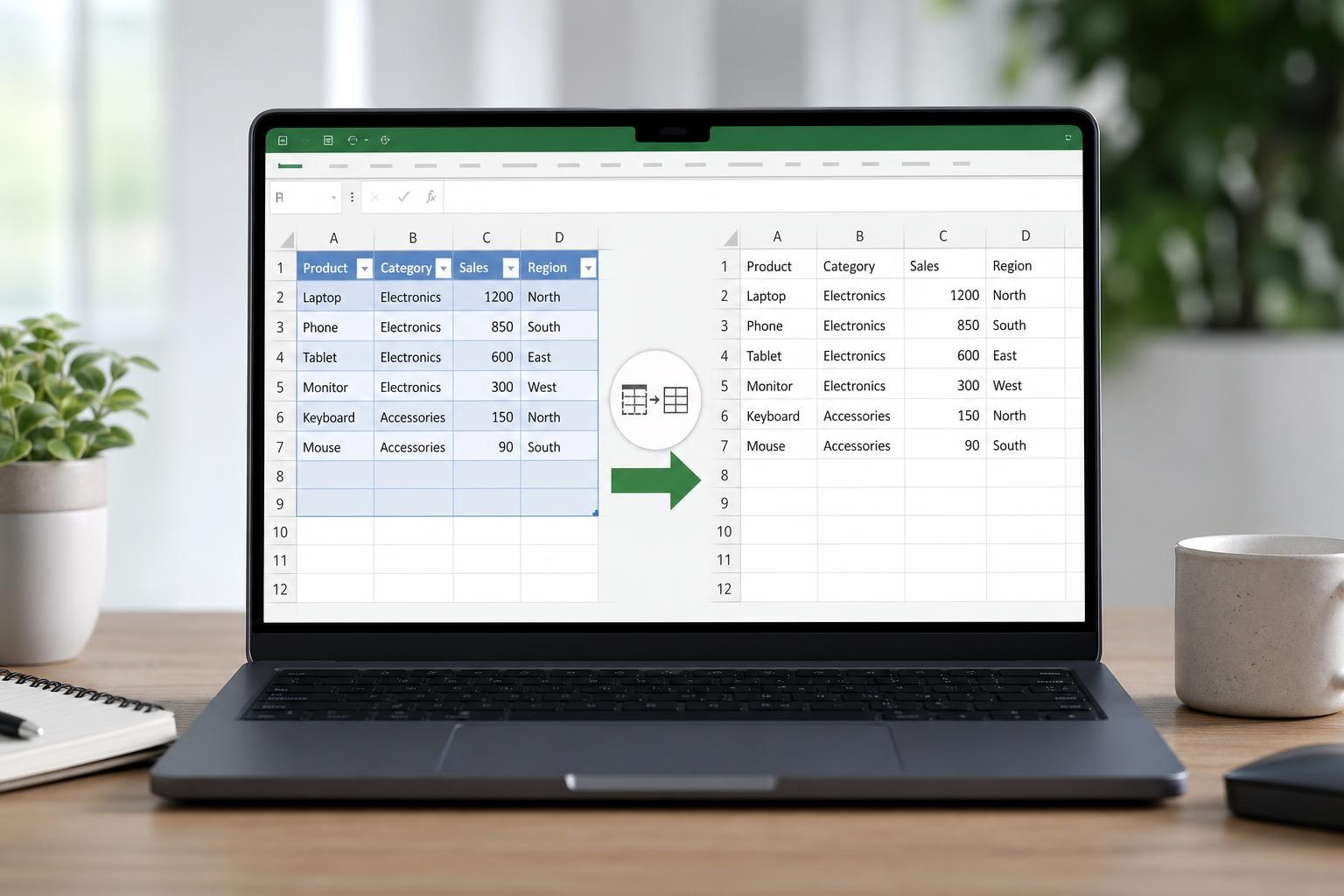
Convert the Table Back to a Normal Range
If you want to remove the table structure completely, this is the best option. It keeps your data but removes the special table features such as banded rows, filter drop-downs, and automatic table expansion.
- Click any cell inside the table.
- Go to the Table Design tab on the ribbon. In some versions of Excel, this may appear as Table Tools or Design.
- Select Convert to Range.
- When Excel asks for confirmation, click Yes.
After this, the data is no longer an Excel table. It becomes a regular cell range, so formulas and formatting remain as they were, but the table-specific behavior is gone.
Remove Only the Visual Table Formatting
Sometimes you may want to keep the table features but change the appearance, or you may only want to clear the table’s style. In that case, you can switch to a plain table style or clear the formatting manually.
- Click anywhere in the table.
- Open the Table Design tab.
- In the Table Styles gallery, choose a plain style or select None/clear-style options if available in your version.
- If needed, use Home > Clear > Clear Formats to remove leftover cell formatting.
Delete the Table Entirely
If you no longer need the data at all, deleting the table is different from converting it to a range. Deleting removes the cells themselves, while converting to range preserves them.
What Happens to Formulas and References
When you convert a table to a range, formulas inside the table usually stay in place, but structured references can change behavior. Any formulas that referenced the table by name may need to be checked and updated manually.
- Formulas inside the table usually remain intact
- Structured references may no longer behave the same way
- Filter arrows and table headers are removed when the table is converted to a range
- Table expansion stops once the range is no longer a table
If the Table Keeps Coming Back
If you paste data into a formatted table area, Excel may continue to treat it as a table. To avoid that, make sure you convert the table to a range first, then paste or edit the data as normal cells.





