
Deleting an Instagram post, Story, Reel, or IGTV video does not always mean it is gone forever. In many cases, Instagram keeps removed content in its Recently Deleted area for a limited time, which gives you a chance to restore it before it is permanently erased.
This guide explains how recovery works, what can and cannot be restored, and the steps to take for each type of Instagram content.
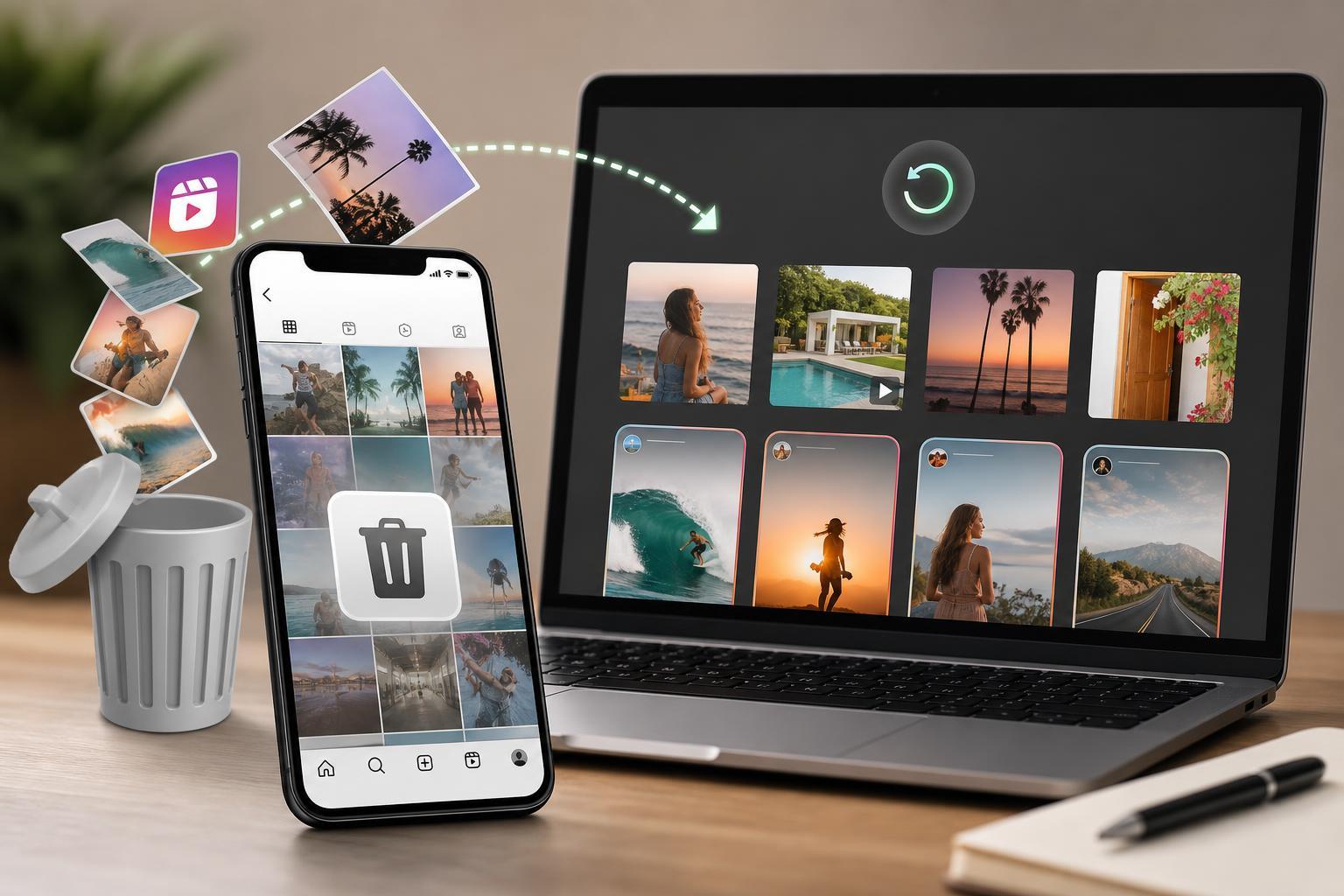
What Instagram Content Can Be Recovered?
Instagram’s recovery options depend on the type of content and how long ago it was deleted. The platform usually keeps deleted content for a short period before removing it permanently.
- Deleted posts, including photos and videos, can often be restored from Recently Deleted.
- Deleted Stories can usually be recovered for a limited time if they were not already archived.
- Deleted Reels may be recoverable through Recently Deleted.
- IGTV videos are handled under Instagram’s newer video and content management tools, and recovery depends on whether the video was deleted recently.
- Content removed permanently or outside the recovery window cannot usually be brought back through Instagram.
How to Restore Deleted Instagram Posts, Reels, and Videos
If the post, Reel, or video was deleted recently, the fastest method is to use Instagram’s Recently Deleted section in the app.
- Open the Instagram app and go to your profile.
- Tap the menu icon in the top-right corner.
- Select Your activity.
- Open Recently deleted.
- Find the post, Reel, or video you want to recover.
- Open it and tap Restore.
- Confirm the restore when prompted.
Once restored, the content should reappear on your profile in its original form, including its caption, likes, and comments when available.
How to Recover Deleted Instagram Stories
Stories can be recovered the same way if they were recently deleted and still appear in Recently Deleted.
- Open Instagram and go to your profile.
- Tap the menu icon.
- Select Your activity.
- Open Recently deleted.
- Choose the Story you want to restore.
- Tap Restore and confirm.
If the Story was not deleted but simply disappeared from your profile after 24 hours, it may still be in your Archive instead of Recently Deleted.
Check Your Archive Before Assuming It Is Gone
Some Instagram content is automatically saved to Archive instead of being permanently deleted. This is especially useful for Stories if you have archiving enabled.
- Go to your Instagram profile.
- Tap the menu icon.
- Select Archive.
- Browse Story Archive, Posts Archive, or Live Archive if available.
- Open the item and choose whether to repost, share, or save it.
If You Do Not See the Content in Recently Deleted
If the item is missing from Recently Deleted, one of these situations is usually the reason:
- It was deleted more than 30 days ago.
- It was a Story and the recovery window has already passed.
- It was never saved to Archive and is no longer available.
- The Instagram app is outdated and not showing the correct menu.
- The content was removed for policy or account-related reasons.
Can You Recover Deleted IGTV Videos?
Instagram no longer emphasizes IGTV the way it once did, but older IGTV videos may still be recoverable if they were deleted recently and appear in your account’s deleted-content tools.
If the video was part of your posts or video library, look in Recently Deleted first. If it no longer appears there, the recovery window has likely passed.
What to Do If the App Will Not Show Recently Deleted
If Recently Deleted does not appear or seems incomplete, try these checks:
- Update Instagram to the latest version.
- Make sure you are signed into the correct account.
- Check whether the content was archived instead of deleted.
- Log out and back in if the app appears out of sync.
- Try the Instagram app on another device if possible.
These steps do not recover deleted content by themselves, but they can help reveal whether the item is still available in the account.
How to Avoid Losing Instagram Content Again
The best way to protect important posts and videos is to keep your own backup outside Instagram.
- Save the original photo or video on your phone or computer before uploading.
- Turn on Story archiving if you want Stories saved automatically.
- Download important content before deleting it from Instagram.
- Keep edited versions and captions in a separate notes app or folder.
- Review deletion carefully before confirming it, especially for older posts or videos.
When Recovery Is Not Possible
If Instagram no longer shows the content in Recently Deleted or Archive, the item has usually been permanently removed. At that point, the only remaining copy may be one you saved yourself or shared elsewhere.
If the deleted content was important, check your phone’s gallery, cloud backups, file history, or any reposts you may have shared to other platforms.





