
Accidentally deleting a folder from your Desktop can be stressful, especially if it held work files, photos, or important documents. The good news is that a deleted Desktop folder is often still recoverable, depending on how it was removed and whether Windows or a backup service still has a copy.
This guide walks through the most likely ways to get the folder back, starting with the simplest options and moving to more advanced recovery methods if needed.
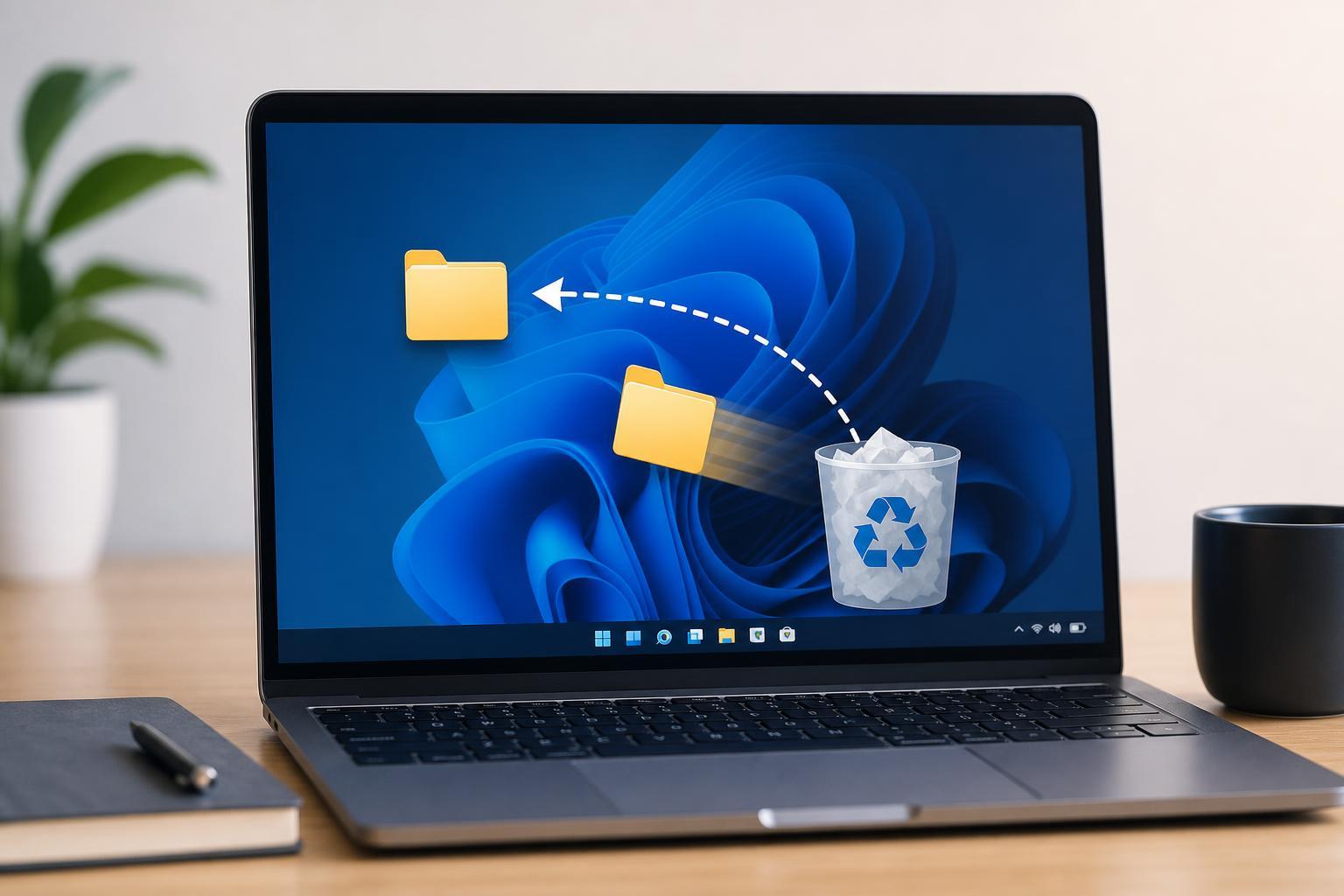
Check the Recycle Bin First
If you deleted the folder normally, Windows usually sends it to the Recycle Bin instead of removing it immediately. This is the fastest and most reliable place to look first.
- Open the Recycle Bin from the desktop or Start menu.
- Look for the deleted folder name, or sort by date deleted if needed.
- Right-click the folder and choose Restore.
- Check your Desktop to confirm the folder is back in its original location.
If the Folder Is Not in the Recycle Bin
If the folder was removed with Shift + Delete, the Recycle Bin was emptied, or the folder was too large to be kept there, you will need to try other recovery methods.
- File History or another Windows backup
- OneDrive or another cloud sync service
- A previous version of the folder or Desktop location
- File recovery software if nothing else has a copy
Restore It from File History
If File History was enabled before the folder was deleted, Windows may still have a backup copy of the Desktop folder or its contents.
- Open the Start menu and search for File History.
- Select Restore your files with File History.
- Navigate to the Desktop folder or the folder path where it was stored.
- Use the left and right arrows to browse older versions.
- Select the folder and click the green Restore button.
Check OneDrive or Other Cloud Sync Services
If your Desktop is synced with OneDrive, Dropbox, Google Drive, or a similar service, the folder may have been deleted locally but still be available in the cloud service's recycle or trash area.
- Sign in to the cloud service from the web.
- Open the Trash, Recycle Bin, or Deleted Files section.
- Search for the missing folder name.
- Restore the folder and wait for it to resync to your PC.
Use Previous Versions or Shadow Copies
On some Windows systems, you may be able to restore an earlier version of the Desktop folder or the folder's parent location using Previous Versions.
- Open File Explorer and go to the Desktop or the folder's original parent location.
- Right-click the folder or an empty area near where it was stored.
- Select Properties, then open the Previous Versions tab if it is available.
- Choose a version from before the deletion and click Restore or Open.
Try File Recovery Software Only if Needed
If the folder is not in the Recycle Bin and no backup or sync service has a copy, file recovery software may still be able to find traces of the deleted data on your drive.
This works best if you stop using the drive quickly, because new files can overwrite the deleted folder's data and make recovery harder or impossible.
- Avoid saving new files to the drive where the folder was deleted.
- Install or run recovery software from a different drive if possible.
- Scan the drive for deleted folders or files.
- Recover the items to a separate location, not back onto the same drive.
What If Only Part of the Folder Comes Back?
Sometimes recovery brings back only some files, or the folder appears but is missing content. This usually means the folder structure was recoverable but some files were already overwritten or not included in the backup.
- Run the recovery tool again and look for individual files inside the folder
- Check whether a cloud service has older versions of the missing files
- Look in File History or previous backups for specific documents
- Search by file type or filename if you remember it
How to Prevent This Next Time
Once you recover the folder, it is worth setting up at least one backup method so the same mistake does not become a bigger problem later.
- Keep File History enabled if you use Windows backups
- Make sure important Desktop folders are also stored in a Documents or cloud-synced folder
- Use OneDrive or another sync service for important work files
- Check the Recycle Bin before emptying it if you delete items often
Choosing the Right Recovery Method
The best option depends on how the folder was deleted and whether you already had protection in place.
- Recycle Bin: best for normal deletions done recently
- File History: best if Windows backup was enabled
- Cloud trash or recycle area: best if the Desktop is synced with a cloud service
- Previous Versions: best on systems with shadow copies or restore points
- Recovery software: best when nothing else has a copy, but success is not guaranteed





