
You can change your Google Meet background from your phone before or during a meeting, but the exact steps depend on your device and app version. This guide shows how to find the background option, use built-in effects, and troubleshoot the feature if it is not showing up.
What You Need Before You Start
- The Google Meet app installed on your Android phone or iPhone
- A device that supports backgrounds and visual effects in Meet
- Permission for Google Meet to use your camera
- A steady internet connection for best results
How to Put a Background in Google Meet on Your Phone
- Open the Google Meet app on your phone.
- Join a meeting or start a new one.
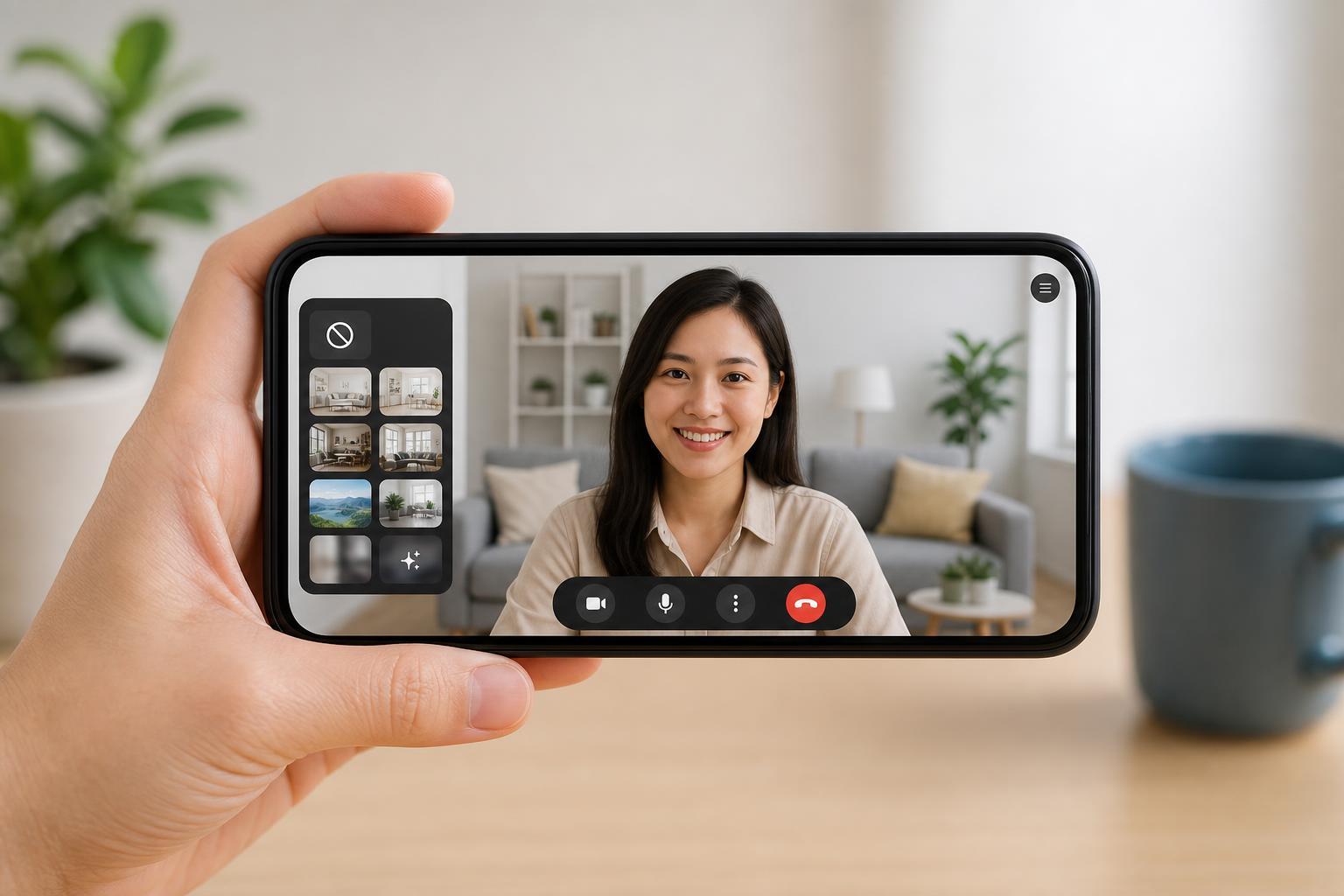
- Before you enter the call, look for the Effects, Background, or sparkle icon on the preview screen.
- Tap it to open the background and visual effects menu.
- Choose a background blur option or select a preset background image.
- Tap Apply or use the back button to return to the preview.
- Join the meeting with your new background active.
On some phones, the background options appear only after you tap your self-view preview. On others, you may see the effects button directly on the join screen. The wording and layout can vary depending on whether you are using Android or iPhone, and depending on your Google Meet version.
Changing the Background During a Meeting
- While in the meeting, tap the screen to show the call controls.
- Tap More, usually shown as three dots.
- Select Effects, Background, or Change background.
- Pick blur, a preset image, or another supported effect.
- Close the menu to return to the call.
If the Background Option Is Missing
- Your phone may not support background effects well enough for Google Meet to show the option.
- The Meet app may need an update.
- Camera permissions may be turned off.
- Your account type or organization settings may block the feature.
- Hardware performance may be too limited for virtual backgrounds on that device.
- Update the Google Meet app from the App Store or Google Play Store.
- Check that Google Meet has camera permission in your phone settings.
- Try joining from a newer phone if the option is still missing.
- If this is a work or school account, ask your administrator whether effects are disabled.
- Use background blur instead of a custom image if your phone struggles with performance.
Best Background Choices for Phone Users
- Background blur: good for privacy and usually the most reliable option
- Simple office-style scenes: best when you want a professional look
- Plain or low-detail images: easier for your phone to process
- Avoid busy, high-contrast backgrounds if the cutout around your face looks unstable
Tips for Better Results
- Sit with your back to a light source so your face is easier to detect.
- Avoid moving around too much if the background effect flickers.
- Keep your clothing and background from blending together too closely.
- Use the rear camera only if you specifically need it; the front camera is usually easier for background effects.
If You Just Need Privacy
If the goal is only to hide your room, background blur is usually the safest option. It looks cleaner than many image backgrounds and is more likely to work well on phones with modest hardware.





