When a worksheet spans multiple printed pages, repeating the first row or first column makes every page easier to read. In Excel, this is done with Print Titles, which lets you keep headers or labels visible on each page without manually copying anything.
This is especially helpful for large tables, reports, and lists where page breaks would otherwise hide the column names or row labels you need for reference.
Repeat the First Row on Every Printed Page
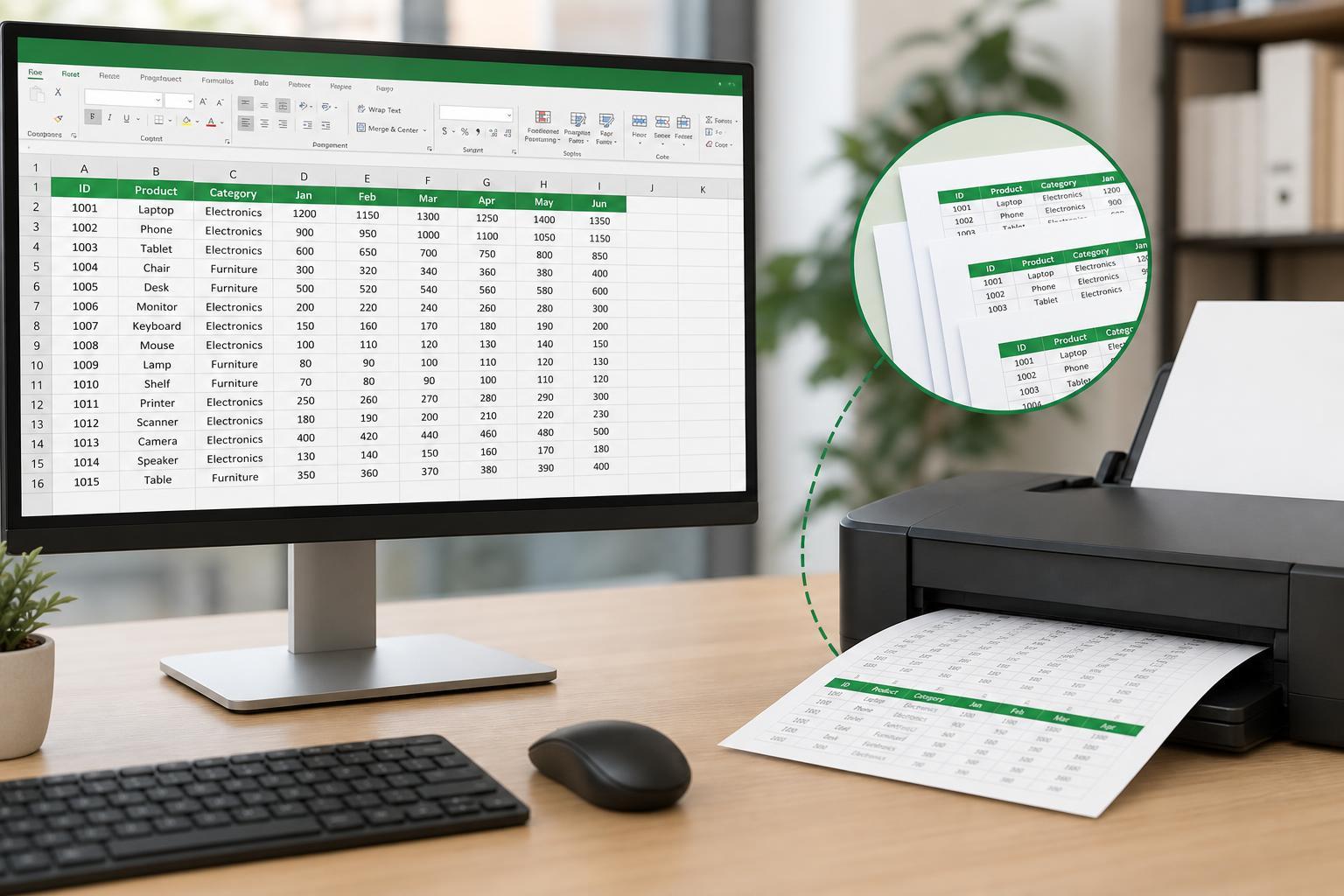
If your spreadsheet has column headers at the top, repeating the first row is usually the best choice. That way, each printed page shows the same headings, even when the data continues onto later pages.
- Open the worksheet you want to print.
- Go to the Page Layout tab on the ribbon.
- In the Page Setup group, click Print Titles.
- In the Page Setup window, open the Sheet tab if it is not already selected.
- Click in the Rows to repeat at top box.
- Select the row you want repeated, or type a reference such as $1:$1 for the first row.
- Click OK.
Now when you print the sheet, Excel will place that row at the top of every printed page.
Repeat the First Column on Every Printed Page
If your worksheet uses row labels down the left side, repeating the first column can be just as useful. This keeps names, dates, categories, or item numbers visible on every page.
- Open the worksheet you want to print.
- Go to the Page Layout tab.
- Click Print Titles in the Page Setup group.
- On the Sheet tab, click the Columns to repeat at left box.
- Select the column you want repeated, or type a reference such as $A:$A for the first column.
- Click OK.
Excel will repeat that column on the left side of every printed page.
Repeat Both a Row and a Column
Excel can repeat both the top row and the left column at the same time. This is useful for wide and long spreadsheets where you need both headings and row labels on every page.
- Open Page Layout and choose Print Titles.
- On the Sheet tab, set both Rows to repeat at top and Columns to repeat at left.
- Select the row range and column range you want Excel to repeat.
- Click OK.
Common Problems and How to Fix Them
- If the wrong row or column repeats, return to Print Titles and check the cell reference you entered.
- If nothing repeats, make sure you are using the Sheet tab inside Page Setup, not the regular print preview options.
- If the sheet is protected, some print settings may be unavailable until protection is removed or adjusted.
- If you selected a row or column manually and Excel did not fill the reference correctly, type the range directly, such as $1:$1 or $A:$A.
Which Option Should You Use?
Use repeated rows when your data is organized across columns with headings at the top. Use repeated columns when the important labels are on the left side. If your sheet is both wide and long, repeating both can make the printout much easier to follow.