
Excel’s status bar can do more than show whether you are ready to type. It can also display quick calculations for the cells you select, and you can choose which ones appear. If you work with numbers often, customizing the status bar can save time and reduce the need to add temporary formulas.
This guide shows how to turn status bar calculations on or off, what the available functions mean, and a few helpful ways to use them while working in a workbook.
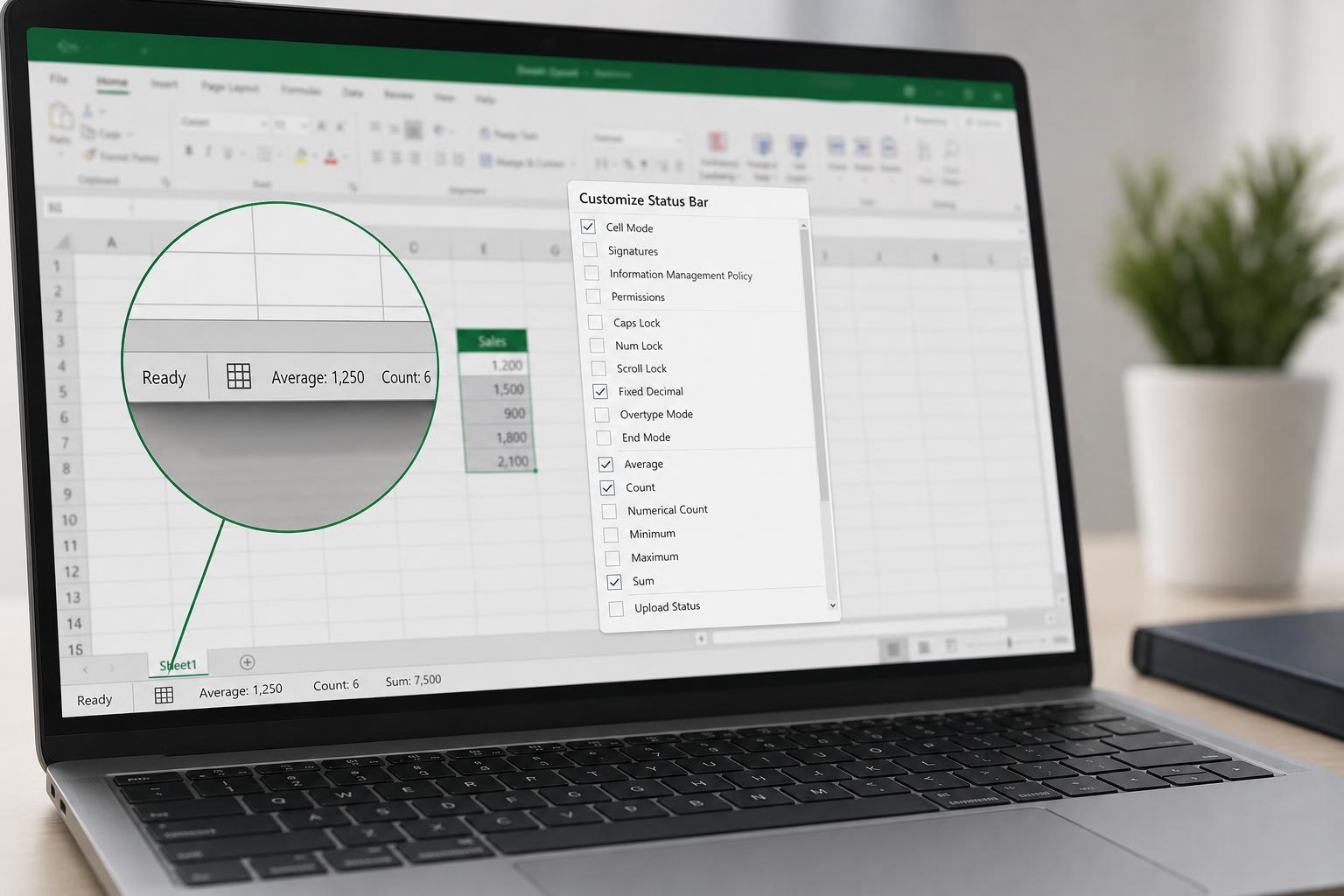
What the Excel Status Bar Can Show
When you select a range of cells, Excel can display several instant calculations in the status bar at the bottom of the window. These are not formulas in the worksheet; they are quick readouts based on your current selection.
- Average of the selected numbers
- Count of selected cells containing data
- Numerical Count of cells containing numbers only
- Minimum and maximum values
- Sum of the selected numbers
- Zoom level and view controls
- Caps Lock, Num Lock, and Scroll Lock status
How to Customize the Status Bar Calculations
- Open your workbook in Excel.
- Select a range of cells that contains numbers or mixed data.
- Look at the bottom of the Excel window to see the current status bar calculations.
- Right-click the status bar itself.
- In the menu that appears, click the items you want to show or hide.
- Leave a check mark next to the functions you want displayed, such as Average, Count, or Sum.
As soon as you select or clear an option, the status bar updates. The changes apply to your Excel interface, so you can keep the calculations that are most useful to you visible all the time.
What the Main Status Bar Functions Mean
- Average: Shows the mean of the selected numeric values.
- Count: Counts cells in the selection that are not empty.
- Numerical Count: Counts only cells that contain numbers.
- Minimum: Shows the smallest numeric value in the selection.
- Maximum: Shows the largest numeric value in the selection.
- Sum: Adds the selected numeric values together.
Useful Ways to Use the Status Bar
- Check a running total for a list of expenses without entering a SUM formula.
- Compare a small group of values quickly by looking at average, minimum, and maximum.
- Confirm how many numeric entries are in a column before sorting or filtering.
- Review totals for a highlighted range before copying or moving data.
- Use it as a quick check when cleaning up imported data.
If You Do Not See the Function You Want
If a calculation is missing from the status bar menu, make sure you are right-clicking directly on the status bar at the bottom of Excel. Some options only appear when a cell range is selected, and some may not be visible if Excel is in a limited or simplified view.
- Select a range with actual data before checking the status bar.
- Right-click the bar at the bottom of the Excel window, not inside the worksheet.
- Try a different workbook if the current file is heavily customized or restricted.
- Remember that some options only appear when they make sense for the selected cells.
When Customizing the Status Bar Is Most Helpful
For everyday Excel use, the status bar is one of the simplest ways to speed up basic analysis. Once you choose the functions you want, they stay available whenever you select data, making it easier to work efficiently across different worksheets and workbooks.





