
Offloading an app on iPhone or iPad removes the app itself but keeps its documents and data on your device. That makes it a useful way to free up storage without losing things like game progress, app settings, or saved files.
This guide shows how offloading works, how to do it manually, how to turn on automatic offloading, and what happens when you reinstall an app later.
What Offloading an App Does
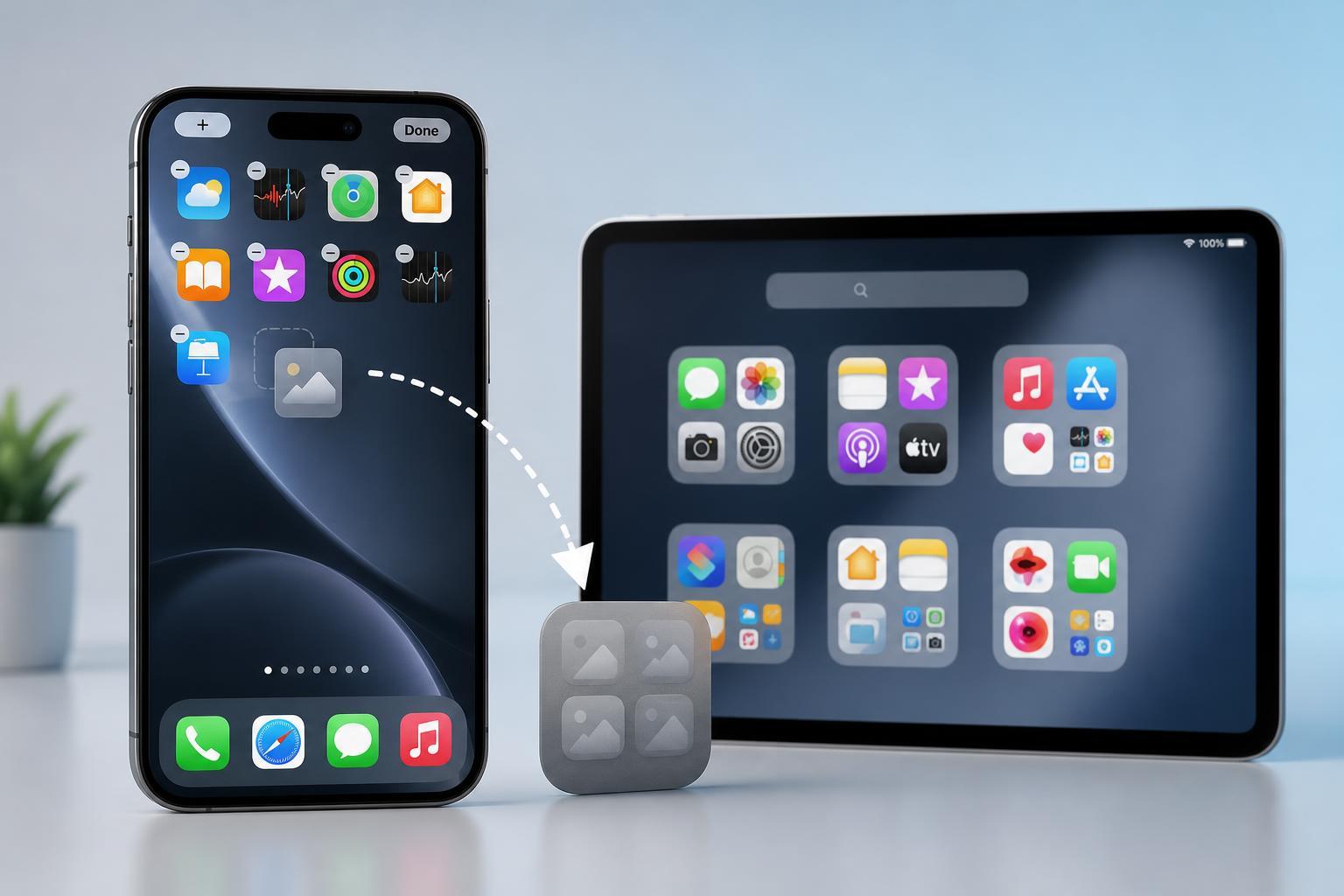
When you offload an app, iOS or iPadOS removes the app binary from storage but keeps your personal data associated with it. The app icon usually remains on the Home Screen with a small cloud symbol, which means it can be downloaded again when you need it.
How to Offload an App Manually
- Open the Settings app on your iPhone or iPad.
- Tap General.
- Tap iPhone Storage or iPad Storage.
- Wait a moment for the storage list to load.
- Find and tap the app you want to offload.
- Tap Offload App.
- Confirm the action when prompted.
After offloading, the app icon may stay on your Home Screen with a cloud download indicator. Tapping the icon later will redownload the app before opening it.
Turn On Automatic Offloading
If you want iPhone or iPad to manage storage for you, you can enable a setting that automatically offloads unused apps when storage gets low.
- Open Settings.
- Tap App Store.
- Find Offload Unused Apps.
- Turn the switch on.
With this setting enabled, your device may remove rarely used apps in the background when it needs room. Your data stays saved, so the app can usually be restored later with minimal setup.
How to Reinstall an Offloaded App
You can reinstall an offloaded app any time, as long as it is still available in the App Store.
- Tap the app icon on your Home Screen, if it is still visible.
- Or open the App Store and search for the app.
- Tap the download icon or Get button.
- Wait for the app to install, then open it as usual.
When Offloading Is the Best Choice
- You want to free storage without losing app data
- You only use certain apps occasionally
- You are not ready to delete an app permanently
- You want iOS or iPadOS to help manage storage automatically
When You Should Delete Instead
Offloading is useful, but it is not always the right choice. If an app is broken, you no longer need its data, or it stores very little information you care about, deleting it may be the better option. Deleting also removes the app's data, which can help if you want a completely fresh reinstall.
If Offload App Is Missing
On some apps, the offload option may not appear if the app is managed by work or school settings, comes preinstalled with restrictions, or is currently needed by the system. In that case, the available options may be different, or you may only be able to delete the app if Apple allows it.
A Simple Way to Free Up Space Without Losing Everything
Offloading is one of the easiest ways to reclaim storage on an iPhone or iPad without starting over in an app. If you mainly want to clear space from large apps you do not use often, it is usually the safest first option to try.





