
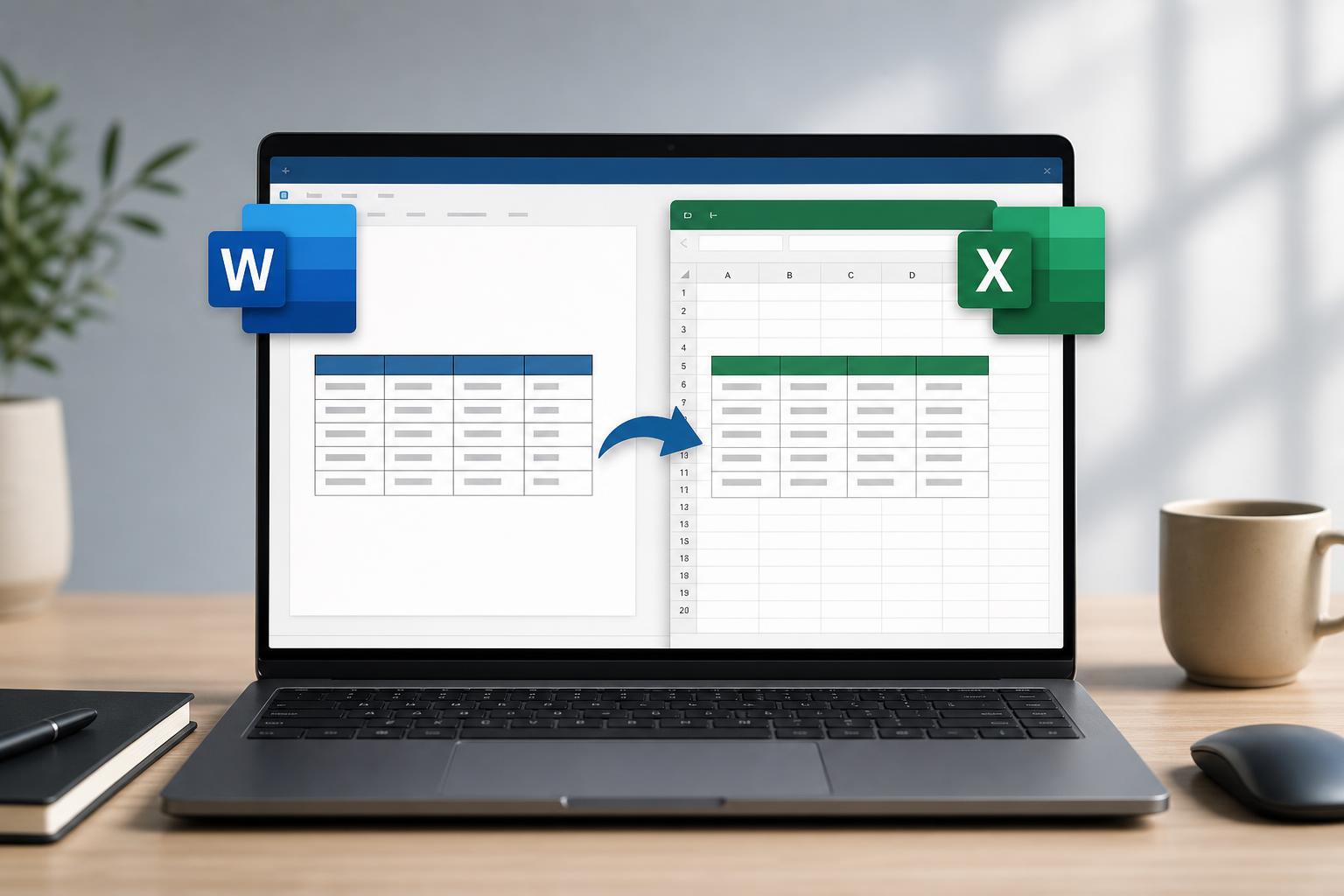
Tables often start in Microsoft Word, but Excel is usually the better place to sort, calculate, filter, and analyze that data. If you have a Word table you want to use in Excel, you do not always need to rebuild it from scratch.
The best method depends on how your table is formatted and how cleanly you want the data to transfer. In many cases, you can copy and paste the table directly, then clean up the layout in Excel in just a few minutes.
1. Check That the Word Table Is Structured Cleanly
Before moving anything, make sure the Word table is actually a table and not text that only looks like one. Real Word tables use rows and columns, which makes them much easier to transfer into Excel.
- Each piece of data should be in its own cell.
- Avoid merged cells if possible, since they can cause layout problems in Excel.
- Make sure the table does not contain extra blank rows or decorative spacing.
- If the table has headings, keep them in the first row so Excel can use them as column headers.
2. Copy the Table from Word
- Open the Word document and select the entire table.
- If needed, click the table handle in the top-left corner to select the full table.
- Press Ctrl + C on Windows or Command + C on Mac to copy it.
- Leave Word open if you want to compare the pasted result later.
3. Paste It into Excel
Open Excel and click the cell where you want the table to begin, usually A1. Then paste the table with Ctrl + V or Command + V.
In many cases, Excel will separate the Word table into rows and columns automatically. If the table pastes as plain text or does not line up correctly, use Excel’s paste options or try pasting into a blank worksheet first.
4. Clean Up the Layout in Excel
After pasting, check whether the data landed in the right columns. If some values ended up in the wrong place, you may need to adjust column widths, remove blank rows, or use Excel’s text tools to separate combined data.
- Resize columns so the headers and values are readable.
- Delete any extra empty rows or columns.
- Check for numbers that were pasted as text if you plan to calculate with them.
- If needed, use Text to Columns to split data that came into one cell.
5. Save or Reformat the Data for Excel Use
Once the data looks correct, save the workbook in Excel format so you do not lose the table structure. From there, you can turn it into a formatted Excel table, sort the data, add filters, or build formulas.
- Go to File and choose Save As.
- Save the file as an Excel workbook such as .xlsx.
- If needed, select the pasted range and use Format as Table for easier sorting and filtering.
- Review the headers and data types before using the sheet for analysis.
If the Table Does Not Paste Correctly
Sometimes Word-to-Excel copying does not produce a clean result. That is usually caused by formatting issues rather than a problem with Excel itself.
- Try pasting into a new blank worksheet first.
- Paste as text only if formatting is causing problems.
- Remove merged cells in Word and copy the table again.
- If the table was created from text, convert it to a proper Word table before copying.
What This Method Is Good For
Copying a Word table into Excel is the fastest option when you want to reuse existing data without manual retyping. It works especially well for lists, simple records, schedules, and other tables that already follow a clean row-and-column structure.





