
If your Gmail inbox is full of unread messages, you do not need to open them one by one. Gmail includes ways to mark many or all emails as read at once, which can help you clean up your inbox quickly and make new unread messages easier to spot.
The exact steps depend on whether you want to mark everything in a folder, a label, or just a group of selected emails. Desktop Gmail offers the easiest bulk options, while the mobile app is more limited.
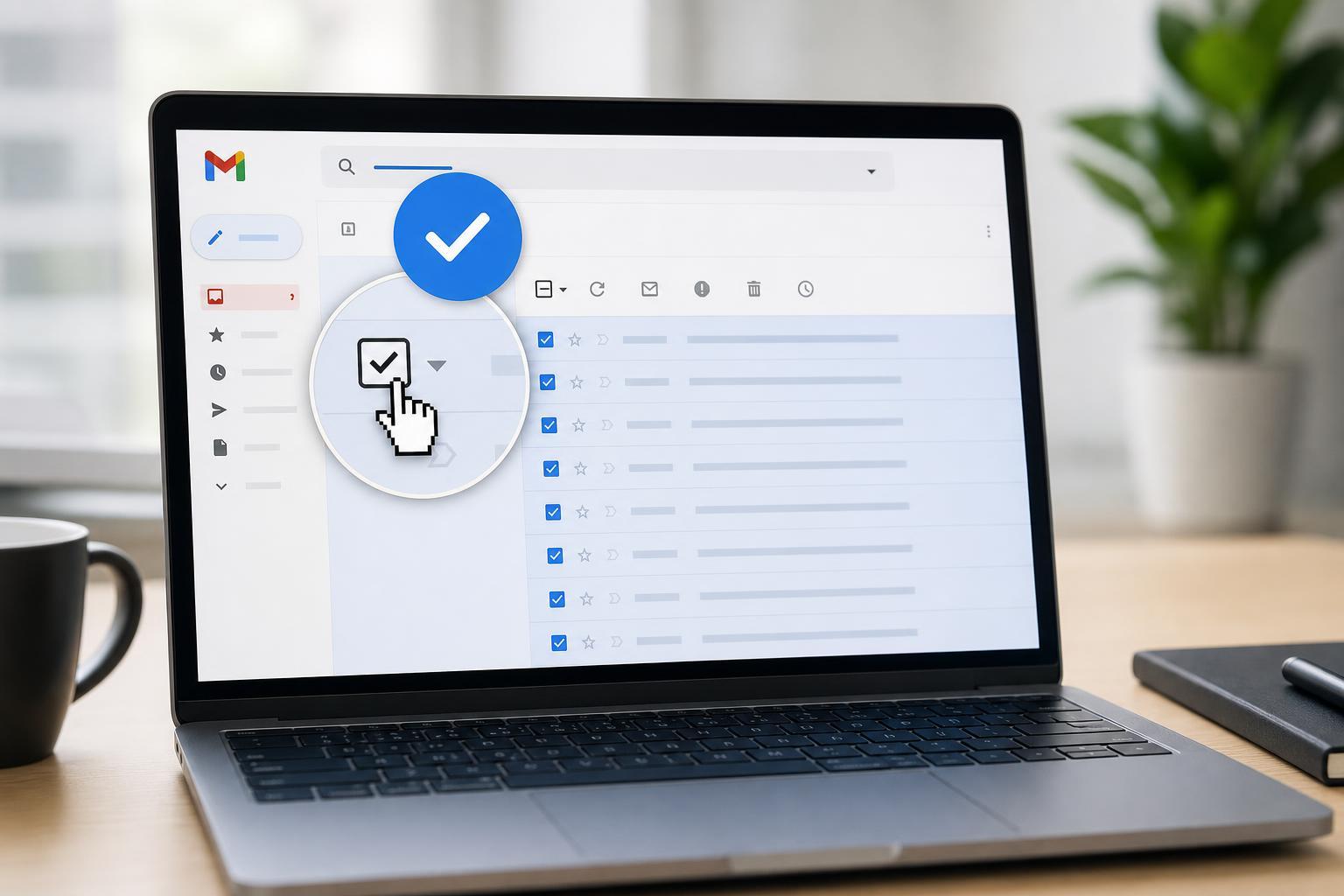
Mark All Emails as Read in Gmail on a Computer
On the desktop version of Gmail, you can mark every email currently shown in a folder or label as read with a few clicks.
- Open Gmail in your web browser and sign in.
- Go to the folder or label you want to clean up, such as Inbox, Promotions, or Social.
- Click the checkbox at the top of the message list to select the visible emails.
- If you want to select more than the first page, click the text that appears offering to select all conversations in that folder or label.
- Click the More icon at the top of the page.
- Choose Mark as read.
Mark All Emails as Read in the Gmail App
The Gmail app on Android and iPhone does not offer the same bulk controls as the desktop version. You can still mark messages as read, but usually one conversation at a time or by selecting multiple messages if your app version supports it.
- Open the Gmail app and go to the folder or label you want to clear.
- Press and hold a message to enter selection mode.
- Tap additional messages if you want to mark more than one at once.
- Tap the three-dot menu and choose Mark as read, if available on your device.
Mark a Single Message or a Small Group as Read
If you do not want to clear an entire folder, Gmail lets you mark only specific emails as read. This is useful when you want to keep important unread messages visible while removing distractions from older mail.
- Open Gmail.
- Select the message or messages you want to change.
- Click the More icon or right-click the message list, depending on your view.
- Select Mark as read.
How to Mark Every Unread Email in a Label
Sometimes the goal is not to clear the entire inbox, but only one category such as Promotions or Updates. In that case, open the label first and then select all conversations inside it. This keeps your main Inbox status separate from other mail categories.
- Open the label you want to clean up.
- Use the top checkbox to select the visible messages.
- Choose the option to select all conversations in the label if Gmail shows it.
- Click More, then choose Mark as read.
If Mark as Read Does Not Seem to Work
If messages still show as unread after you use the command, the issue is usually one of these:
- Only the first page of messages was selected, not the full folder.
- The message was marked read in one place, but another label or filtered view still shows it.
- A browser refresh is needed before Gmail updates the display.
- You are looking at a conversation thread that still contains unread messages inside it.
A Faster Way to Clear a Large Inbox
If your Inbox has grown out of control, a practical approach is to mark the current inbox page as read first, then use Gmail’s option to select all conversations in the Inbox. That usually works better than trying to handle messages one at a time.
- Open the Inbox in Gmail on a computer.
- Select the messages on the page.
- Click the link to select all conversations in the Inbox, if offered.
- Choose Mark as read.
- Repeat for other labels or search results if needed.
Which Method Should You Use?
Use the desktop website if you want to mark a large number of emails as read quickly. Use the mobile app if you only need to handle a few messages while away from your computer. If you are dealing with a specific category, open that label first so you do not affect mail you still want to keep unread.





