
If you want to control who can see your Facebook posts, you can change the audience for new posts and hide older posts as well. Facebook gives you several privacy options, including limiting posts to friends, specific people, or only you.
This guide explains how to hide posts from the public or from friends, how to change the default audience for future posts, and what to do if you want to tighten privacy on content you already shared.
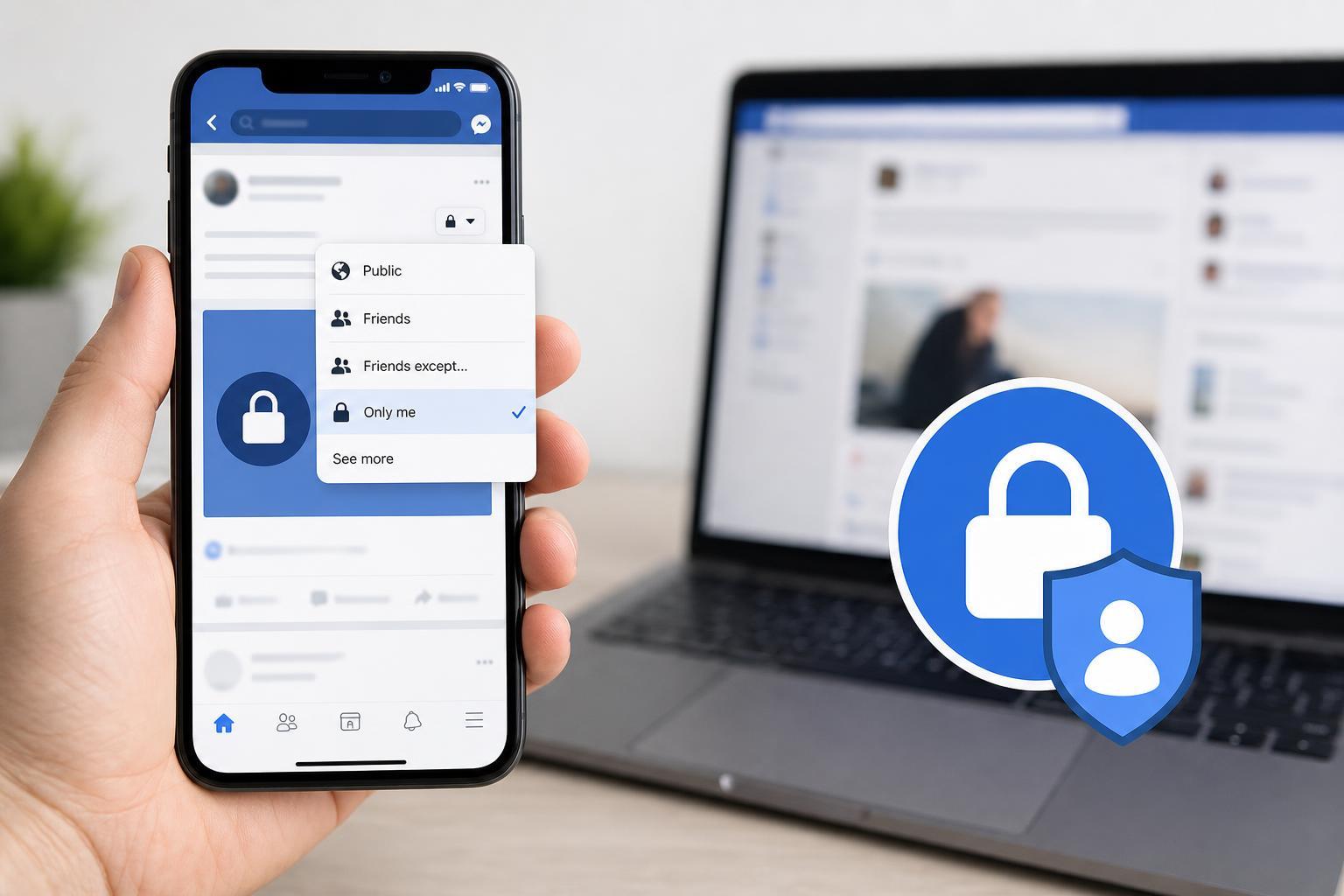
What Facebook Privacy Settings Can and Cannot Do
Facebook does not have a single switch that permanently hides every post in every situation. Instead, privacy is controlled by audience settings. You can choose who can see each post, set a default audience for future posts, and review older content in your profile’s Activity Log.
- Public: anyone on or off Facebook can see the post.
- Friends: only your friends can see it.
- Friends except: hide the post from selected friends.
- Specific friends: share with only a small list of people.
- Only me: only you can see the post.
Hide Future Posts From the Public
If you want new posts to stop being public, change the default audience before you post again.
- Open Facebook and go to Settings & privacy.
- Choose Settings.
- Open Audience and visibility, then select Posts.
- Find Who can see your future posts?
- Change the audience from Public to Friends, Friends except, Specific friends, or Only me.
After this change, new posts will use the audience you selected unless you manually choose something different when posting.
Hide a Single Post From Friends or the Public
If only one post needs to be restricted, you can change that post’s audience without affecting your other posts.
- Find the post on your profile or timeline.
- Select the three dots in the top-right corner of the post.
- Choose Edit audience or Edit privacy.
- Pick who should be able to see the post.
- Save your changes.
This is useful when you want one post visible only to close friends, or if you accidentally published something publicly.
Limit Older Posts in Bulk
If your profile contains many old public posts, Facebook provides a way to restrict past posts all at once. This is one of the quickest ways to reduce visibility without editing each post individually.
- Go to Settings & privacy, then Settings.
- Open Audience and visibility.
- Select Posts.
- Look for the option to Limit past posts.
- Confirm the change when prompted.
Hide Posts From Specific Friends
If you want most friends to see a post but not one or more people, use the Friends except or Specific friends audience options.
- Friends except: share with friends while excluding selected people.
- Specific friends: share only with the people you choose.
- Only me: make the post private to yourself.
These options are useful for work updates, family content, or posts you want visible only to a small circle.
Review Your Profile Timeline and Tagged Posts
Even if your own posts are private, other people can sometimes tag you in posts or photos that are visible to others. It is worth checking both your timeline and your tag review settings.
- Open Settings & privacy, then Settings.
- Go to Profile and tagging.
- Review options such as who can post on your profile and who can see posts you’re tagged in.
- Turn on review controls if you want to approve tags before they appear.
Check Your Privacy With the View As Tool
Facebook has a View As feature that lets you see how your profile looks to other people. This is a good way to confirm whether your posts are actually hidden from the audience you intended.
- Go to your profile.
- Open the three-dot menu near Edit profile.
- Select View As.
- Check what a non-friend or another viewer can see.
If a post still appears in View As, its audience is probably broader than you expected.
Best Way to Keep Posts Private Going Forward
If your goal is to stop sharing publicly by default, the most effective approach is to change the default audience and then manually review the audience setting before each post. For extra privacy, use Only me for content you do not want others to see at all.
- Use Friends or Only me as the default audience.
- Check the audience selector before posting.
- Limit past public posts if your old timeline is too open.
- Review tagged posts and timeline permissions.
What to Do If a Post Still Appears Public
If a post is still visible after you changed its audience, check for a few common causes: the post may have been shared by someone else, you may be looking at a cached view, or the post may have been tagged into another public post. In some cases, a repost or share can remain visible even if your original post audience was changed.
A Quick Privacy Checklist
- Set your default future post audience to Friends, Friends except, Specific friends, or Only me.
- Use Limit past posts if you want to reduce visibility of older content.
- Change individual post audiences when needed.
- Review tagged posts and timeline permissions.
- Use View As to confirm what others can see.
When You Need Maximum Privacy
If you want the strongest privacy possible, avoid using Public entirely, limit old posts, and make sure tag review is enabled. For especially sensitive content, the safest option is to post it with Only me or avoid posting it to Facebook at all.





