
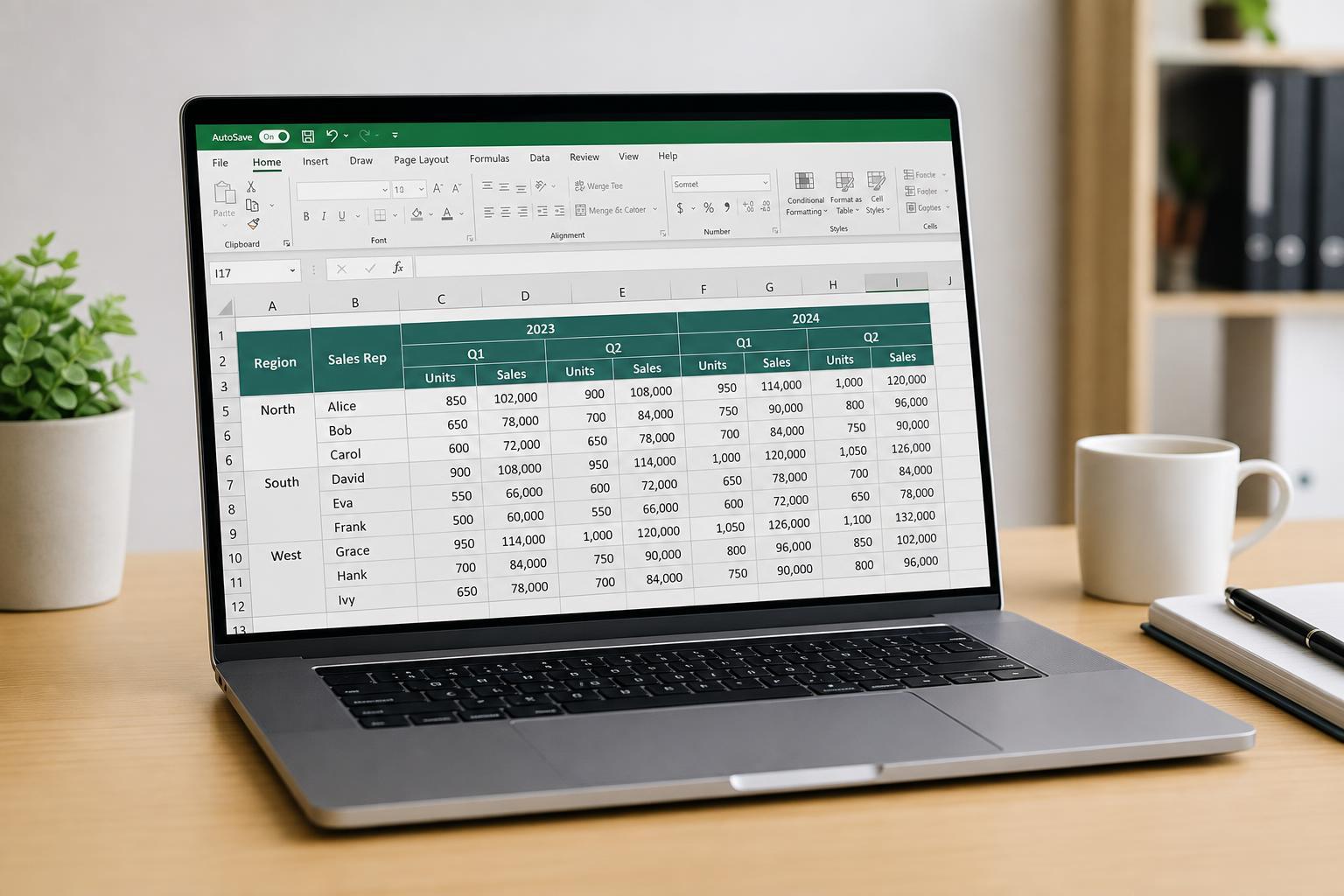
Excel tables work best with a single header row, but real-world spreadsheets often need extra header lines for grouping, categories, or reporting. When that happens, the sheet can become harder to sort through, filter, and read. The good news is that you can make multi-row headers much easier to use without rebuilding the entire workbook.
This guide shows practical ways to improve clarity, keep the data usable, and reduce the frustration that comes with tables that have more than one header row.
Why Multiple Header Rows Become a Problem
Excel's built-in table features are designed around one row of column names. When you add extra header rows above or inside the table area, some features no longer behave the way you expect. Filters may appear in the wrong place, sorting can become confusing, and it becomes harder to tell which text is a true column name and which text is just a visual label.
Use a Simple Structure for the Top Rows
The easiest way to make multi-row headers more manageable is to separate the different roles each row plays. One row should act as the actual column header row, while the rows above it should be used only for grouping or presentation.
- Top row: high-level category labels such as region, department, or product group
- Second row: the actual field names that Excel should treat as headers
- Any additional rows: explanatory notes, report titles, or date ranges placed above the table rather than inside it
Merge Only the Visual Grouping Cells, Not the Data Area
If you need a header row that spans several columns, merge only the cells used for the visual label. For example, a label such as 'Sales' can sit above several related columns like Q1, Q2, Q3, and Q4.
A safer approach is to place the grouping label above the actual table and use normal, unmerged cells for the real column names below it.
Freeze the Right Rows and Columns
Freezing panes helps keep both header layers visible while you scroll through the data. This is especially useful when the table has a title row, a grouping row, and a true header row.
- Click the cell directly below the last row and to the right of the last column you want to keep visible.
- Go to the View tab.
- Select Freeze Panes.
- Choose Freeze Panes again if needed to lock both the header rows and the first column.
Make the Real Column Headers Easy to Identify
When multiple rows are involved, the actual column header row should stand out immediately. Use clear formatting so users can tell which row controls sorting and filtering.
- Apply a bold font to the true column header row
- Use a background fill color that differs from the grouping row above it
- Add borders between header layers to separate them visually
- Keep the text concise so the headers do not wrap excessively
If the table is for reporting, it often helps to keep the top grouping row lighter and the actual column headers darker or more prominent.
Use Wrap Text and Adjust Row Height Carefully
Extra header rows often become crowded when labels are long. Wrapping text can make them easier to read, but too much wrapping can make the header area consume too much screen space.
- Use Wrap Text for long labels that would otherwise overflow
- Increase row height only enough to show the text clearly
- Avoid very tall header rows if users need to scroll through large amounts of data
- Consider shorter labels or abbreviations if the sheet becomes too wide
Keep Filters on One Clear Header Row
Excel table filters work best when there is one unmistakable row of field names. If your sheet has more than one visible header row, make sure only the true header row is used for filters.
- Confirm which row contains the actual field names.
- If needed, convert the display area above the table into normal worksheet cells rather than table headers.
- Check that the filter arrows appear only on the row with the real column names.
- Test sorting on one column before sharing the file.
If the filters are attached to the wrong row, users may sort by category labels instead of actual data fields.
Consider Using a Separate Title Area Above the Table
Sometimes the best way to simplify a complex header is to move nonessential header text out of the table completely. A title area above the table can hold the report name, date range, notes, and summary labels without interfering with the table structure.
- Report title
- Date or period covered
- Source or author information
- Short notes explaining the data
Use Grouping Sparingly and Consistently
If your multi-row header uses grouped categories, keep the grouping logic consistent across the sheet. For example, if one section uses region names across the top, do not switch to product categories in a nearby section unless the change is clearly labeled.
Consistency helps users understand the pattern quickly and reduces the chance of misreading the sheet.
- Group related columns together
- Use the same naming style across all header rows
- Avoid mixing notes, labels, and field names in the same row
- Keep repeated labels aligned the same way throughout the workbook
When to Rebuild the Table Instead of Fixing It
If the sheet has grown too complex, it may be easier to rebuild the layout than to keep patching it. This is especially true when merged cells, broken filters, and repeated labels are already making the table difficult to use.
- The table no longer sorts correctly
- Filtering is unreliable
- Headers are hard to distinguish from data
- Users keep editing the wrong row
- The layout has become more important than the data
In those cases, creating a cleaner structure with one true header row and separate visual labels is usually the most practical long-term fix.
A Cleaner Pattern to Aim For
A good multi-row header setup usually follows this pattern:
- A title or summary area sits above the table.
- A grouping row provides visual categories if needed.
- One true header row contains the actual field names.
- The data begins immediately below that row.
- Freeze Panes keeps the important rows visible while scrolling.
That structure keeps the spreadsheet readable while preserving the features that make Excel tables useful.





