
If your Windows 11 desktop icons look too big, you can make them smaller in just a few clicks. Windows gives you a couple of easy ways to change icon size, and there are a few display settings to check if the icons still seem larger than you want.
This guide shows the quickest method first, then covers a few extra options if you want finer control over how your desktop looks.
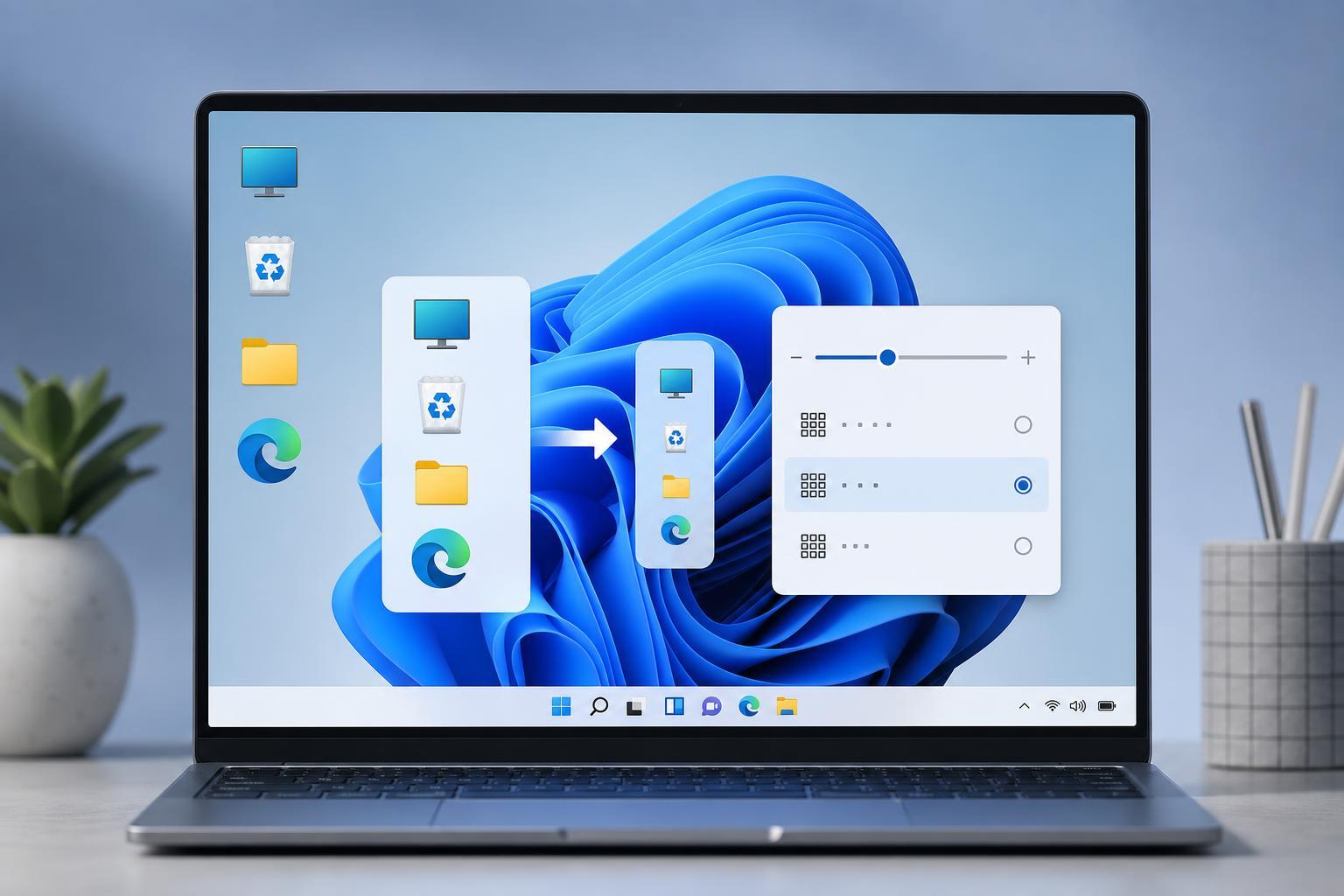
Change Desktop Icon Size from the Right-Click Menu
The fastest way to make desktop icons smaller is from the desktop context menu. This changes the size of the icons on the desktop without affecting most other parts of Windows.
- Right-click an empty area of the desktop.
- Point to View.
- Select Small icons.
Windows will immediately shrink the desktop icons. If you later want them larger again, return to the same menu and choose Medium icons or Large icons.
Use the Mouse Wheel Shortcut
Windows 11 also lets you resize desktop icons with the mouse wheel, which is useful if you want more control than the menu gives you.
- Click the desktop so it is active.
- Hold down Ctrl on the keyboard.
- Scroll the mouse wheel downward to make the icons smaller.
- Scroll upward to make them larger.
If the Icons Still Look Too Big, Check Display Scaling
Sometimes desktop icons look oversized because Windows display scaling is set high. Scaling changes the size of text, apps, and many interface elements, not just the desktop icons.
- Press Windows + I to open Settings.
- Go to System, then Display.
- Under Scale, check the percentage value.
- If needed, lower the scale to a smaller value that still remains comfortable to read.
Try a Different Desktop Layout if You Want More Space
If smaller icons are part of a larger cleanup, you may also want to organize the desktop so it feels less crowded.
- Remove shortcuts you do not use often.
- Group related files into folders.
- Turn on desktop icon alignment to keep icons tidy.
- Use a plain wallpaper so icons are easier to see at smaller sizes.
What to Do If the Small Icons Option Does Not Help
If desktop icons still do not look right after choosing Small icons, the issue is usually related to display settings rather than the icon size setting itself.
- Check display scaling in Settings.
- Confirm you are using the intended screen resolution.
- If you use multiple monitors, make sure you are adjusting the correct display.
- Test whether the desktop looks different after disconnecting or switching displays.
A Quick Way to Make Icons Smaller in the Future
For most people, the easiest method is to right-click the desktop and choose View > Small icons. If you need a finer adjustment, use Ctrl plus the mouse wheel. If everything on the screen still feels too large, check display scaling next.





