
If you’ve logged into Facebook or Messenger on a shared computer, old phone, or a device you no longer use, you may want to sign out everywhere at once. Facebook lets you review active sessions and remotely log out of devices without needing access to each one individually.
This guide shows how to log out of Facebook and Messenger on all devices, what to do if you only want to remove one session, and how to secure your account if something looks unfamiliar.
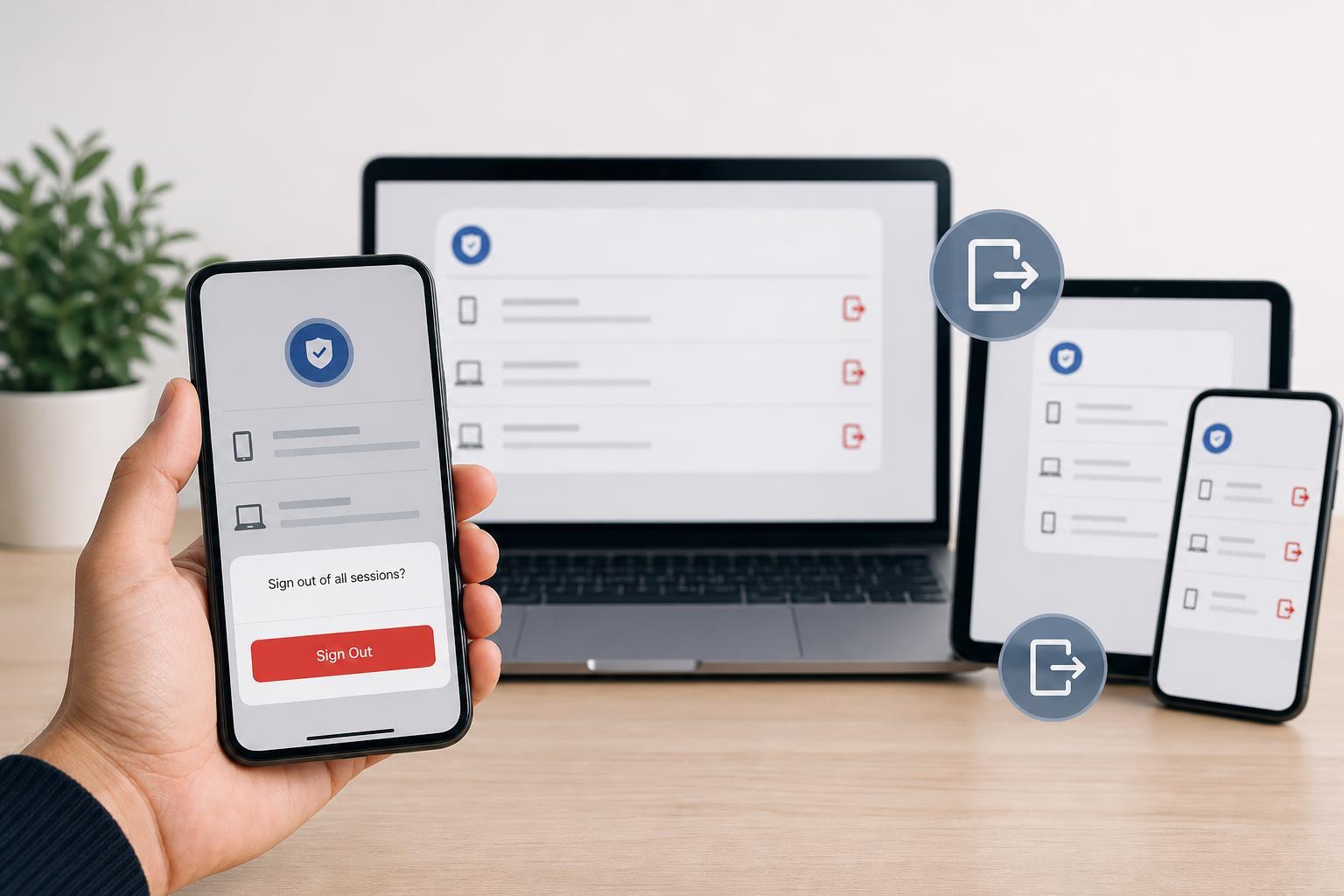
Use Facebook’s Where You’re Logged In List
The easiest way to sign out of Facebook everywhere is through the account security settings. Facebook keeps a list of devices and browsers currently signed in to your account, and you can end those sessions remotely.
- Open Facebook in a browser or the Facebook app.
- Go to Settings and privacy, then Settings.
- Open Accounts Center if your version uses it, then select Password and security.
- Choose Where you’re logged in.
- Review the list of devices, browsers, and locations.
- Select the session you want to remove, or choose the option to log out of all sessions.
How to Log Out of Messenger on All Devices
Messenger uses the same Facebook account login in most cases, so signing out through Facebook usually affects Messenger too. However, Messenger can sometimes stay signed in on a phone even after Facebook is logged out elsewhere, especially if the app has its own active session.
- Open Facebook or the Accounts Center from a browser or the app.
- Go to Password and security, then Where you’re logged in.
- Find Messenger sessions in the list.
- Select each Messenger session you want to end, or remove all active sessions if that option is available.
- If you still appear signed in on the Messenger app, open the app settings and check whether the account is still present on that device.
If You Only Want to Log Out of One Device
You do not have to sign out everywhere if you only want to remove one phone, tablet, or browser. This is useful when you stop using an old laptop, borrow a friend’s device, or notice a login you do not recognize but still want to stay signed in elsewhere.
- Use the device name, browser name, or approximate location shown in the active sessions list.
- End only the session you do not want to keep.
- Leave your trusted devices signed in if you still use them regularly.
- If the location or device name looks unfamiliar, treat it as a security warning and secure your account.
What to Do If You Can’t Access the Account Normally
If you think someone else has access to your Facebook account, or you cannot get into Messenger on a device you no longer control, use Facebook’s recovery and security tools first.
- Try to change your Facebook password immediately from a trusted device.
- Use the login alerts or security checkup tools if Facebook offers them.
- Review active sessions and end anything you do not recognize.
- If the email address or phone number on the account has been changed, start account recovery as soon as possible.
- If you still have access on one trusted device, use it to remove all other sessions before signing out of that trusted device.
Will This Also Log You Out of the Facebook App?
Usually, yes. If Facebook ends the session for a device, that device should no longer stay signed in. But some phones keep login information cached, so the app may still show your account until it fully refreshes or you remove the account from the app.
If a device still appears signed in after you log it out remotely, check whether the app has stored credentials, whether you are viewing an offline screen, or whether there is a separate Messenger login that also needs to be removed.
Extra Cleanup for Shared or Older Devices
If you are done using Facebook on a shared or old device, remote sign-out is only part of the job. To reduce the chance of someone signing back in, also remove saved login data from the device itself.
- Clear saved passwords from the browser or password manager on the device.
- Remove the Facebook or Messenger app account from the phone if the app still lists it.
- Sign out of the browser profile if the device is shared.
- Consider changing your password if you used a public or untrusted device.
How to Check Whether the Logouts Worked
After you end sessions, return to the Where you’re logged in page and refresh it. The removed devices should no longer appear as active sessions. If a device still shows up, it may reconnect if it is still using a saved password or if the logout did not fully complete.
- Open the active sessions page again.
- Confirm that the device you removed is gone.
- Check that only your trusted devices remain.
- If needed, change your password and repeat the session review.
When You Should Change Your Password Too
Logging out is enough if you are just cleaning up old devices. But if you see a login you do not recognize, a password change is a better next step because it helps prevent the same device from signing back in again.
- You do not recognize a device, browser, or location.
- Someone else may know your password.
- You used Facebook on a public or shared computer.
- Messenger is still active on a device you do not control.





