
Leaving a Facebook group is quick once you know where the option is, but the steps are a little different on mobile and desktop. This guide shows you how to leave a group, what happens after you do it, and a few things to check first if you want to avoid missing important posts or losing access to group history.
How to Leave a Facebook Group on Mobile
- Open the Facebook app and log in if needed.
- Tap the menu icon, then select Groups.
- Open the group you want to leave.
- Tap the group name or the three-dot menu at the top of the group page.
- Choose Leave group.
- Confirm that you want to leave the group.
How to Leave a Facebook Group on Desktop
- Open Facebook in your web browser and sign in.
- Click Groups in the left-hand menu.
- Select the group you want to exit.
- On the group page, click the Joined button or the three-dot menu near the top.
- Select Leave group.
- Confirm your choice when Facebook asks you to.
What Happens After You Leave a Group
- You stop seeing new posts from the group in your feed unless you rejoin.
- You are removed from the member list.
- You may lose access to posts, files, or group content that members can view only while they belong to the group.
- Other members are usually not notified that you left, unless the group has specific visibility or moderation settings that make it obvious.
Before You Leave: A Few Things to Check
- If the group contains important links, files, or announcements, save what you need first.
- If you only want fewer notifications, consider muting the group instead of leaving it.
- If you manage the group or are the only admin, make sure someone else can take over before you leave.
- If you joined the group for buy/sell or local community updates, leaving may remove access to active conversations you cannot easily recover later.
How to Mute a Facebook Group Instead of Leaving
- Open the group.
- Tap or click the menu button for group options.
- Look for notification or mute settings.
- Choose a lower notification level or turn off notifications for the group.
Muting is helpful when you want to stay a member but stop constant alerts. It is also a good middle ground if you are not sure whether you want to leave permanently.
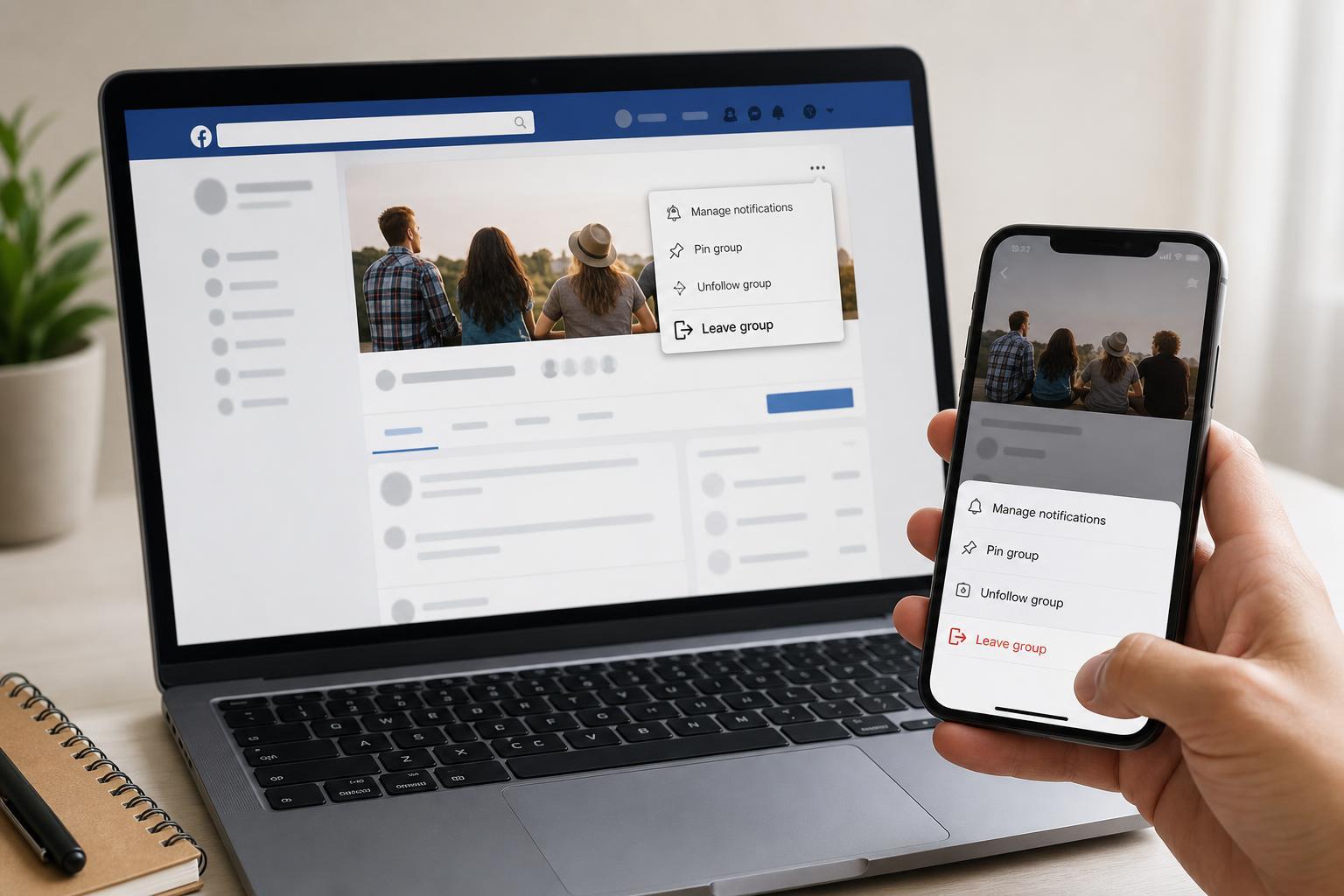
If You Cannot Find the Leave Option
- Make sure you are opening the group itself, not just a post from the group in your feed.
- Look for a three-dot menu if the Joined button is not visible.
- Check whether you are using the Facebook app, Facebook Lite, or a browser, since menus can look different.
- If you are an admin or moderator, review whether you need to transfer roles before leaving.
Leaving a Group on Facebook Is Straightforward Once You Know the Menu
Whether you are using a phone or a computer, the process usually takes only a few taps or clicks. If your goal is simply to stop notifications, muting the group may be a better option. If you are done with the group entirely, leaving it will remove you cleanly and stop future posts from appearing in your feed.





