
Facebook lets you control who can see your birthday, but the exact privacy option depends on whether you want to hide the full date or just the year. If you only want to keep your birthday private from other people, you can change the audience for your birth date on your profile.
This guide shows how to hide your birthday on Facebook from desktop and mobile, what Facebook allows you to hide, and what to check if the birthday still appears to others.
What Facebook Lets You Hide
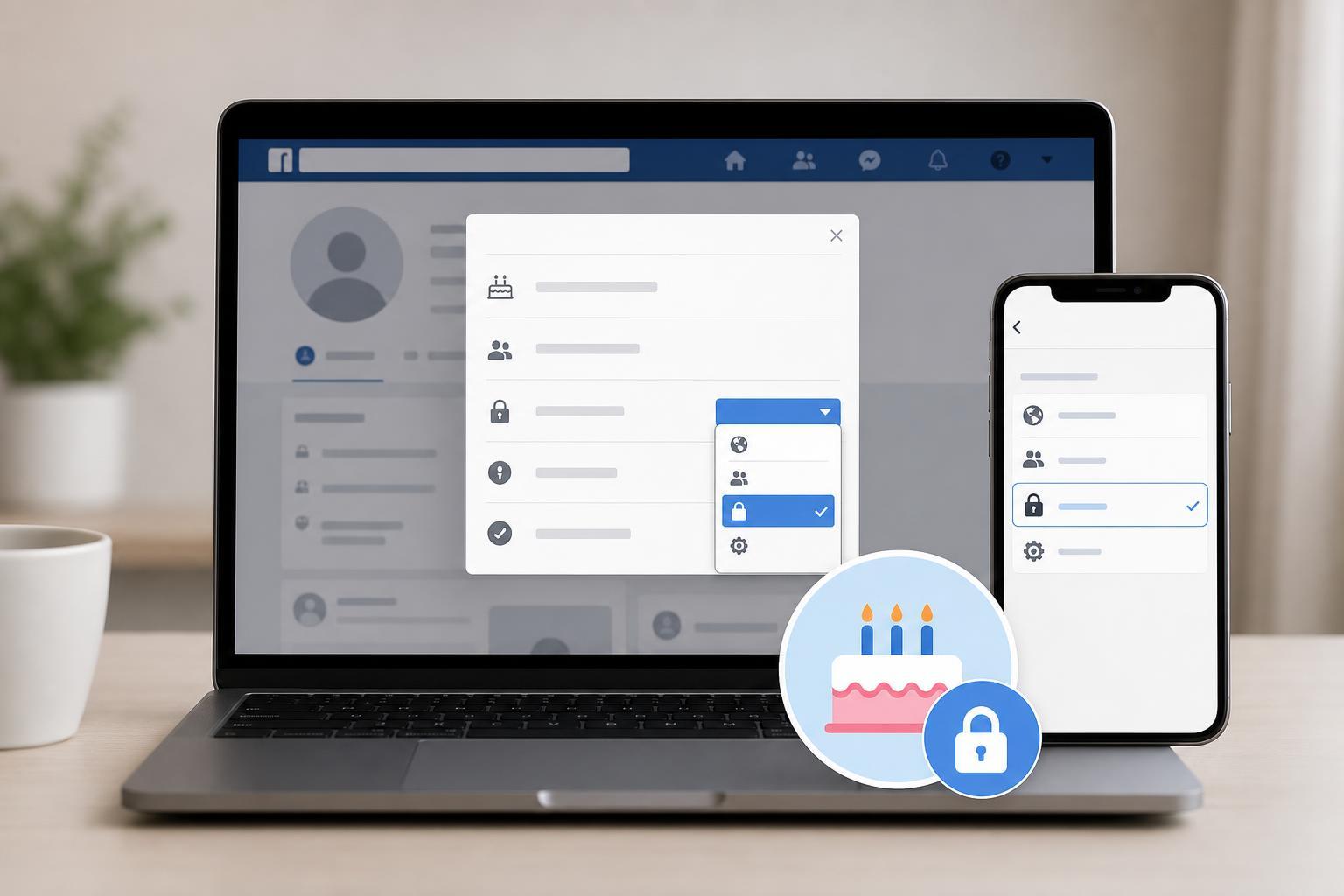
Facebook does not always provide a simple on/off switch for birthdays. Instead, it usually lets you choose who can see each part of your birth date, such as the day, month, and year. In many cases, you can hide the year while keeping the day and month visible, or make the whole birthday visible only to you.
How to Turn Off Your Birthday on Facebook on Desktop
- Open Facebook in your browser and go to your profile page.
- Click the About tab if it appears on your profile.
- Look for the Contact and basic info or Basic info section.
- Find your birthday and click the edit icon or the audience selector next to it.
- Change the privacy setting for the day, month, and year to Only me if that option is available.
- Save your changes.
If Facebook separates your birthday into multiple fields, make sure each part is set correctly. Hiding only the year is common, but if your goal is privacy, set every visible birthday field to Only me when possible.
How to Hide Your Birthday in the Facebook App
- Open the Facebook app and go to your profile.
- Tap Edit profile or the About section, depending on what your app shows.
- Scroll to Basic info or Birthday.
- Tap the birthday field or the privacy icon next to it.
- Choose Only me for the birthday details you want to hide.
- Confirm or save the change.
If You Only Want to Hide the Year
Many people want friends to see the birthday day and month, but not the birth year. If Facebook offers separate controls, set the year to Only me and leave the other fields visible to Friends or another audience you prefer.
How to Check Who Can See Your Birthday
- Go back to your birthday fields in your profile settings.
- Review the audience setting beside each part of your birth date.
- If needed, switch the setting to Only me.
- Use Facebook’s profile view or ask a trusted friend to confirm what appears publicly.
Why Your Birthday May Still Appear
Even after changing the setting, your birthday may still appear in a few places. Facebook can show birthday reminders to friends, and your birth date may remain visible in areas you did not edit, such as older profile fields or linked account information.
- The day, month, and year may each have different privacy settings.
- A birthday reminder can still be sent to friends even if your profile view is restricted.
- Some profile sections may need to be edited separately.
- Facebook may show cached or delayed information for a short time.
What to Do If You Cannot Find the Setting
If you do not see the birthday privacy option, try opening your profile from the About section rather than searching through general account settings. Facebook often keeps personal info controls inside the profile editor instead of the main settings menu.
- Look under About, Contact and basic info, or Basic info.
- Check both the desktop site and the mobile app.
- Make sure you are editing your own profile, not viewing someone else’s.
- Update the Facebook app if the options seem missing.
Choosing the Right Privacy Option
If you want full privacy, choose Only me for every birthday field that Facebook lets you change. If you only want to stop public visitors from seeing it, choose Friends instead of Public. That keeps the information available to people you know without exposing it to everyone.
Checking Your Other Personal Info Settings
If you are tightening your Facebook privacy, it is worth reviewing nearby profile details too. Items such as hometown, phone number, email address, and relationship status may also be visible depending on your settings.
Summary of the Easiest Fix
To hide your birthday on Facebook, open your profile, go to About or Basic info, find your birth date, and set the audience to Only me for the parts you want private. If the year is the only thing you want hidden, change just that field.





