
If the Safari icon has disappeared from your iPhone Home Screen, it is usually still on the phone somewhere. In most cases, the app was removed from the Home Screen, moved into the App Library, hidden from a page, or restricted by Screen Time settings.
This guide walks you through the most likely causes and the quickest ways to put Safari back where you can easily find it.
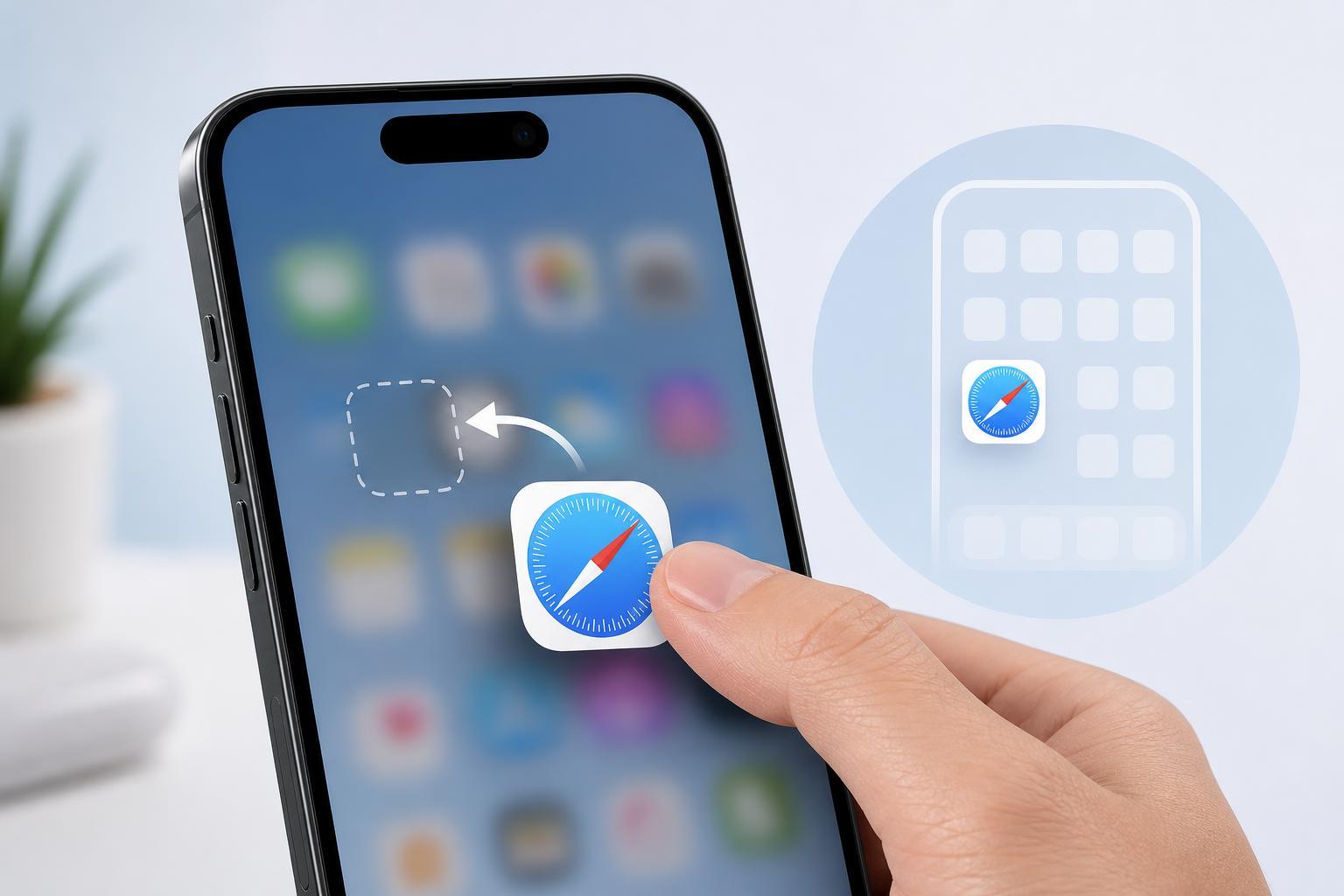
Start by Searching for Safari
Before changing any settings, check whether Safari is actually missing or just no longer visible on the Home Screen.
- Swipe down on the Home Screen to open search.
- Type Safari.
- If Safari appears in the search results, press and hold it.
- Choose Add to Home Screen if that option appears.
Check the App Library
On iPhone, apps can be removed from the Home Screen without being deleted. Safari may still be in the App Library.
- Swipe left until you reach the App Library.
- Use the search field at the top if needed.
- Find Safari.
- Press and hold the Safari icon.
- Tap Add to Home Screen.
Look for a Hidden Home Screen Page
Sometimes an entire Home Screen page is hidden, which can make Safari seem like it vanished with no explanation.
- Press and hold an empty area on the Home Screen until the icons start to jiggle.
- Tap the page dots at the bottom of the screen.
- Look for a hidden page with a checkmark removed.
- Select the hidden page to show it again.
- Tap Done.
Check Screen Time Restrictions
Safari can be hidden or blocked by Screen Time settings, especially on shared phones or devices used by children.
- Open Settings.
- Tap Screen Time.
- Tap Content & Privacy Restrictions.
- If restrictions are on, tap Allowed Apps or Apps & Features, depending on your iOS version.
- Make sure Safari is allowed.
Re-add Safari to the Home Screen from Settings
If Safari is still available but not where you want it, you can often bring it back by locating it in search or the App Library and adding it to the Home Screen directly.
On some iPhone versions, long-pressing the app in search or the App Library is the fastest way to restore it without adjusting any deeper settings.
If Safari Still Does Not Appear
If Safari does not show up in search or the App Library, the issue is more likely a restriction, a Home Screen layout problem, or an unusual software issue.
- Check whether you are using a Focus mode or Home Screen customization that hides certain pages.
- Make sure Safari is not restricted by Screen Time.
- Open Settings and confirm that iPhone storage is not severely full, which can sometimes lead to odd app behavior.
- Update iOS if the phone has been stuck on an older version for a long time.
How to Put Safari Back Where You Want It
Once Safari is visible again, you can place it on the dock or on a preferred Home Screen page.
- Find Safari in the App Library or search results.
- Press and hold the icon.
- Drag it to the Home Screen page you want.
- Drop it in the dock or in an open spot on a page.
- Tap Done if icons are still jiggling.
When You May Need More Help
If Safari is missing from search, the App Library, and the list of allowed apps, or if the icon keeps disappearing again, there may be a device management profile or restriction causing the problem. In that case, check with whoever manages the iPhone, or review any installed configuration profiles in Settings.
For most people, though, the fix is much simpler: Safari was just removed from the Home Screen and can be restored in a few taps.





