
The Windows 11 Bluetooth message “Try connecting your device” usually appears when your PC can see a Bluetooth device, but cannot complete the connection. In many cases, the problem is caused by pairing issues, a disabled Bluetooth service, a driver problem, or a device that is already connected elsewhere.
This guide walks through the most useful fixes first, so you can narrow down whether the issue is with Windows, the Bluetooth adapter, or the accessory itself.
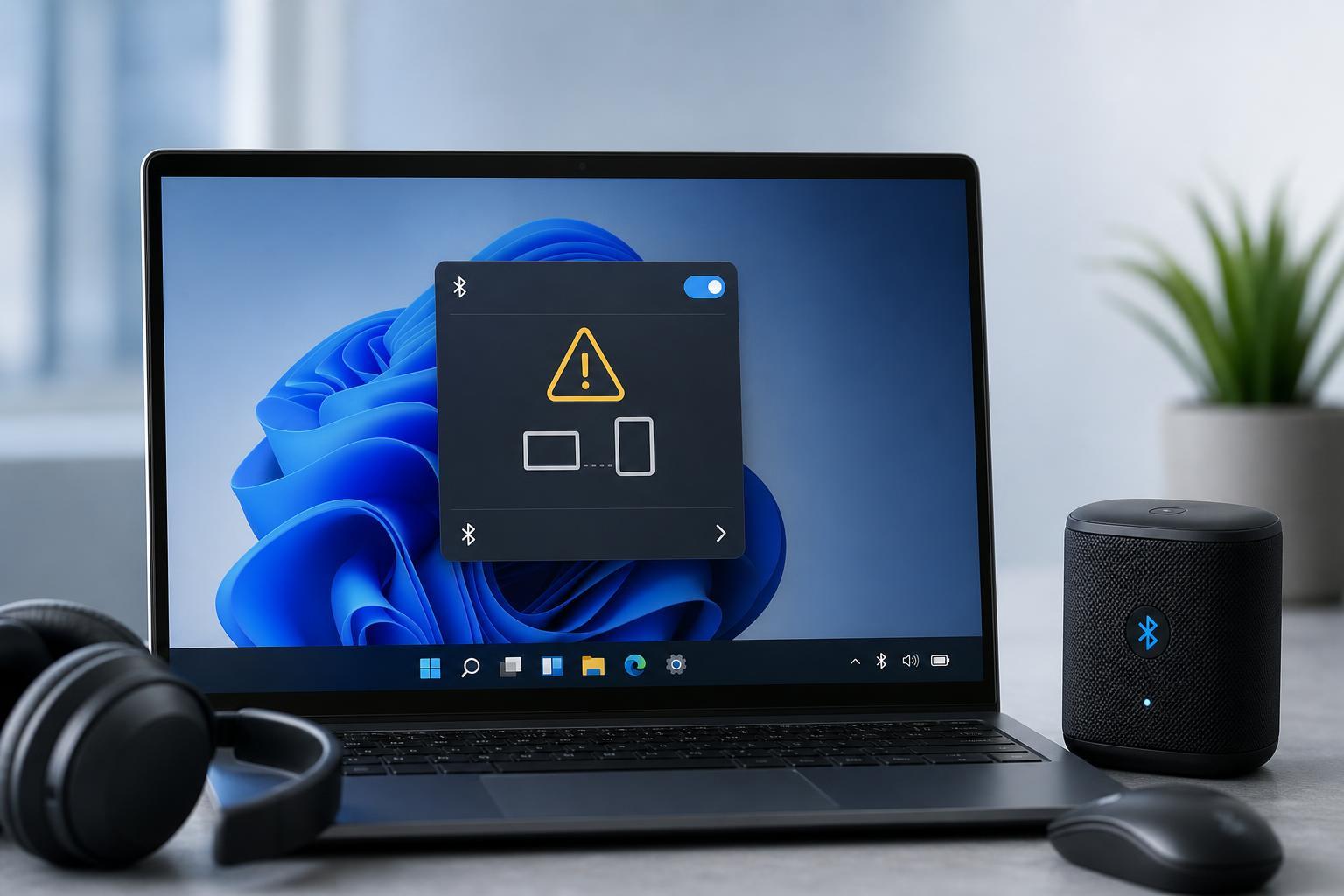
What the Error Usually Means
This message does not always point to a broken Bluetooth chip. It often means Windows discovered the device, but the pairing or connection handshake failed. That can happen with headphones, controllers, mice, keyboards, speakers, phones, and other Bluetooth accessories.
Start With the Device Itself
- Make sure the accessory is charged or connected to power if it uses a battery.
- Put the device back into pairing mode, not just normal power-on mode. Many devices only stay discoverable for a short time.
- Check whether the accessory is already connected to another PC, phone, tablet, or console. If it is, disconnect it there first.
- Move the device closer to the PC during pairing, especially if it is a mouse, headset, or controller.
Forget the Device and Pair It Again
If Windows previously paired with the device, the saved connection profile may be corrupted. Removing it and pairing again is one of the most effective fixes.
- Open Settings and go to Bluetooth & devices.
- Find the problem device in the list.
- Select the device, then choose Remove device.
- Turn Bluetooth off and back on, if needed.
- Put the accessory into pairing mode again and add it from scratch.
If the device is listed more than once, remove every entry that appears to belong to it before pairing again.
Check That Bluetooth Is Turned On and Working
It sounds basic, but Windows can sometimes show Bluetooth as available while the adapter is not actually functioning correctly. Confirm that Bluetooth is enabled in Quick Settings or in Settings > Bluetooth & devices.
- Bluetooth toggle is on
- Airplane mode is off
- The device is in range
- No obvious wireless interference is present
- The PC’s Bluetooth adapter is not disabled in Device Manager
Restart the Bluetooth Service
Windows uses background services to manage Bluetooth pairing and device discovery. If one of those services stalls, Bluetooth devices may appear but fail to connect.
- Press Windows + R, type services.msc, and press Enter.
- Find Bluetooth Support Service.
- Right-click it and choose Restart.
- If it is stopped, open its properties and set Startup type to Automatic or Manual, then start it.
- Try pairing the device again.
Run the Bluetooth Troubleshooter or Windows Fixes
Windows 11 includes built-in tools that can sometimes identify adapter or service problems automatically. These tools are not always enough on their own, but they are worth trying early.
- Open Settings and go to System > Troubleshoot > Other troubleshooters.
- Run the Bluetooth troubleshooter if it appears in the list.
- Also check Windows Update for pending updates, including optional driver updates.
- Restart only if Windows asks for it after installing updates.
Update or Reinstall the Bluetooth Driver
A damaged or outdated Bluetooth driver is a common reason for the “Try connecting your device” error. Updating the driver is usually safer than random manual changes, and reinstalling it can clear corrupted settings.
- Right-click the Start button and open Device Manager.
- Expand Bluetooth.
- Right-click your Bluetooth adapter and choose Update driver.
- If that does not help, choose Uninstall device.
- If you see an option to delete the driver software, use it only if you are comfortable reinstalling the driver afterward.
- Restart the PC so Windows can reinstall the adapter driver automatically.
Remove Problematic Paired Devices from Device Manager
Sometimes the pairing entry in Settings is removed, but the deeper device record in Device Manager still causes conflicts. This is more likely if the device keeps failing after being paired successfully in the past.
- Open Device Manager.
- Under Bluetooth, and also under Human Interface Devices or Audio inputs and outputs if relevant, look for entries related to the device.
- Right-click suspicious duplicate or broken entries and uninstall them.
- Restart and pair the device again.
Check for Interference and Range Issues
Bluetooth usually works best at short range with limited obstacles. Physical interference is especially important for compact USB Bluetooth adapters and desktop PCs placed under a desk.
- Move the accessory closer to the PC
- Unplug nearby USB 3.0 devices that may interfere with wireless signals
- Try a different USB port for a Bluetooth dongle
- Avoid hiding the PC behind metal objects or thick furniture
- If possible, test the device in a different room to rule out interference
Check Whether the Device Is Supported
Some Bluetooth accessories support different Bluetooth profiles or require specific app support. A device may appear in Windows but still fail to connect properly if it is not meant to pair the way you expect.
- Older audio devices may need a manual pairing sequence
- Some controllers require firmware updates from the manufacturer
- Certain mice and keyboards use a USB receiver instead of standard Bluetooth
- Some headphones switch between Bluetooth and low-latency modes that can affect pairing
If the device works with another computer or phone but not with your Windows 11 PC, that points more strongly to a Windows or driver issue. If it fails everywhere, the accessory itself may be at fault.
When to Reset Network Settings
A full network reset is usually not the first fix for a Bluetooth-only issue, but it can help if multiple wireless features on the PC are misbehaving at once.
- Go to Settings > Network & internet > Advanced network settings.
- Select Network reset.
- Read the warning carefully before continuing.
- After the reset, reconnect to Wi-Fi and test Bluetooth again.
If Nothing Works
If every device fails with the same error, the problem is more likely with the PC’s Bluetooth adapter, its driver, or a Windows-level configuration issue. If only one device fails, the accessory is the better suspect.
- Test a different Bluetooth accessory on the same PC
- Test the problem accessory on another PC or phone
- Check Device Manager for warning icons on the Bluetooth adapter
- Look for vendor-specific Bluetooth utilities installed by your laptop manufacturer
- Consider a USB Bluetooth adapter if the built-in adapter appears unreliable
Which Fix Should You Try First?
If you want the quickest path, try these in order: remove the device and pair it again, restart the Bluetooth Support Service, update or reinstall the Bluetooth driver, and then test for interference or adapter problems. That sequence solves many Windows 11 Bluetooth connection errors without unnecessary changes.





