
When you connect an iPhone to a Mac or Windows PC, you should normally see a “Trust This Computer?” prompt on the phone the first time the devices connect. If that prompt never appears, the computer may not be able to access photos, backups, or device data properly. The cause is often a cable, port, iPhone setting, or a trust-state problem between the two devices.
Here are eight practical ways to fix the issue, starting with the simplest checks and moving to more advanced steps.
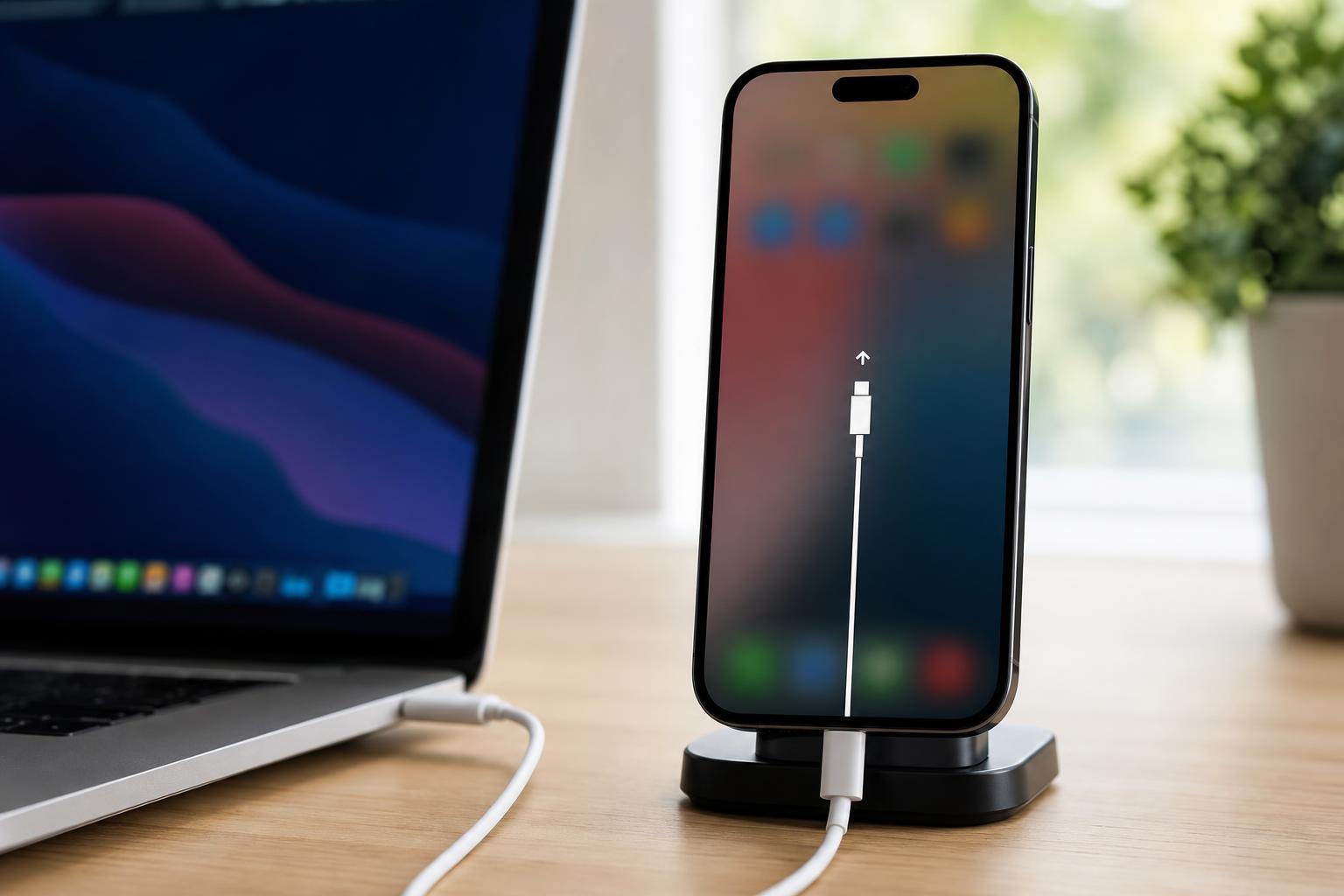
1. Unlock the iPhone Before Connecting It
An iPhone usually needs to be unlocked before it will show the trust prompt. If the phone is locked when you plug it in, the prompt may not appear until you wake it and unlock it with Face ID, Touch ID, or your passcode.
- Disconnect the iPhone from the computer.
- Unlock the iPhone to the Home Screen.
- Reconnect the cable while keeping the phone unlocked.
- Watch for the prompt near the top or middle of the screen.
2. Try a Different Cable or USB Port
A bad cable or unstable USB port can charge the iPhone without allowing proper data communication. That can stop the trust prompt from appearing even though the phone seems to be connected.
- Use an Apple-certified or known-good Lightning or USB-C cable.
- Avoid loose adapters, hubs, or docking stations at first.
- Try a different USB port directly on the computer.
- If possible, test the same cable with another device to confirm it supports data transfer.
3. Clean the iPhone Port and Check the Connection
Lint or dust in the iPhone charging port can interrupt the data pins while still allowing limited charging. That can prevent the trust dialog from appearing or cause the connection to drop repeatedly.
- Inspect the port with a light.
- Remove debris carefully with a soft, dry, non-metal tool if needed.
- Do not use liquid cleaners or anything sharp that could damage the connector.
- Reconnect the cable firmly after cleaning.
4. Make Sure the Computer and iPhone Are Fully Up to Date
Outdated iPhone software or an old version of macOS or Windows can interfere with the trust process. Updates often include fixes for device detection and USB connectivity.
- On iPhone, open Settings > General > Software Update and install any available update.
- On Mac, check System Settings or System Preferences for software updates.
- On Windows, install the latest Windows updates.
- If you use iTunes on Windows, make sure it is updated as well.
5. Reset Location & Privacy on the iPhone
If the trust dialog was previously denied, hidden, or interrupted, resetting Location & Privacy can restore the prompt. This clears saved privacy decisions, including trust relationships with computers.
- Open Settings on the iPhone.
- Go to General.
- Scroll down and tap Transfer or Reset iPhone.
- Tap Reset, then choose Reset Location & Privacy.
- Enter your passcode if prompted.
After that, reconnect the iPhone to the computer while it is unlocked. The “Trust This Computer?” prompt should appear again.
6. Restart the iPhone and the Computer
If the trust prompt still will not appear, restarting both devices can clear temporary connection problems. This is especially useful if the iPhone was connected before, but the prompt stopped showing after a software change or a failed connection attempt.
- Disconnect the iPhone from the computer.
- Restart the iPhone.
- Restart the Mac or Windows PC.
- Reconnect the iPhone while it is unlocked.
7. Check for “Trust” Prompts Hidden Behind Other Screens
Sometimes the prompt does appear, but it is easy to miss. If the iPhone is showing the lock screen, notifications, or a system dialog, the trust message may be behind another screen or dismissed before you notice it.
- Wake the iPhone and swipe to the Home Screen.
- Keep the phone unlocked for several seconds after plugging it in.
- Look for any small dialog asking to allow accessory access or trust the computer.
- If a prompt appears and disappears quickly, disconnect and reconnect the cable while watching the screen carefully.
8. Restore Trust by Removing Old Computer Pairings or Testing Another Computer
If the iPhone previously trusted another computer and the relationship is now broken, that can sometimes interfere with new connections. Testing a different computer helps you determine whether the issue is with the iPhone or the original PC or Mac.
- Connect the iPhone to another computer you trust.
- Unlock the iPhone and see whether the prompt appears.
- If it works on the second computer, the original computer likely has a driver, cable, or software issue.
- If it does not work anywhere, the problem is more likely on the iPhone side.
On Windows, if the phone is still not recognized, updating or reinstalling Apple Mobile Device support through iTunes can also help. On Mac, ensure Finder has permission to access connected devices and that the Mac recognizes USB accessories properly.
What to Do If None of These Fixes Work
If the iPhone still never shows “Trust This Computer,” the issue may be hardware-related or tied to deeper software corruption. At that point, focus on isolating the failure:
- Test multiple cables known to support data transfer.
- Try multiple USB ports and, if possible, another computer.
- Check whether the iPhone charges normally but refuses data access.
- Look for signs of port damage or intermittent connection behavior.
- If the phone is managed by work or school software, device restrictions may be involved.
Which Fix Should You Try First?
Start with the simplest checks: unlock the iPhone, use a different cable, and try another USB port. If the prompt still does not appear, reset Location & Privacy and make sure both devices are updated. In many cases, one of those steps restores the trust prompt without requiring anything more advanced.





