
If ISO files take a long time to mount in Windows 11, the delay is usually caused by file location, security scanning, disk performance, or a problem with File Explorer or the ISO itself. In many cases, the fix is simple once you narrow down where the slowdown is happening.
This guide walks through the most likely causes of slow ISO mounting and shows you how to test and fix them without making unnecessary changes.
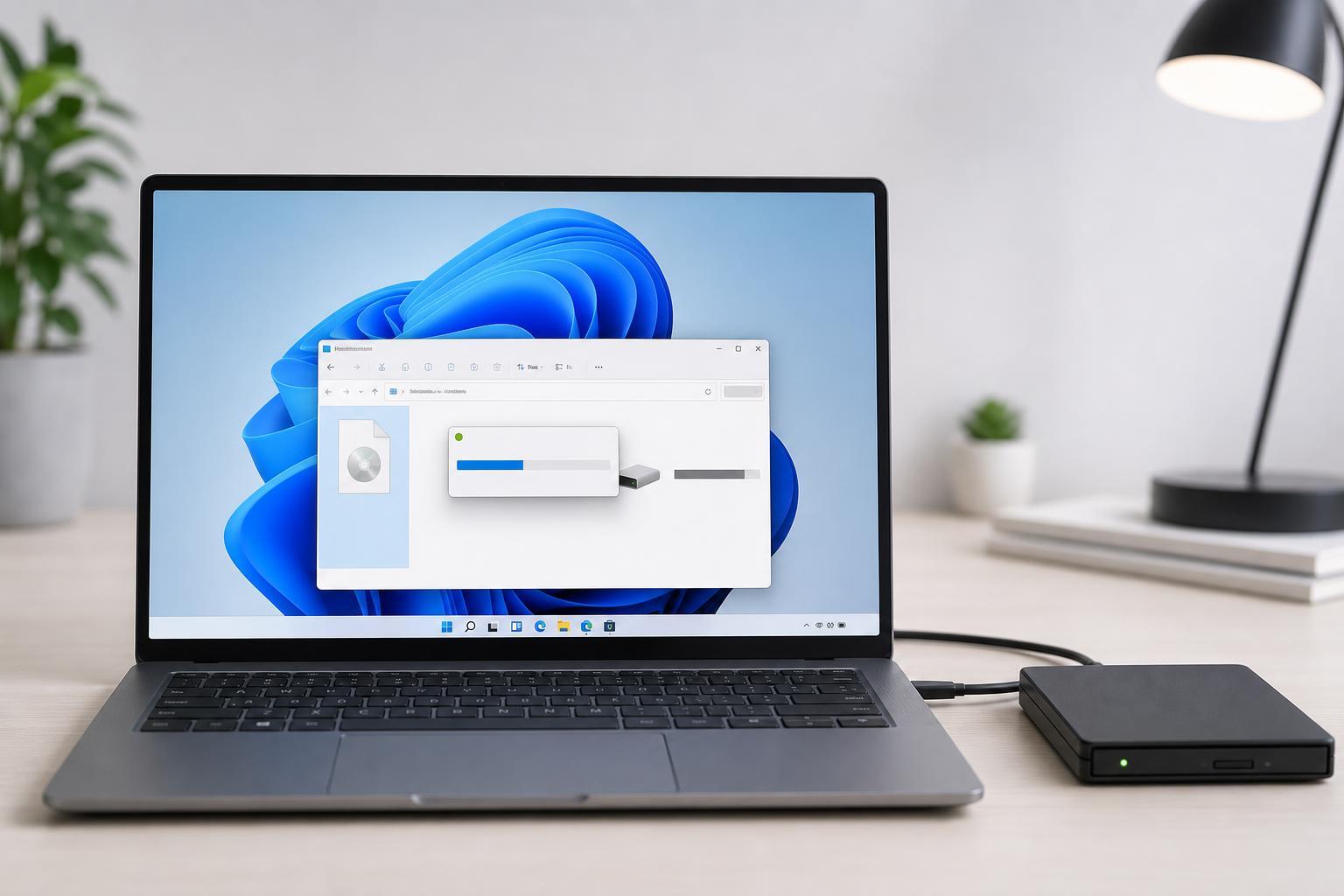
What Usually Causes Slow ISO Mounting?
Windows 11 can mount ISO files natively, so there is no separate installer or third-party tool involved. When mounting feels slow, the delay often comes from the system having to scan, read, or verify the file before it becomes available as a virtual drive.
- The ISO is stored on a slow drive or external USB device
- Windows Security or another antivirus tool is scanning the file
- File Explorer is struggling with a very large ISO or a busy system
- The ISO is on a network location or cloud-synced folder
- The ISO file is damaged or incomplete
- Disk issues or low storage space are slowing reads and writes
Start With the File Location
The location of the ISO file is one of the most common reasons for slow mounting. If the file is stored on a USB drive, an external hard drive, a network share, or a cloud-synced folder, Windows may take longer to read it before it mounts.
- Copy the ISO file to your local internal SSD or hard drive.
- Try mounting it again from that local folder.
- If it mounts faster, the original location was likely the bottleneck.
- If you use OneDrive or another sync service, pause syncing temporarily and test again.
Check Windows Security and Antivirus Scanning
Security software may scan ISO files before Windows mounts them. This is especially noticeable with large game installers, operating system images, and software distribution files. A scan does not mean something is wrong, but it can add a noticeable delay.
- Open Windows Security and check whether a scan is running.
- If you use third-party antivirus software, see whether it is actively scanning the file.
- Try mounting the ISO again after the scan completes.
- If the file is from a trusted source and the delay happens every time, you can test by temporarily disabling real-time protection only long enough to confirm whether scanning is the cause.
Make Sure File Explorer Is Not the Problem
Sometimes the mount process is not truly stuck; File Explorer is just delayed while refreshing the new virtual drive. If Explorer is busy, restarting it can help without requiring a full system reboot.
- Press Ctrl + Shift + Esc to open Task Manager.
- Find Windows Explorer in the Processes list.
- Select it and choose Restart.
- Try mounting the ISO again.
If File Explorer is generally slow, the issue may be broader than ISO mounting. In that case, check whether you have many startup apps, low RAM, or an overloaded system drive.
Test the ISO File Itself
A damaged or incomplete ISO can mount slowly because Windows has trouble reading its structure. If the file came from a download, it may have been interrupted or saved incorrectly.
- Compare the file size with the expected size from the source
- Re-download the ISO if the source offers a checksum or hash to verify integrity
- Try mounting a different ISO file to see whether the slowdown happens only with one file
- Avoid renaming the file in a way that removes the .iso extension
Check the Drive Hosting the ISO
Even if the ISO file is valid, the drive it sits on may be slowing things down. Mechanical hard drives, failing drives, nearly full drives, and drives with file-system errors can all cause long pauses during mounting.
- Check whether the drive has enough free space.
- If the ISO is on an external drive, test a different cable or USB port.
- Move the ISO to your internal system drive and try again.
- Run a drive check if you suspect disk errors.
Disable Conflicting Shell Extensions or Third-Party Tools
Utilities that add context menu actions, archive tools, or disk-mounting software can sometimes interfere with the built-in Windows 11 ISO handler. If you recently installed a file manager add-on or system utility, it may be affecting the mount process.
- Third-party archive tools that take over ISO handling
- Virtual drive or disk imaging utilities
- Context menu managers and shell extensions
- Security suites with deep file scanning
If you suspect a conflict, test by temporarily disabling or uninstalling the most recent file-related tool you added, then try mounting the ISO again.
Use Disk Cleanup and Keep the System Drive Healthy
A nearly full system drive can slow down Windows file operations, including mounting and creating the temporary virtual structures used by an ISO mount. This is more likely to matter when your C: drive has very little free space or is under heavy background activity.
- Check available free space on your system drive.
- Delete temporary files you no longer need.
- Move large downloads or media files off the system drive if it is nearly full.
- Try the mount again after freeing some space.
Try Mounting From a Different Account or a Clean Boot
If the slowdown only happens under your normal Windows profile, a startup app or background service may be involved. Testing in a clean boot can help separate Windows itself from software that loads with it.
- Create a test by signing in with another local account if one is available.
- Try mounting the same ISO there.
- If the problem disappears, look for startup apps, background tools, or security software tied to the original account.
- For a deeper test, perform a clean boot and then mount the ISO again.
When to Suspect a Windows Issue
If every ISO file mounts slowly, even when stored locally on a fast drive, the problem may be with Windows components or system health. That is less common than file or drive issues, but it can happen after updates, software conflicts, or file corruption.
- The slowdown affects every ISO, not just one
- The same file mounts quickly on another PC
- The problem started after installing new software
- File Explorer is slow in general, not just during mounting
- Install pending Windows updates if available.
- Run a system file check if Windows itself seems unstable.
- Review recently installed software that may affect file handling.
- If necessary, test the problem in Safe Mode or a clean boot environment.
A Practical Order to Try the Fixes
If you want the fastest path to a solution, try the checks in this order:
- Move the ISO to a local SSD or internal drive.
- Mount a different ISO file to compare behavior.
- Wait for antivirus scanning to finish or test with trusted-file scanning temporarily disabled.
- Restart Windows Explorer from Task Manager.
- Check free space and disk health on the drive containing the ISO.
- Test with a different user account or in a clean boot.
- Investigate Windows repair steps if the issue affects every ISO file.
What This Usually Means in Practice
In most cases, slow ISO mounting in Windows 11 is not a serious system fault. It is usually caused by the file being stored on a slow location, security software scanning the image, or a problem with the ISO itself. Once you move the file locally and rule out scanning, the mount process is often back to normal.





