
When a Shortcuts automation on iPhone stops working, the problem is usually with the trigger, a permission, or a setting that prevents the action from running in the background. Some automations fail only at certain times, while others never fire at all.
This guide walks through the most common reasons iPhone Shortcuts automations do not work and the fixes that are most likely to solve the problem without unnecessary steps.
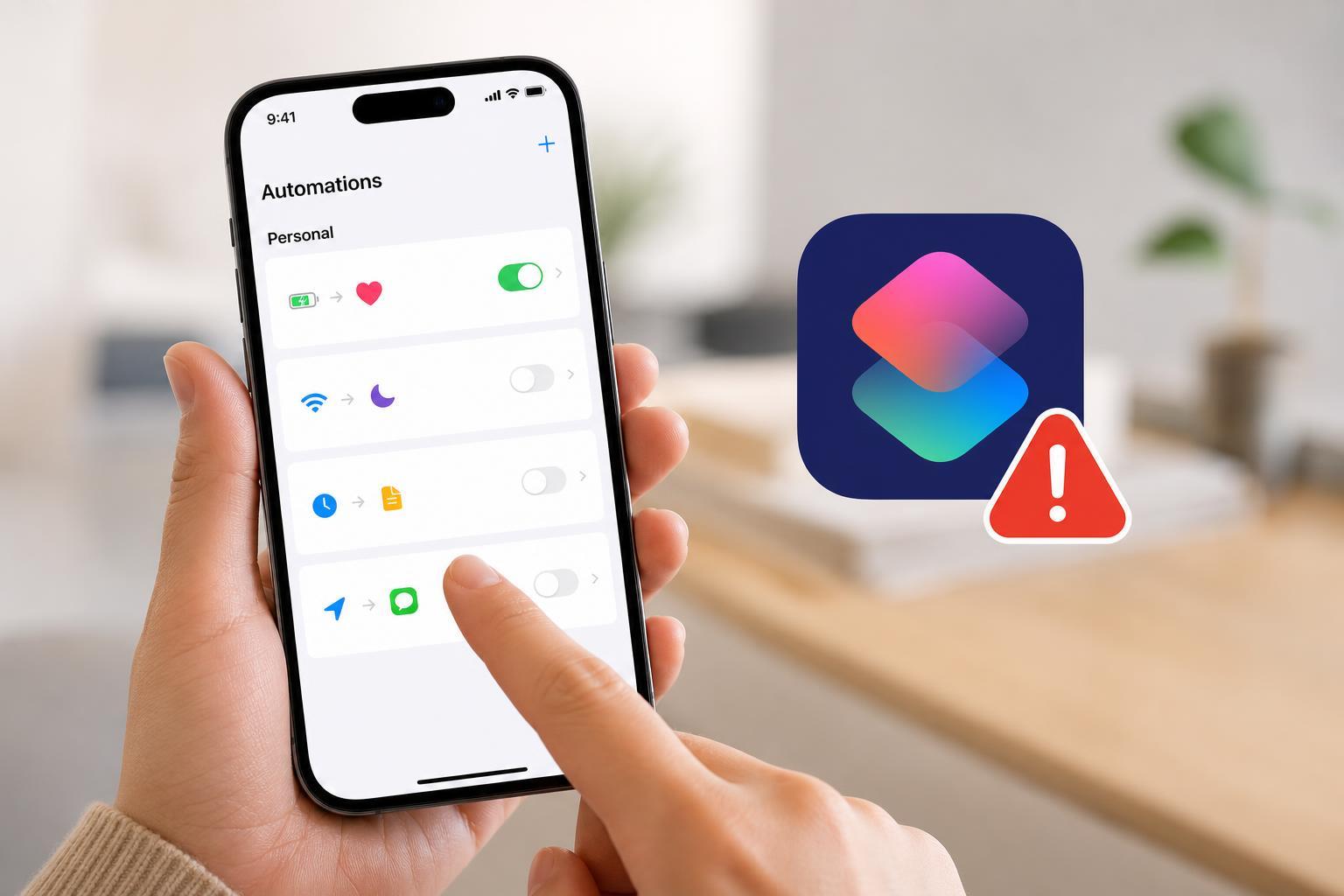
Check Whether the Automation Is Actually Enabled
In the Shortcuts app, an automation can exist but still be turned off. Open Shortcuts, go to the Automation tab, and make sure the automation is listed and enabled. If it was disabled, turn it back on and test it again.
If the automation was recently edited, confirm that the trigger and actions are still present. A broken or incomplete automation can look fine in the list but fail when it is supposed to run.
- Open the Shortcuts app.
- Tap Automation at the bottom.
- Select the automation that is not working.
- Check that it is enabled and that the trigger still matches what you expect.
- Run a test if the automation offers one.
Make Sure the Trigger Can Actually Fire
The trigger is the most important part of an automation. If the trigger conditions do not match your real-world behavior, the shortcut will never run. For example, a location automation may fail if the location is too broad, or a Wi-Fi automation may not fire if the phone connects too quickly or to the wrong network.
- Time of day automations need the correct days selected.
- Location automations require a precise place and location services enabled.
- Wi-Fi automations depend on connecting to the exact network.
- NFC automations require the iPhone to tap the tag properly.
- App-based automations only run when the chosen app is opened or closed.
Check Shortcuts Notification and Background Permissions
Many automations rely on iPhone permissions to run properly. If Shortcuts is not allowed to send notifications, use location services, or access related app permissions, the automation may be blocked or may ask for approval instead of running smoothly.
- Open Settings.
- Tap Privacy & Security, then review Location Services if your automation uses location.
- Go back to Settings and open Shortcuts if it appears.
- Check notification-related permissions for Shortcuts.
- If the automation uses another app, open that app’s settings and confirm it has the permissions it needs.
Look for ‘Ask Before Running’ and Confirmation Prompts
Some automations are designed to ask for confirmation before they run. That is normal for certain actions, especially those that could affect privacy, messages, alarms, or other sensitive features. If the automation is waiting for approval, it may look broken when it is actually paused for input.
Open the automation and check whether it is set to run immediately or ask before running. If the option is available and appropriate for your setup, disable asking before running so the automation can complete on its own.
Check Focus Modes and Sleep Settings
Focus modes can interfere with notifications, app behavior, and the timing of certain automations. If your automation depends on a notification, a reminder, or a visible prompt, Focus may prevent it from appearing when you expect.
Sleep or Low Power Mode can also delay some background activity. If the automation fails at predictable times, try testing it with Focus turned off temporarily and see whether the behavior changes.
Test the Automation With a Simple Action
If you are not sure whether the trigger or the action is failing, reduce the automation to one very simple action. For example, make it show a notification or open a basic app. If the simple version works, the problem is likely in one of the original actions, not the trigger.
- Duplicate the automation if possible, or create a test version.
- Replace the existing actions with one simple action.
- Trigger the automation manually or wait for it to run.
- If it works, add the original actions back one at a time until the failure returns.
Update iOS and the Shortcuts App
Automation bugs are sometimes caused by iOS issues, especially after a major update or when an app has not been refreshed in a while. Install the latest iPhone update and then test the automation again.
If the automation uses a third-party app, update that app too. Some Shortcut actions stop working properly until the app developer updates their Shortcuts support.
Restart or Recreate the Automation When It Seems Corrupted
If the automation used to work and now fails with no obvious reason, the setup itself may be corrupted. In that case, deleting the automation and creating it again can be more effective than editing it repeatedly.
- Open the automation in Shortcuts.
- Delete it or turn it off and remove it if needed.
- Create a fresh automation with the same trigger.
- Add only the actions you actually need.
- Test it before building a more complex version.
If It Still Will Not Work
If none of the common fixes solve the problem, the issue is usually tied to a specific trigger type, an app permission, or an iOS bug. Check these last possibilities:
- The automation depends on an app that no longer supports the same Shortcut action.
- The trigger is too restrictive or set for the wrong device state.
- A location, Wi-Fi, or Bluetooth condition is not matching reliably.
- Shortcuts needs a clean rebuild after a failed edit.
- Your iPhone may need a system update to fix the behavior.
What Usually Fixes iPhone Shortcuts Automations Fastest
For most people, the fastest fix is to confirm that the automation is enabled, then check the trigger, then remove any ‘Ask Before Running’ prompt if the automation is supposed to run automatically. If that does not work, updating iOS and recreating the automation usually solves the stubborn cases.





