
Picture-in-Picture lets you keep watching a video while using other apps on your iPhone. When it stops working, the problem is usually caused by a setting, an app limitation, or a temporary glitch in iOS rather than a serious hardware issue.
The fixes below focus on the most common reasons PiP fails, starting with the simplest checks and moving to more specific ones.
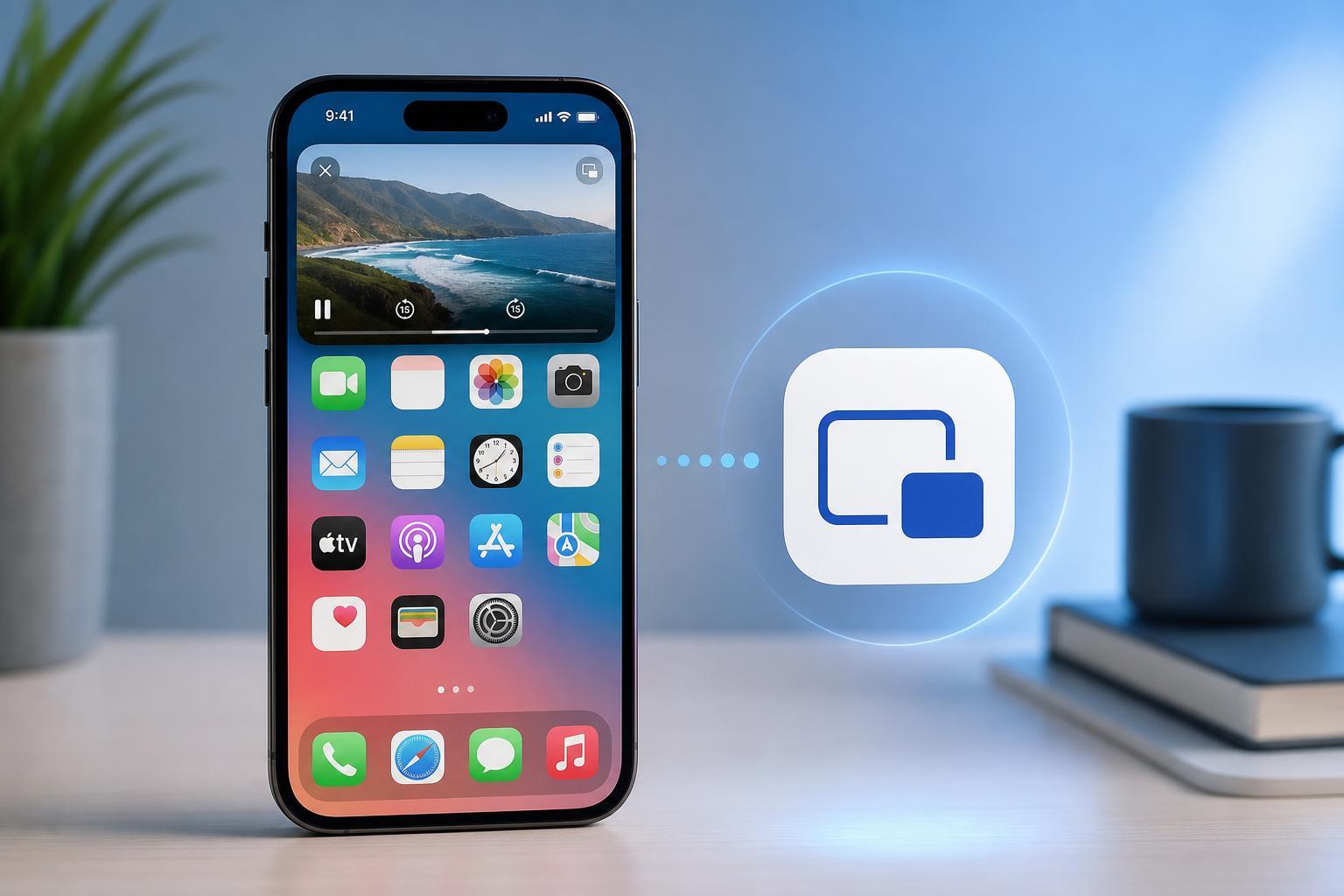
1. Make Sure Picture-in-Picture Is Enabled in iPhone Settings
The first thing to check is whether PiP is actually allowed on your device. If the feature is turned off, videos may play normally but never switch into the floating window.
- Open Settings on your iPhone.
- Tap General.
- Select Picture in Picture.
- Turn on Start PiP Automatically.
If this setting is already on, PiP may still be blocked by the app you are using. Some apps have their own playback rules and do not support PiP in every situation.
2. Check Whether the App Actually Supports PiP
Not every video app supports Picture-in-Picture in the same way. Some apps allow PiP only for certain videos, subscription plans, or playback modes. Others support it in Safari but not inside the app itself.
- Streaming apps may restrict PiP to paid accounts or specific content.
- Some apps disable PiP for live events, music videos, or protected video content.
- PiP often works better in Safari than in a dedicated app.
If PiP works in one app but not another, that is usually a compatibility issue rather than a problem with your iPhone.
3. Try Using Safari Instead of the App
If an app keeps refusing to open PiP, try playing the video in Safari instead. Many websites let videos pop out more reliably in the browser than in their standalone app.
- Open Safari and go to the website that hosts the video.
- Start playing the video.
- If available, enter full-screen mode.
- Tap the PiP button or swipe up to return to the Home Screen while the video continues playing.
This is often the quickest workaround for video services that support PiP on the web but not inside the app version.
4. Update iOS and the Problem App
If PiP used to work and suddenly stopped, the issue may be caused by outdated software. iOS updates can fix bugs in media playback, and app updates can restore PiP support if the developer changed how the app works.
- Open Settings and go to General > Software Update to check for an iOS update.
- Open the App Store and update the app that is not working with PiP.
- After updating, test PiP again in the same app or website.
If the app was recently updated and PiP stopped working after that, the developer may have changed support intentionally or introduced a bug that needs another update to fix.
If PiP Still Won’t Work
If none of the four fixes help, the remaining possibilities are more specific: the video may not support PiP, the app may be blocking it by design, or a Screen Time or content restriction may be interfering.
- Test PiP in a different app that is known to support it.
- Check Screen Time restrictions if the iPhone is managed by a parent, school, or employer.
- Sign out and back into the video app if it requires an account for PiP support.





