
The Recycle Bin is usually easy to find in Windows, but it can disappear from the desktop or be hidden by settings, customizations, or a full-screen app. If you are trying to restore deleted files or just want to open the bin quickly, there are several ways to get to it.
This guide shows nine reliable ways to find the Recycle Bin in Windows, including the desktop, Search, File Explorer, and a few methods that help when the icon is missing.
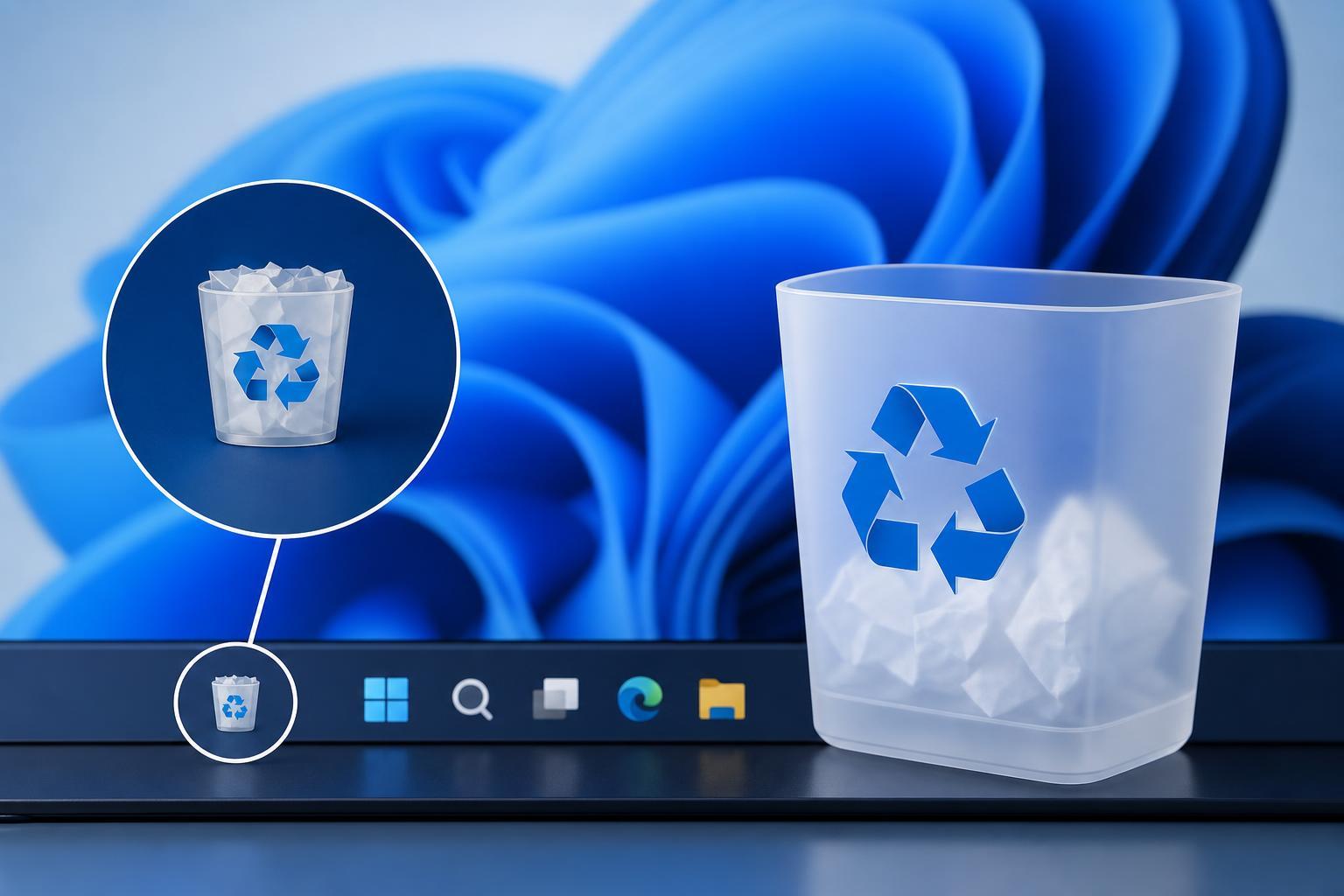
1. Check the Desktop First
In many Windows installs, the Recycle Bin is on the desktop by default. Look near the upper-left area of the screen or wherever your desktop icons are arranged.
If you see the icon, double-click it to open the deleted files inside. You can also right-click it for options such as Empty Recycle Bin or Restore.
2. Use Windows Search
- Press the Windows key or click Start.
- Type Recycle Bin.
- Open the result that matches the Recycle Bin app or desktop item.
Search is useful when the desktop icon is missing or when you do not want to browse through settings. On some systems, Windows will show the Recycle Bin directly in the search results.
3. Open It from the Run Box
- Press Windows + R to open Run.
- Type shell:RecycleBinFolder.
- Press Enter.
This command opens the Recycle Bin directly, even if the desktop shortcut is gone. It is one of the most reliable ways to reach it quickly.
4. Pin It to Start or Taskbar After You Find It
If you use the Recycle Bin often, pinning it makes it easier to access later. You can use Search, Run, or the desktop shortcut first, then create a more convenient shortcut from there if your Windows version allows it.
- Use Start menu search to open Recycle Bin first.
- If available, right-click it and look for pinning options.
- Keep a shortcut on the desktop if you prefer a visible icon.
5. Show the Desktop Icon in Personalization Settings
If the Recycle Bin is missing from the desktop, it may simply be turned off in the desktop icon settings. You can turn it back on in Windows personalization settings.
- Right-click the desktop and choose Personalize.
- Open Themes in Windows 11, or look for Desktop icon settings in related personalization options.
- Select Desktop icon settings.
- Check Recycle Bin.
- Click Apply, then OK.
6. Search in File Explorer
File Explorer does not usually show the Recycle Bin in a normal folder list, but it can still help you get there through the address bar or by opening system locations that expose it.
- Open File Explorer.
- Click the address bar.
- Type shell:RecycleBinFolder and press Enter.
This is another direct route that works well if you already have File Explorer open.
7. Use the Desktop Context Menu if the Icon Is Hidden
Sometimes the Recycle Bin is not truly gone; it is just not visible. Right-click an empty area of the desktop and look for display or view options that may be hiding desktop icons.
- Make sure desktop icons are set to show.
- Check whether tablet mode or a full-screen app is affecting what you see.
- Confirm that you are on the correct desktop if you use virtual desktops.
8. Check the Search Bar in the Taskbar
If your Start menu search is not obvious, the taskbar search box can find the Recycle Bin just as easily. This is especially useful on Windows 10 and some Windows 11 setups where search is pinned to the taskbar.
- Click the taskbar search field.
- Type Recycle Bin.
- Open the result from the list.
9. Create a Shortcut to Make It Easy to Find Later
If the Recycle Bin keeps disappearing from view, creating a shortcut can save time. A shortcut gives you a reliable way to open it even if the desktop icon is hidden.
- Right-click the desktop and choose New > Shortcut.
- Enter shell:RecycleBinFolder as the location.
- Click Next.
- Name it Recycle Bin and finish the wizard.
If the Recycle Bin Still Does Not Appear
If none of the methods above work, the issue may be more than just a missing desktop icon. In that case, Windows settings, policies, or profile issues may be affecting how the Recycle Bin is displayed.
- Confirm you are signed in to the correct Windows account.
- Check whether desktop icons are hidden.
- Look for group policy or organization restrictions on shared PCs.
- Try the shell:RecycleBinFolder command again to confirm Windows can still open it.
Which Method Should You Try First?
If you just need the quickest route, use Search or the shell:RecycleBinFolder command. If the Recycle Bin should be on the desktop but is missing, go to the desktop icon settings and turn it back on. For long-term convenience, creating a shortcut is often the best option.





