
LinkedIn lets you save posts and jobs so you can come back to them later, but the Saved items area is not always obvious if you have not used it before. If you want to quickly find an article, post, or job listing you bookmarked, this guide walks you through the exact places to look on desktop and in the LinkedIn app.
The steps are simple once you know where LinkedIn hides these options, and the menus are slightly different depending on whether you are looking for saved content or saved jobs.
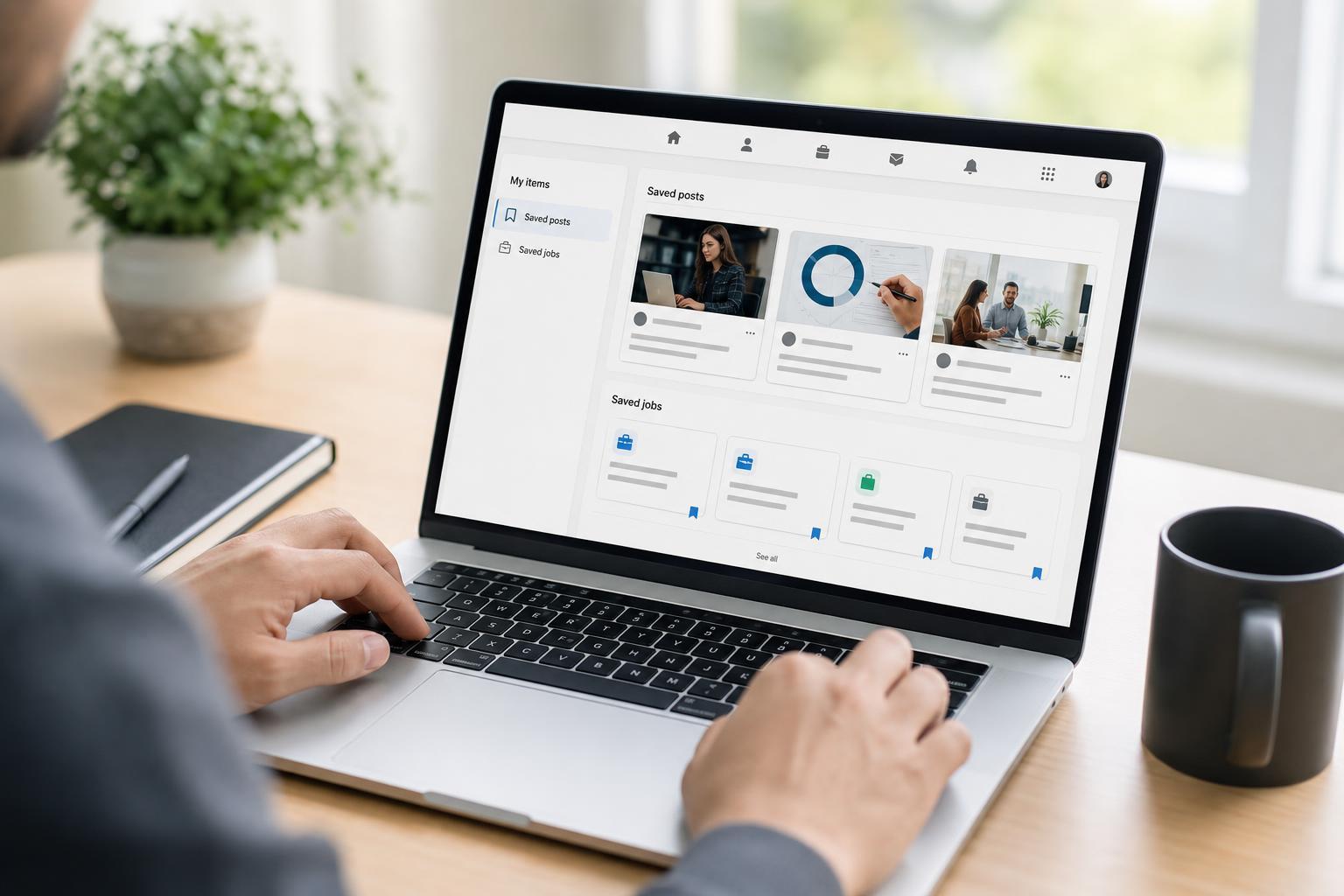
How to Find Saved Posts on LinkedIn
Saved posts are stored in LinkedIn’s Saved items section. This is where you will find articles, posts, newsletters, and other content you marked for later.
- Sign in to your LinkedIn account.
- On the desktop site, look at the left sidebar on the homepage and select "Saved items."
- If you are using the mobile app, tap your profile picture or the menu icon to open the main menu, then look for "Saved items."
- Choose the saved post you want to reopen. LinkedIn will open it directly from the list.
How to Find Saved Jobs on LinkedIn
Saved jobs are usually stored separately from saved posts so you can review openings without mixing them with regular content.
- Open LinkedIn and sign in.
- Go to the Jobs area from the top menu on desktop or the bottom navigation bar in the app.
- Select "Saved jobs" or open the saved section from the Jobs page.
- Tap or click the job listing you want to revisit.
If You Cannot Find the Saved Items Section
If the Saved items option is missing, the problem is usually related to navigation differences rather than a lost account setting.
- Check that you are signed into the correct LinkedIn account.
- Use the search bar or the main menu to look for "Saved items" or "Saved jobs."
- Try the desktop site if the mobile app menu is hard to navigate.
- Update the LinkedIn app if you are using an older version.
- Clear the app cache if the menu appears inconsistent or fails to load correctly.
How to Save Items So They Are Easier to Find Later
If you plan to use LinkedIn often, saving items in a consistent way makes them much easier to locate later.
- Save job listings directly from the Jobs tab so they stay grouped with other job searches.
- Save useful posts from your feed by clicking the More menu on the post and choosing Save.
- Review your saved items periodically so you do not keep outdated listings or duplicate posts.
- Apply or follow up on saved jobs before they expire.
Desktop vs Mobile: Where It Is Usually Easier to Find
LinkedIn’s desktop site usually makes saved items easier to browse because the navigation is more visible and you can scan the sidebar quickly. The mobile app is still useful, but some menus are tucked inside the profile or hamburger menu, which can make them harder to spot at first.





