
Windows 11 stores apps and desktop programs in different places depending on how they were installed. Some apps come from the Microsoft Store, while classic desktop programs are usually installed in Program Files or another custom folder. If you want to see exactly where an app lives on your PC, there are several reliable ways to find its location.
This guide shows the quickest methods to find an app or program’s install folder in Windows 11, along with a few important limitations to keep in mind.
Start with the type of app you’re looking for
Before using a method, it helps to know whether you are dealing with a Microsoft Store app or a traditional desktop program. The steps are different because Windows handles them differently.
- Microsoft Store apps are often stored in protected system folders such as WindowsApps.
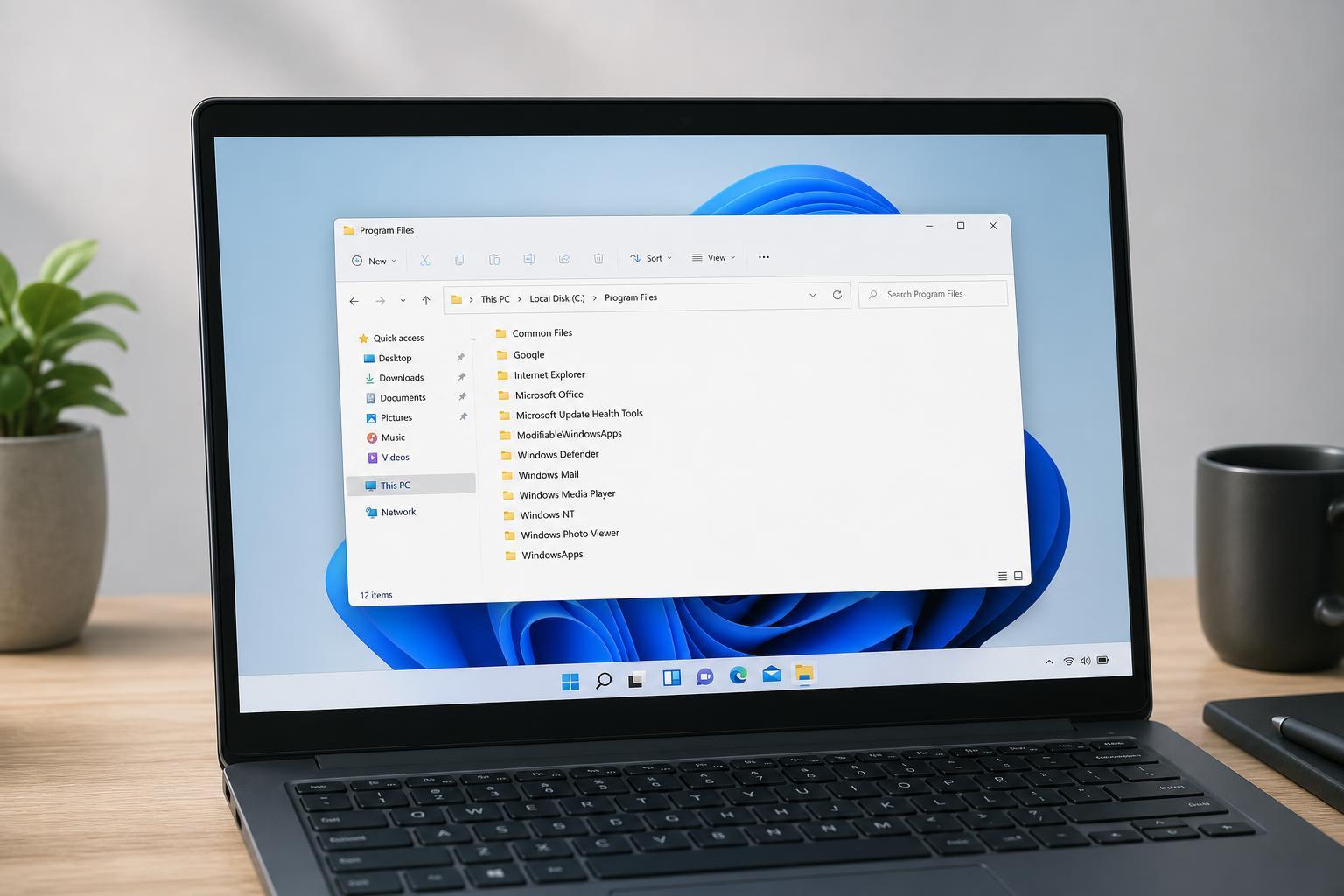
- Desktop programs are usually installed in folders like Program Files or Program Files (x86).
- Some apps create shortcuts that point to the real executable file, which makes them easier to trace.
Use the Start menu shortcut
- Open the Start menu and find the app.
- Right-click the app name.
- Choose Open file location if the option appears.
- If a shortcut folder opens, right-click the shortcut again and select Open file location to jump to the actual program folder.
This is often the simplest way to find a desktop app’s location. If you only get a shortcut in the Start menu folder, Windows is showing you the link to the app, not always the install folder itself.
Check the shortcut properties
- Find the app shortcut on the desktop, Start menu, or taskbar.
- Right-click the shortcut and choose Properties.
- Open the Shortcut tab.
- Look at the Target field to see the path to the executable file.
- Select Open File Location if available to open the containing folder.
This method is useful when you already have a shortcut and want the exact executable path. The Target field usually shows the full path to the .exe file for a desktop program.
Find the location from Task Manager
- Press Ctrl + Shift + Esc to open Task Manager.
- If needed, click More details.
- Go to the Processes or Details tab.
- Right-click the app or process.
- Choose Open file location.
Task Manager is especially helpful when an app is already running and you cannot easily find its shortcut. It opens the folder containing the executable file for many desktop programs.
Use File Explorer to check common install folders
If you already know the app is a traditional desktop program, you can browse the most common installation folders directly in File Explorer.
- C:\Program Files
- C:\Program Files (x86)
- C:\ProgramData
- C:\Users\[YourName]\AppData\Local
- C:\Users\[YourName]\AppData\Roaming
Program Files is the most common location for 64-bit apps, while Program Files (x86) is often used for 32-bit apps. Many apps also store user-specific files in AppData instead of the main installation folder.
Find Microsoft Store app locations
Microsoft Store apps are installed in a protected folder called WindowsApps, which is not meant to be browsed normally. Even if the app is installed on your system, Windows may block direct access to that folder.
- Store apps are often installed under C:\Program Files\WindowsApps
- The folder is hidden and permission-protected
- You may need special permissions to view it, but changing permissions is usually not necessary just to identify the app
If your goal is simply to find the app name or confirm that it is installed, Settings can be more useful than trying to open the folder directly.
Use Settings to confirm the app is installed
- Open Settings.
- Go to Apps > Installed apps.
- Find the app in the list.
- Use the menu next to it to see available options such as Advanced options or uninstall details.
Settings will not always show the full install path, but it does help confirm whether the app is installed as a Store app or a desktop app. That can point you toward the correct folder location method.
If you need the exact EXE file
Sometimes you are not looking for the folder itself, but for the exact executable file that launches the program. In that case, shortcut properties and Task Manager are usually the best options because they usually point straight to the .exe file.
- Use shortcut properties to read the Target path
- Use Task Manager to open the file location from a running app
- Use search in File Explorer if you know part of the filename
When Windows does not show Open file location
There are a few reasons Windows may not give you a direct folder option. The app may be a Store app, the shortcut may be incomplete, or the program may be launching through a launcher rather than the main executable.
- Try the shortcut’s Properties window
- Check Task Manager while the app is running
- Look in installed app folders manually
- Search for the app name in File Explorer
What to do if you plan to move or back up an app
Finding the install location is useful for backups, troubleshooting, and checking disk usage, but not every app should be moved manually. Many programs expect registry entries, services, or supporting files to stay in place.
If you only need to free space, it is usually better to uninstall and reinstall the program to a different drive, or use the app’s own move option if Windows offers one for that specific app.
A quick way to narrow it down
- If the app is from the Microsoft Store, check Settings > Apps > Installed apps.
- If it is a desktop app, try right-clicking its shortcut and opening the file location.
- If the app is running, use Task Manager to open the file location.
- If none of those work, check Program Files, Program Files (x86), and AppData.
That sequence covers the most common cases without wasting time. In most situations, one of these methods will get you to the correct folder quickly.





