
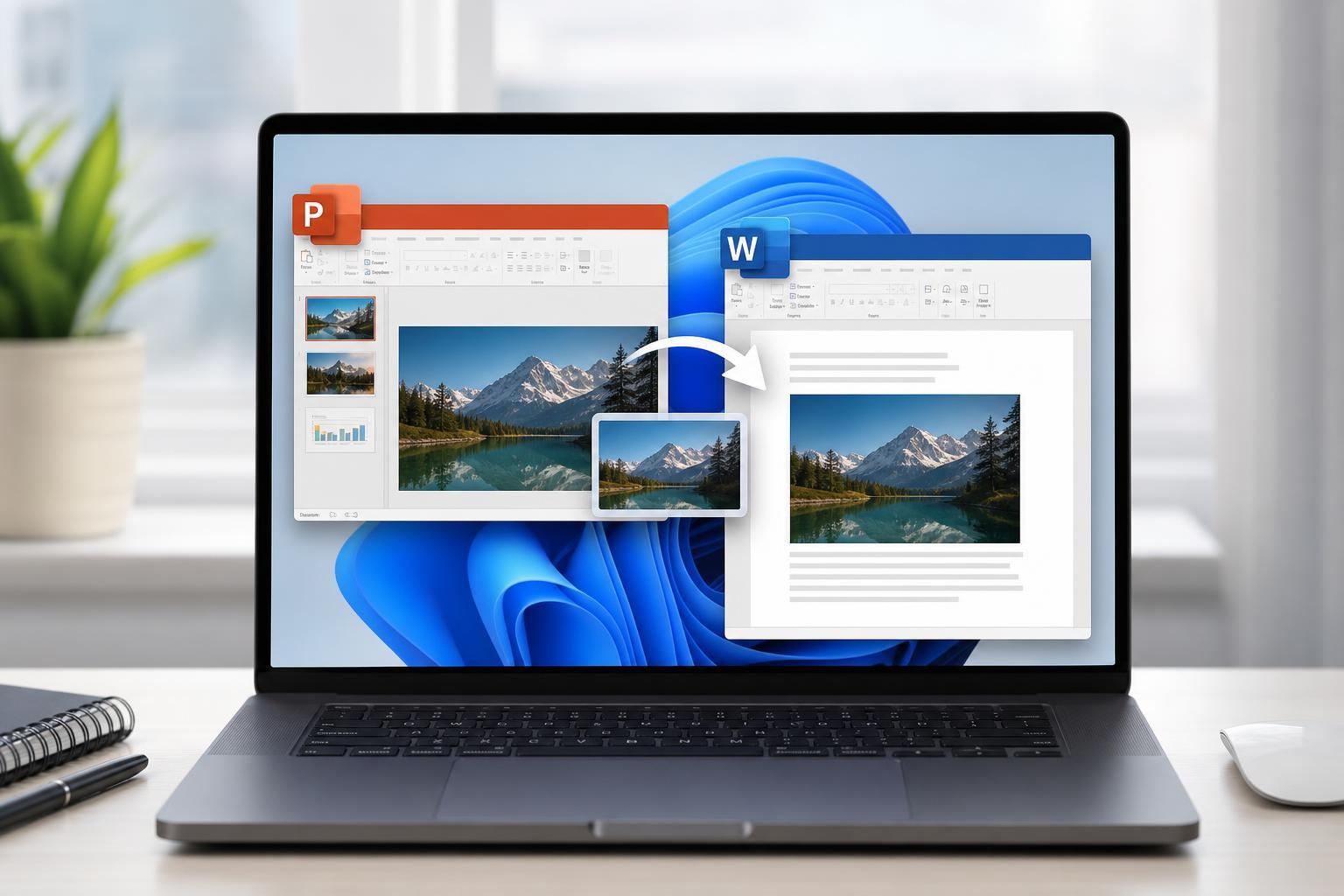
You can place a PowerPoint slide inside a Word document either as an embedded object, a linked object, or a picture. The best method depends on whether you want the slide to stay editable, update automatically, or simply appear as a static image in the document.
This guide shows the main ways to add a PowerPoint slide to Word and explains which option is best for reports, handouts, and documents that need to stay easy to edit.
Which Method Should You Use?
- Embed the slide if you want to open or edit it from within Word.
- Link the slide if you want updates in Word when the PowerPoint file changes.
- Paste as a picture if you only need the slide to display visually and do not need editability.
- Use a screen clipping if you want only part of a slide or a specific chart, diagram, or visual element.
Embed a PowerPoint Slide in Word as an Object
Embedding is the best choice when you want the PowerPoint slide stored inside the Word file. This makes the document self-contained, so the slide does not depend on the original PowerPoint file being present later.
- Open the Word document where you want the slide to appear.
- Place the cursor where the slide should be inserted.
- Go to the Insert tab.
- Select Object in the Text group.
- Choose Object again from the menu.
- In the dialog box, open the Create from File tab.
- Select Browse and choose your PowerPoint presentation file.
- If you want to link the slide instead of fully embedding it, leave Link to file selected. If you want a copy stored inside Word, leave it unchecked.
- Select OK to insert the object.
In many cases, Word inserts the presentation as an object that can be opened from the document. Depending on how the file is handled, it may appear as an icon or as a preview-style object.
Paste a PowerPoint Slide Into Word as a Static Image
If you only need the slide to look correct on the page, copying it as a picture is often the easiest option. This is useful for reports, summaries, and documents where layout matters more than editability.
- Open the PowerPoint slide you want to insert.
- Select the slide content or copy the slide as an image using PowerPoint's copy options.
- Switch to Word and place the cursor where the slide should go.
- Paste the slide.
- If needed, use Paste Special or picture-related paste options to keep it as an image.
Pasting as a picture usually gives you the most predictable formatting because Word cannot accidentally change the slide’s internal layout. The downside is that you cannot edit the slide contents from Word.
Link a PowerPoint Slide to Keep It Updated
Linking is useful when the PowerPoint file may change and you want the Word document to reflect those changes. Instead of storing a separate copy, Word points back to the original file.
- In Word, place the cursor where you want the slide object to appear.
- Go to Insert and choose Object.
- Open the Create from File tab.
- Click Browse and select the PowerPoint file.
- Enable Link to file.
- Select OK.
- Save both the Word document and the PowerPoint file in a location that will stay available.
Insert Only Part of a Slide
Sometimes you do not need the entire slide. You may only want a chart, a screenshot, a diagram, or a specific visual area. In that case, use a screenshot, screen clipping, or copied image from PowerPoint instead of inserting the full slide.
- Use a screenshot if the slide is already shown on screen and you only need a quick capture.
- Use a screen clipping if you need a specific section of the slide.
- Use copied graphics if the slide contains a chart or diagram you want to reuse cleanly.
- Use an image paste if you want the content to stay fixed in Word without editing overhead.
Troubleshooting Common Problems
- The slide appears too small or too large: resize the object or paste it as an image instead.
- The object does not update: check whether you embedded the file instead of linking it.
- The slide opens in PowerPoint instead of showing in Word: this can happen with embedded objects; double-clicking is often required.
- The formatting changes after pasting: use Paste Special or insert it as an image instead of editable content.
- The link is broken: make sure the original PowerPoint file has not been moved or renamed.
Choosing the Best Option for Your Document
If the Word document needs to be portable and self-contained, embed the slide. If the presentation is likely to change and you want Word to track those changes, link it. If your priority is clean layout and simple printing, paste the slide as a picture.
- Embed: best for self-contained documents
- Link: best for files that need to stay in sync
- Image: best for stable layout and easy formatting
- Partial capture: best for one visual element from a slide





