
Control Center is convenient, but leaving it available from the lock screen can let anyone toggle settings like Wi‑Fi, Bluetooth, Airplane Mode, or flashlight without unlocking your iPhone. If you want a little more privacy and control, you can disable lock screen access in a few taps.
This guide shows you how to turn it off, what changes after you do, and when it is actually worth keeping enabled.
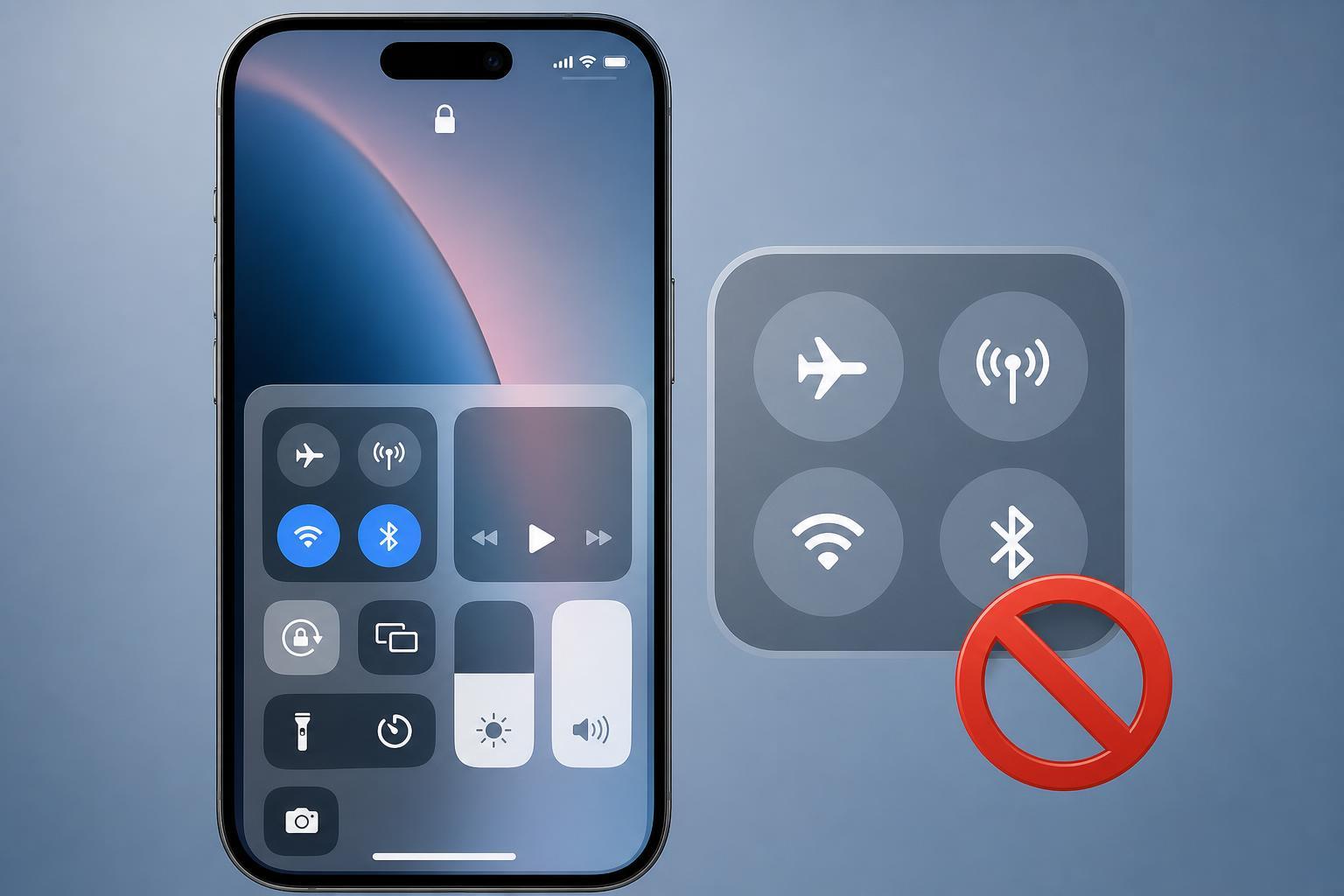
How to Disable Control Center on the Lock Screen
- Open the Settings app on your iPhone.
- Tap Face ID & Passcode or Touch ID & Passcode, depending on your model.
- Enter your passcode when prompted.
- Scroll to the Allow Access When Locked section.
- Turn off Control Center.
What Changes After You Turn It Off
Once this setting is disabled, Control Center will no longer open from the lock screen. You will still be able to use it normally after unlocking the iPhone by swiping down from the top-right corner on Face ID models or swiping up from the bottom edge on older Home button models.
- People cannot quickly toggle Airplane Mode or Wi‑Fi from the lock screen
- Flashlight, timer, calculator, and other quick controls are harder to access without unlocking
- It reduces the chance that someone can change settings while your phone is unattended
- It can prevent accidental swipes from altering important settings
Why You Might Want to Disable It
- Privacy: it limits what other people can do without your passcode
- Security: it makes it harder to put the phone into Airplane Mode, which can interfere with Find My and tracking in some situations
- Reliability: it helps avoid accidental changes to brightness, connectivity, or playback controls
- Children or shared access: it reduces the chance of casual tampering when someone picks up your phone
When You May Want to Leave It On
Lock screen access is useful if you frequently need quick controls without unlocking the phone. For example, it can be handy for adjusting brightness, turning on the flashlight, or managing media playback from the lock screen.
- You use the flashlight often
- You want fast access to connectivity toggles
- You rely on Control Center for music or video playback
- You prefer convenience over extra lock screen restrictions
If You Still See Control Center on the Lock Screen
If Control Center still appears after you turn it off, double-check that the switch was disabled under Face ID & Passcode or Touch ID & Passcode and not just adjusted inside Control Center itself. Also make sure you are testing from the actual lock screen, not from inside an unlocked app.
- Go back to Settings > Face ID & Passcode or Touch ID & Passcode.
- Confirm Control Center is switched off in Allow Access When Locked.
- Lock the iPhone and try swiping from the top-right corner again.
- If needed, restart the iPhone only after confirming the setting is correct.
Is It Worth Disabling?
For most users, the answer depends on how much convenience they want versus how much control they want over a locked iPhone. If your phone is often unattended or carries sensitive data, turning it off is a sensible small security upgrade. If you use quick controls constantly, keeping it on may be the better choice.





