
Google Chrome can use a lot of RAM, especially when you keep many tabs open or rely on several extensions. In some cases, that is normal. In others, Chrome may be using more memory than it should, which can slow down your PC and make everything feel less responsive.
This guide explains the most effective ways to reduce Chrome’s RAM usage, from quick browser settings to habits that prevent memory use from getting out of control.
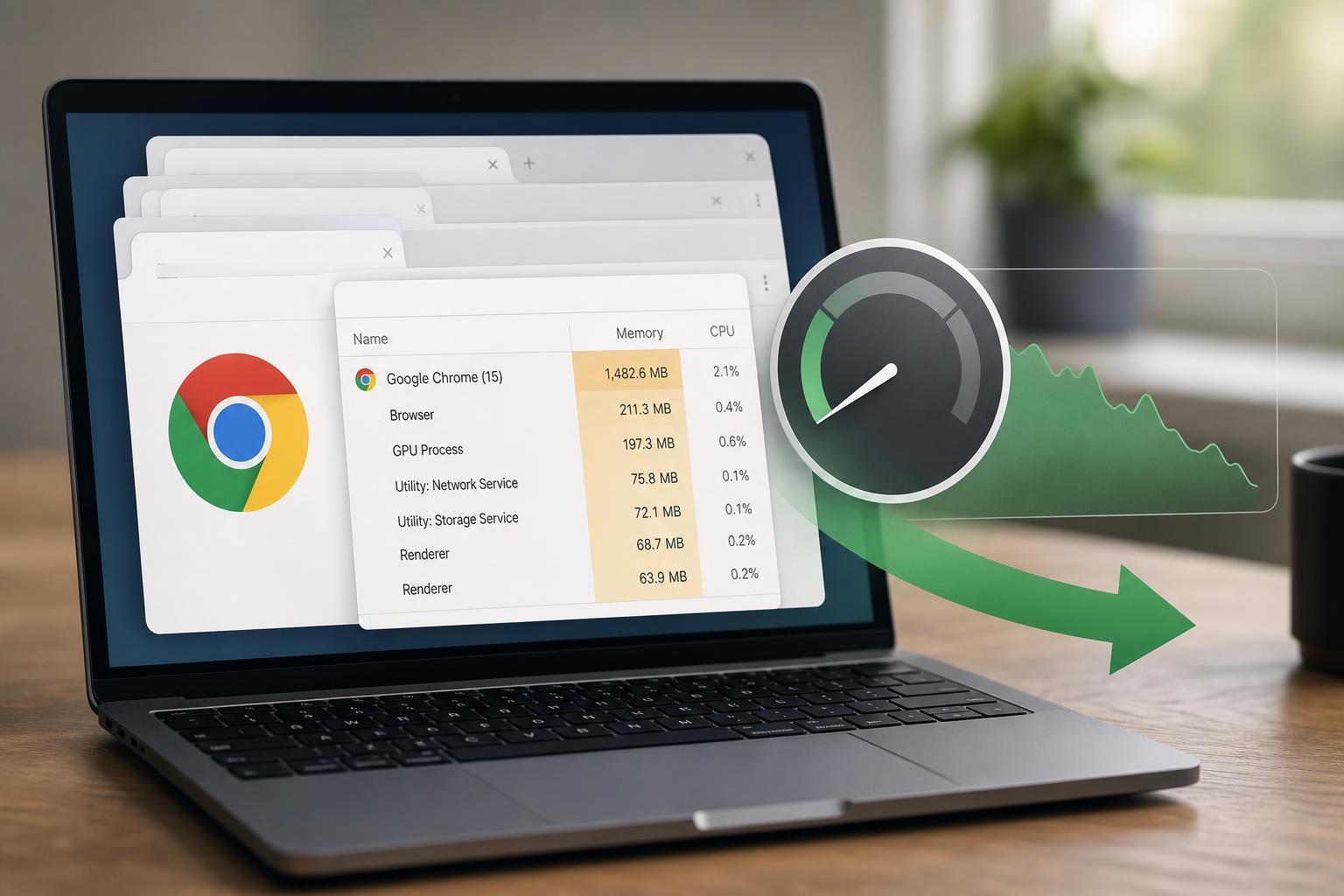
Why Chrome Uses So Much Memory
Chrome is designed to isolate tabs, extensions, and browser processes from one another. That improves stability and security, but it also means each open tab or add-on can consume its own share of memory.
Start With Chrome’s Built-In Memory Saver
The most direct way to reduce Chrome’s memory footprint is to let Chrome suspend inactive tabs.
- Open Chrome and click the three-dot menu in the top-right corner.
- Go to Settings.
- Select Performance.
- Turn on Memory Saver.
- If available, choose how aggressively Chrome should put inactive tabs to sleep.
When Memory Saver is on, Chrome unloads background tabs that you are not actively using. Those tabs stay visible, but they may need a moment to reload when you return to them.
Close or Remove Extensions You Do Not Need
Extensions are a common cause of extra memory use. Some are lightweight, but others stay active in the background and add noticeable overhead.
- Open the Chrome menu and select Extensions, then Manage Extensions.
- Review the extensions you actually use.
- Turn off anything you do not need all the time.
- Remove extensions you no longer trust or recognize.
- Restart Chrome only if needed to make changes fully take effect.
Check Chrome’s Built-In Task Manager
Chrome has its own task manager that lets you see which tabs and extensions are using the most resources.
- Press Shift + Esc in Chrome to open Chrome Task Manager.
- Look at the Memory Footprint column.
- Sort by memory use if needed.
- Select a heavy tab or extension.
- Click End Process to close it.
This is useful when one website or extension is clearly the problem and you want to confirm it before removing anything.
Reduce the Number of Resource-Heavy Tabs
Some websites use far more memory than plain text pages. Social feeds, web apps, streaming sites, document editors, and sites with lots of live content can all raise Chrome’s RAM usage quickly.
- Close tabs you are finished with instead of leaving them open all day
- Move temporary research tabs into bookmarks or a reading list
- Avoid keeping multiple video or live-stream tabs active at once
- Use separate browser windows only when you really need them
Turn Off Background Apps and Preloading If You Do Not Need Them
Chrome can keep some apps running in the background after you close the browser. It can also preload pages to speed up browsing, which may use extra memory.
- Open Chrome Settings.
- Go to System or Performance, depending on your version.
- Disable Continue running background apps when Google Chrome is closed if you do not need it.
- If available, turn off preload or page prediction features you do not want.
Keep Chrome Updated
Updates often include performance improvements and fixes for memory-related bugs. If Chrome has been open for a long time, it may already be waiting on an update.
- Open the Chrome menu.
- Go to Help, then About Google Chrome.
- Let Chrome check for and install updates.
- Restart Chrome if prompted.
Use Fewer Tabs, or Organize Them Better
If you regularly need many tabs open, the answer is not always to force Chrome to use less memory. Sometimes the better fix is to manage tabs more efficiently.
- Use bookmarks for sites you return to often
- Group related tabs together so you can close whole sets at once
- Save research sessions instead of leaving them open for days
- Use a separate browser profile for work, personal use, or testing
Check for Problem Websites or Browser Issues
If Chrome’s memory use seems unusually high even with few tabs open, a specific website, extension, or browser profile may be the cause.
- Open Chrome in a normal profile with extensions disabled if possible.
- Visit a few simple websites and compare memory use.
- If Chrome behaves normally there, re-enable extensions one by one.
- If the problem happens in every profile, consider resetting Chrome settings or creating a fresh browser profile.
When Lower Memory Use Is Actually a Better PC Upgrade Problem
If you have already trimmed tabs and extensions, but Chrome still causes your whole system to slow down, your PC may simply not have enough RAM for your workload.
- Basic web browsing and email usually need far less memory than dozens of tabs plus web apps
- Creative work, gaming, and heavy multitasking can push an 8 GB system hard
- Upgrading system memory can be more effective than trying to micromanage Chrome
A Practical Order to Try the Fixes
If you want the quickest path, try these in order:
- Turn on Chrome Memory Saver.
- Close tabs you do not need right now.
- Disable or remove unnecessary extensions.
- Use Chrome Task Manager to identify the worst memory users.
- Check background apps and preloading settings.
- Update Chrome.
- Look for a problematic website, profile, or browser issue if the problem continues.
For most people, Memory Saver plus extension cleanup makes the biggest difference without changing how Chrome works too much.
What a Good Result Looks Like
A successful fix does not mean Chrome uses only a tiny amount of RAM. It means Chrome stops growing unnecessarily, inactive tabs stop hogging resources, and your PC stays responsive while you browse.





