
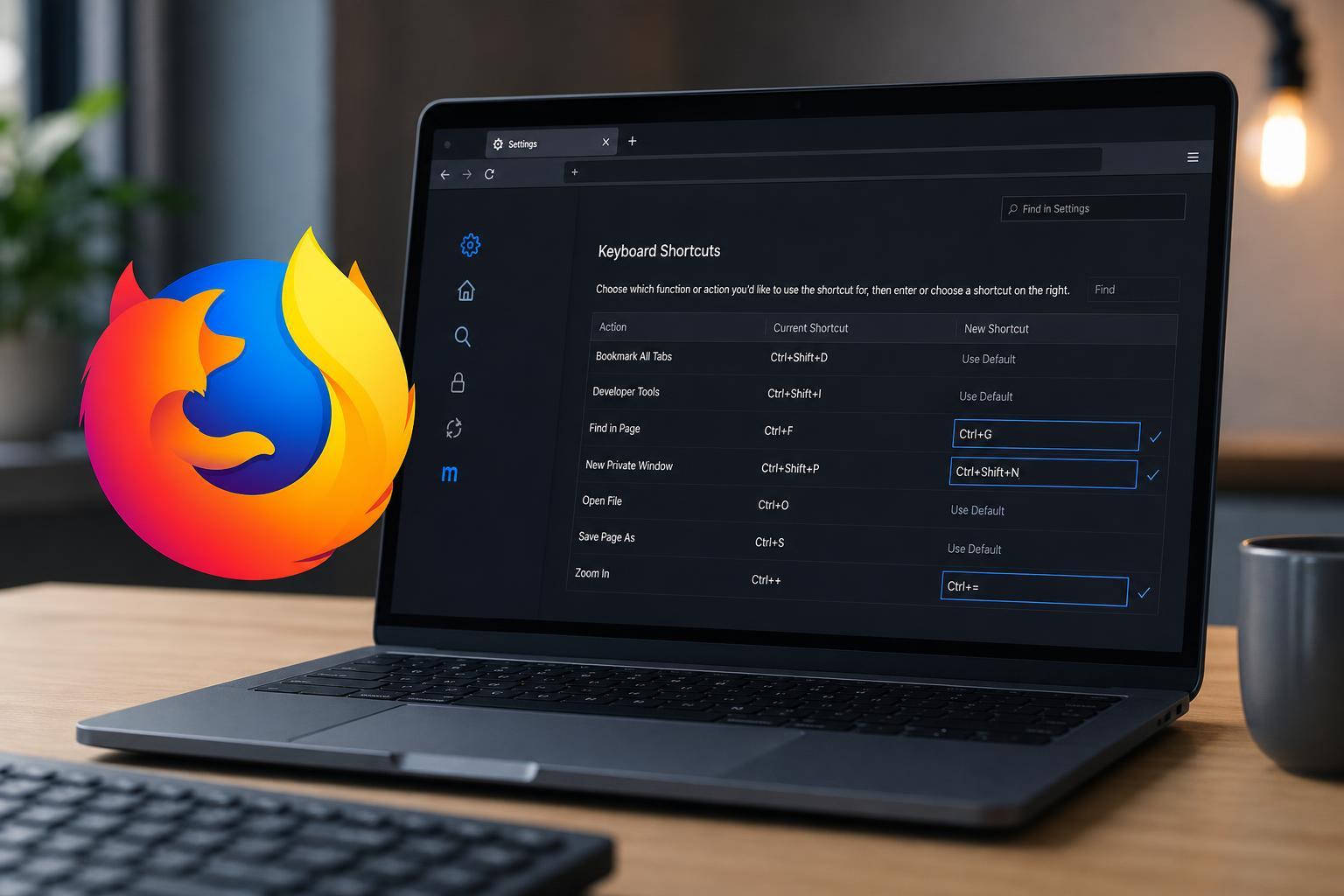
Firefox 67 does not include a built-in shortcut editor for most browser commands, so customization works a little differently than many people expect. If you want to change how Firefox responds to keys, you usually need to use add-ons, system-level tools, or carefully chosen workarounds rather than a simple settings menu.
This guide explains what Firefox 67 can handle on its own, where its limits are, and the most practical ways to tailor keyboard shortcuts without breaking normal browser behavior.
What Firefox 67 Lets You Change
Firefox 67 does not provide a full native shortcut manager for common browser actions such as opening tabs, switching tabs, refreshing pages, or jumping to the address bar. Most of those commands are built into the browser interface and are not editable from the regular Options or Preferences screens.
That means customization usually falls into one of three categories: remapping keys with an extension, changing shortcuts outside Firefox with another tool, or using Firefox features that already have their own configurable hotkeys inside specific add-ons or web apps.
Check Whether the Shortcut Belongs to an Add-on or a Website
Before trying to remap anything, make sure the shortcut you want to change is not controlled by an extension or by the site you are using. Many browser add-ons define their own keyboard commands, and some web apps also register shortcuts when they are active in the tab.
- If the shortcut only works when a specific add-on is enabled, the add-on may already support changing it in its own settings.
- If the shortcut only works on one website, the site may be capturing the key combination itself.
- If the shortcut affects the whole browser, it is more likely to be a Firefox-level command and harder to change directly.
Use an Extension to Remap or Add Shortcuts
If your goal is to make a different key combination trigger a browser action, the easiest approach is often a shortcut-management extension. These add-ons can intercept certain key presses and map them to commands, links, or actions inside Firefox.
- Open Firefox and go to the Firefox Add-ons site.
- Search for a shortcut, key mapping, or custom hotkeys extension.
- Review permissions carefully before installing.
- Install the extension and open its settings page.
- Assign new key combinations for the actions you want to control.
- Test the shortcut on a normal webpage and adjust if it conflicts with an existing browser command.
Use System-Level Key Remapping for Browser-Wide Changes
If you want Firefox to treat one physical key like another, a system-level remapping tool can be more reliable than a browser add-on. This approach changes the key before Firefox sees it, so it can affect every app on the system, not just Firefox.
This method is useful when the shortcut itself cannot be changed inside Firefox. For example, you might remap an unused key to a key combination you press more often, or swap keys on a compact keyboard where certain shortcuts are awkward to reach.
If You Only Need Faster Access, Use Firefox Built-In Shortcuts
Sometimes the best solution is not to change a shortcut at all, but to learn the built-in ones that already speed up browsing. Firefox 67 supports many useful commands that can reduce mouse use even if they are not editable.
- Ctrl+L: focus the address bar
- Ctrl+T: open a new tab
- Ctrl+W: close the current tab
- Ctrl+Tab: move to the next tab
- Ctrl+Shift+Tab: move to the previous tab
- Ctrl+Shift+T: reopen the last closed tab
- Ctrl+F: search within the page
How to Tell Whether a Shortcut Change Is Working
After you make a change, test the shortcut in more than one place. Try it on a simple website, on a blank tab, and with your intended extension enabled or disabled. That helps you see whether the shortcut is handled by Firefox, the add-on, or the page itself.
- Close any tabs or pages that may capture keyboard input.
- Open a simple webpage or a new tab.
- Press the new shortcut and watch for the expected action.
- If nothing happens, check for conflicts with existing Firefox shortcuts or another extension.
- If the shortcut works only on some pages, the website may be intercepting it.
Troubleshooting Common Shortcut Problems
If your custom shortcut does not work, the most common causes are a key conflict, an add-on limitation, or a website that captures keyboard input before Firefox can react.
- The same key combination is already used by Firefox
- Another extension is intercepting the shortcut
- The website is in a text field or app-like mode
- The shortcut uses a modifier key combination reserved by the browser or operating system
- The remapping tool does not have permission to control keyboard input
Start by trying a different shortcut combination, then disable other extensions one at a time if needed. If you are using a system remapping tool, confirm that it is active and allowed to run in the background.
When You Should Avoid Heavy Customization
If you only need a few faster commands, it is usually better to use Firefox’s default shortcuts or a very focused extension. Heavy remapping can make the browser harder to use later, especially if you forget which shortcuts were changed.
This is especially true on shared computers, older systems, or setups where Firefox 67 is installed for compatibility reasons. In those cases, simpler changes are easier to maintain and less likely to break after updates or extension changes.
A Practical Way to Set Up Your Workflow
A good approach in Firefox 67 is to keep the built-in shortcuts for core browser actions, then use one trusted extension or a system remapper only for the few tasks you repeat most often. That gives you better speed without making the browser unpredictable.
- Leave standard browser commands alone when possible
- Add only the shortcuts you use constantly
- Test each change before adding more
- Keep a note of any custom mappings you create





