
Ctrl + Alt + Del works differently in a Remote Desktop session than it does on a physical PC. If you press the keys normally, Windows usually intercepts them on your local computer instead of sending them to the remote machine. The good news is that Remote Desktop provides a few easy ways to send the command correctly.
Use the Remote Desktop Shortcut
The fastest method is to use the Remote Desktop key sequence that sends Ctrl + Alt + Del to the remote computer instead of your local one.
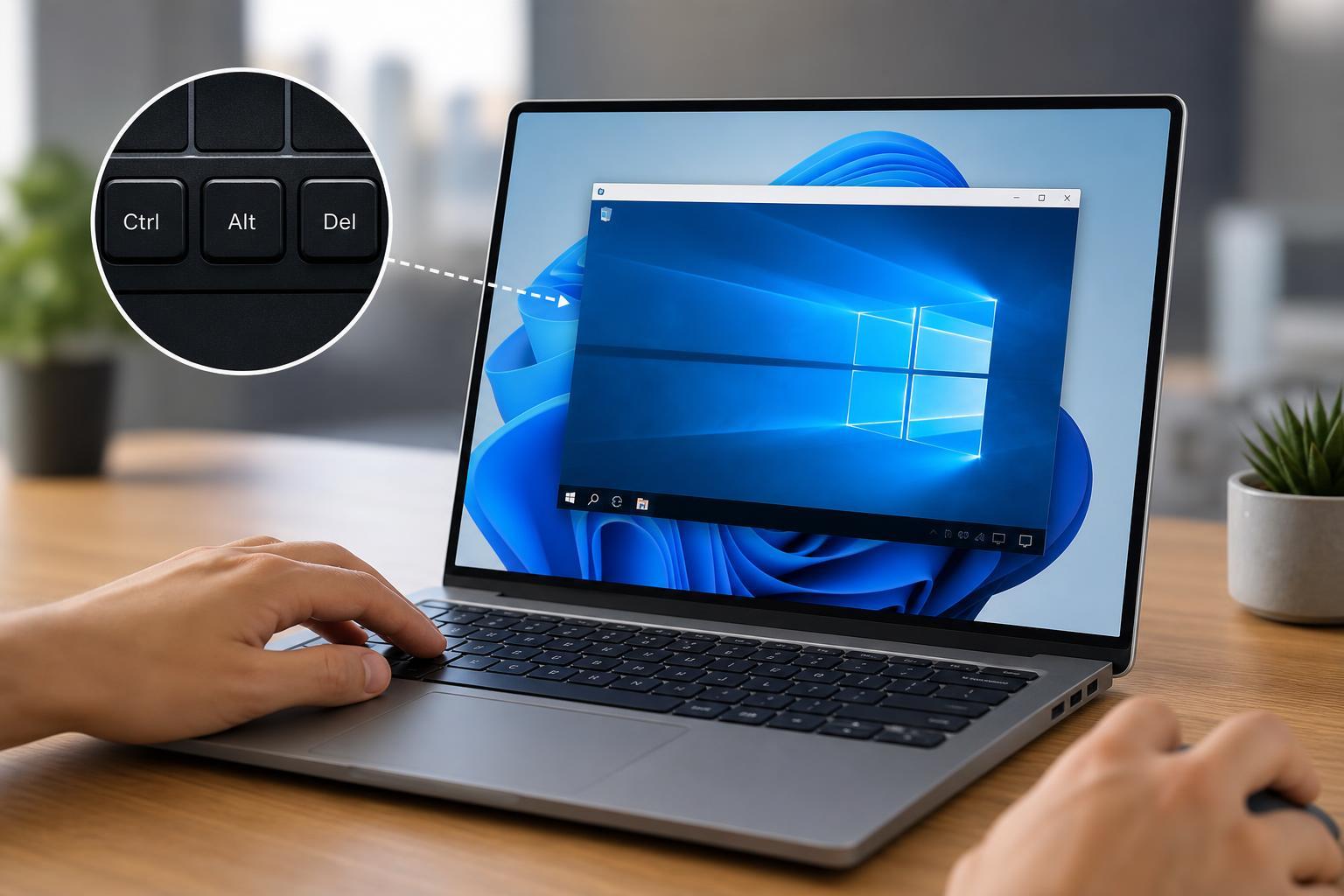
- Click inside the Remote Desktop window to make sure it has focus.
- Press Ctrl + Alt + End instead of Ctrl + Alt + Del.
- The remote Windows session should show the security screen or open the related options.
Use the On-Screen Remote Desktop Control
If the keyboard shortcut does not work, Remote Desktop also includes an on-screen menu that can send the secure attention sequence.
- Look at the top of the Remote Desktop window for the connection bar.
- Open the menu or overflow options, depending on your Windows version.
- Choose the option that sends Ctrl + Alt + Del to the remote session.
If You Are Using a Mac or Another Keyboard Layout
If you are connecting from a device that does not have a full Windows keyboard, the shortcut may be different or may need to be sent through the app menu. Many Remote Desktop clients provide a special key sequence or toolbar button for Ctrl + Alt + Del.
- Windows remote desktop client: use Ctrl + Alt + End
- Mac Remote Desktop apps: check the toolbar or keyboard menu for a send key sequence option
- Tablets and touch devices: use the app’s on-screen controls or extra keyboard panel
Why Ctrl + Alt + Del Is Different in Remote Desktop
Ctrl + Alt + Del is a special system command called the secure attention sequence. On a local PC, Windows reserves it for security-related actions such as signing in, locking the computer, opening Task Manager, or changing passwords. In Remote Desktop, the local computer keeps control of the original key combination, so you need the Remote Desktop-specific way to forward it.
What to Do If It Still Does Not Work
If the shortcut is not being sent correctly, the issue is usually with focus, the remote desktop app, or the keyboard input method rather than Windows itself.
- Click once inside the remote session before using the shortcut.
- Try the Remote Desktop menu instead of the keyboard shortcut.
- Make sure the connection is active and the session is not minimized or disconnected.
- If you are using a non-Windows device, check the app’s special keys or keyboard options.
- Close and reopen the Remote Desktop client if the toolbar is missing or unresponsive.
Related Shortcuts That Are Often Useful
Once you are connected, a few other Remote Desktop shortcuts can help you manage the remote PC more efficiently.
- Alt + Tab: switch between open apps in the remote session
- Ctrl + Shift + Esc: open Task Manager in some cases without using the secure attention screen
- Windows key combinations: many work inside the remote session when sent through the client, but behavior depends on the app and settings
Quick Answer
To send Ctrl + Alt + Del in Windows Remote Desktop, press Ctrl + Alt + End. If needed, use the Remote Desktop toolbar or menu option that sends the secure attention sequence to the remote PC.





