
Comparing two PDF files side by side is one of the fastest ways to spot changes in contracts, reports, forms, manuals, and proofs. Whether you need to check a revised document against an older version or compare two different PDFs for missing details, the right setup can save a lot of time.
There are several good ways to do it, from simple split-screen viewing to dedicated PDF comparison tools that highlight differences for you. The best method depends on whether you just need to read both files at once or find exact text and layout changes.
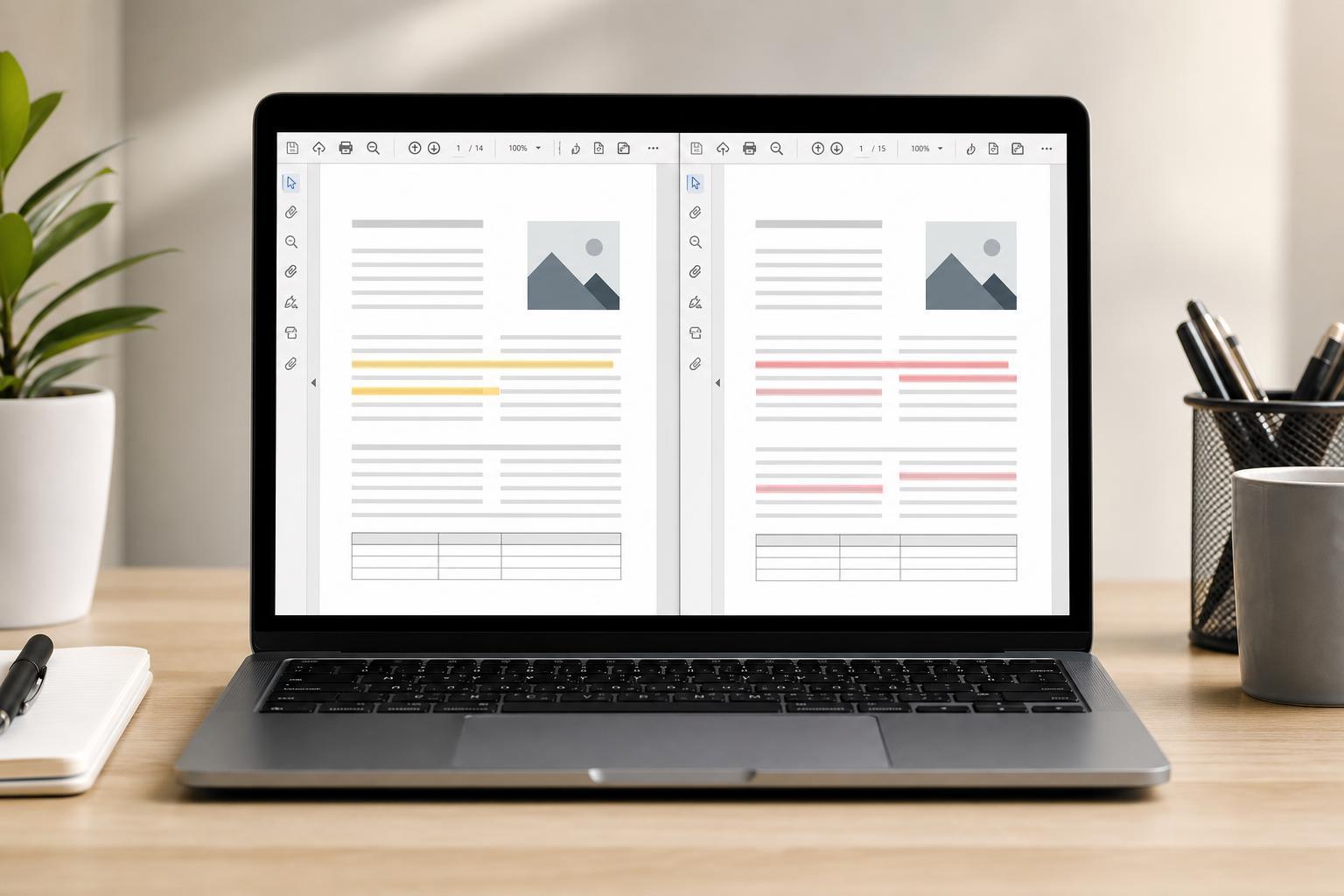
The Easiest Way: Open Both PDFs in Split View
If you only need to compare the documents visually, the simplest approach is to open each PDF in its own window and place them side by side. This works well for checking page layouts, wording, charts, and formatting changes without needing special software.
- Open the first PDF in your PDF reader.
- Open the second PDF in a separate window or a second instance of the app.
- Snap one window to the left side of the screen and the other to the right side.
- Scroll through both documents to compare the same pages or sections.
- Use zoom controls to match the page size in both windows for easier checking.
Use Windows Snap Assist or macOS Split View
Modern operating systems make side-by-side comparison easier by helping you arrange two windows neatly on the screen. This is especially helpful when you are comparing long PDFs and want to keep both files visible at the same time.
- Windows 11: drag a PDF window to the left or right edge, or use Windows + Left Arrow / Right Arrow to snap it.
- Windows 10: use the same snap shortcuts or drag each window to a side of the screen.
- macOS: hover over the green window button and choose a split-screen arrangement, or manually tile the windows.
- Large monitors: use the extra space to keep both PDFs open at a readable size without constant zooming.
Compare PDFs in Adobe Acrobat
Adobe Acrobat includes tools that can compare two PDF files and mark differences automatically. This is one of the best options if you need to find exact text changes, formatting shifts, inserted images, or deleted content.
- Open Adobe Acrobat and load one of the PDFs.
- Look for the Compare Files tool in the Tools area.
- Choose the older file and the newer file when prompted.
- Start the comparison and review the generated report or highlighted differences.
- Jump between changes to verify each one carefully.
Use Free or Built-In PDF Viewers for Manual Comparison
If you do not need an automatic difference report, free PDF viewers can still work well for manual comparison. You simply open both files, place them side by side, and check them section by section.
- Microsoft Edge can open PDFs on Windows and is fine for basic viewing.
- Google Chrome and other browsers can also display PDFs in tabs or separate windows.
- Preview on Mac makes it easy to open multiple PDFs and arrange them manually.
- Foxit PDF Reader and other readers may offer tabbed viewing or split arrangements.
Best Tools for Different Comparison Needs
The right method depends on how precise your comparison needs to be.
How to Make Side-by-Side Comparison Easier
A few small adjustments can make two PDFs much easier to compare accurately.
- Set both windows to the same zoom level.
- Turn on continuous scrolling if the reader supports it.
- Use page thumbnails to jump to matching page numbers.
- Search for the same keyword in both files when comparing a specific section.
- If possible, compare the older version against the newer version in the same order every time.
What to Do If the PDFs Look the Same but You Suspect Changes
Sometimes two files appear identical at first glance even though they are not. In that case, use a text comparison tool or a PDF compare feature rather than manual side-by-side viewing alone.
- Look for hidden text changes such as different numbers, dates, or clause wording.
- Check whether one file is a scanned image and the other is searchable text.
- Use OCR if the PDF is a scan and needs text recognition.
- Compare metadata or file properties if you need to confirm which version is newer.
Choosing the Right Method
If you just need to read and check two PDFs at the same time, split-screen viewing is usually enough. If you need reliable change detection, especially for professional documents, use a dedicated PDF comparison tool that can highlight every difference for you.
The fastest workflow is often to start with side-by-side viewing for a quick scan, then switch to an automated compare tool if anything looks suspicious or if you need a detailed record of changes.





