
Bumble’s distance setting controls how far away potential matches can be from your location. If you want to see people closer to home, widen your search, or understand why profiles still appear outside your preferred range, the setting is worth checking.
In Bumble, the distance option is usually found in your discovery preferences. The exact layout can vary a little depending on whether you use iPhone, Android, or Bumble on the web, but the basic process is the same.
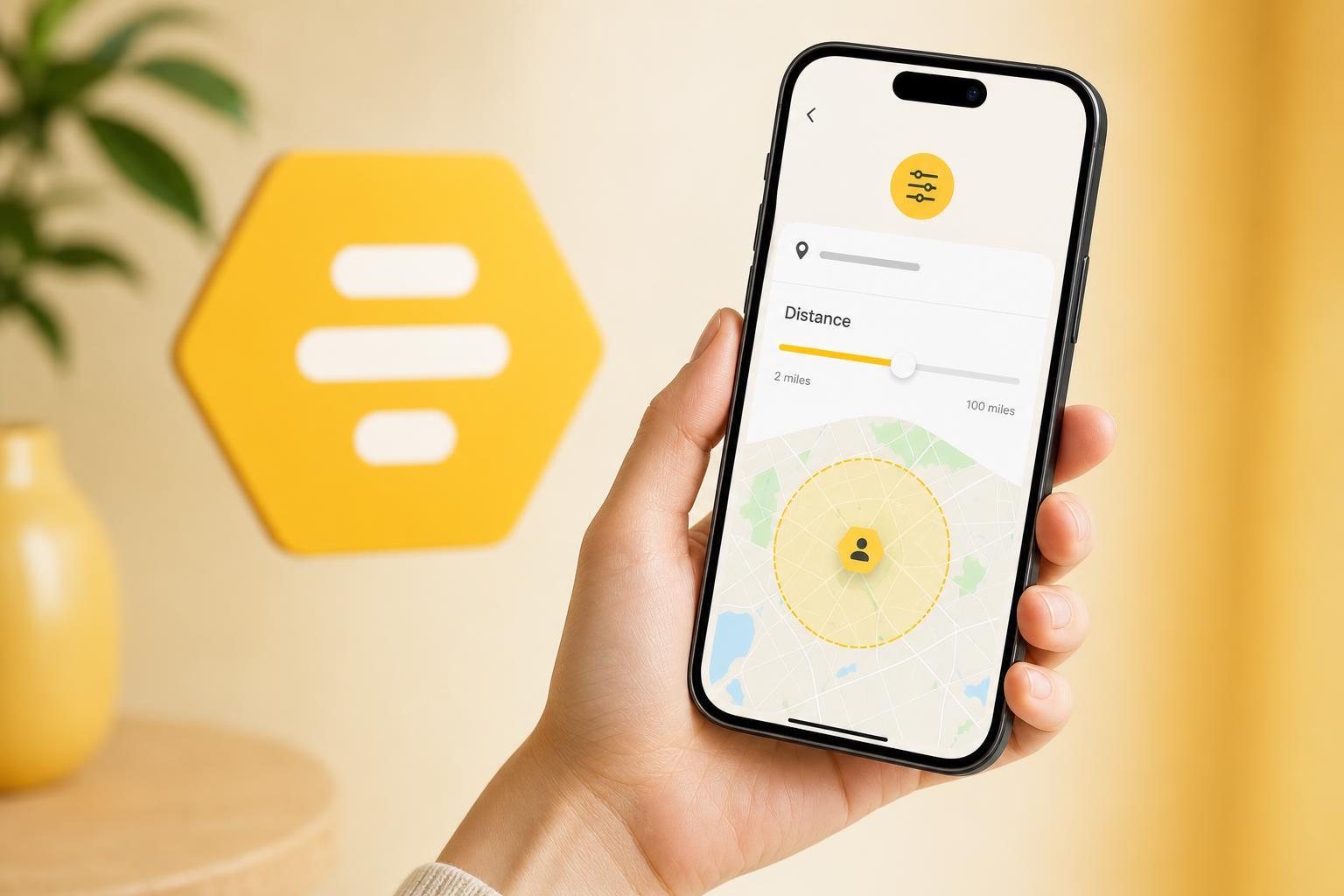
How to Change the Distance on Bumble
- Open Bumble and go to your profile or account settings.
- Look for your discovery preferences or filter settings.
- Find the distance slider or distance option.
- Adjust the range to the number of miles or kilometers you want.
- Save your changes if Bumble asks you to confirm them.
Once the change is saved, Bumble will use your updated distance range when showing new people in your deck. You may not see the effect instantly if you have already swiped through many profiles in your area.
What the Distance Setting Actually Does
The distance filter tells Bumble how far away other users can be from your current location before they are included in your matches or recommendations. If you set a smaller range, you will usually see fewer people, but they will be closer to you.
- Smaller distance: fewer profiles, but matches are usually closer
- Larger distance: more profiles, but more travel may be involved
- Current location matters: Bumble uses where you are when the app checks nearby users
If You Still See People Farther Away
Sometimes Bumble can still show profiles that seem outside your chosen range. That does not always mean the setting failed. Location data can be approximate, and Bumble may also show nearby users based on other discovery rules.
- The app may be using an approximate location rather than your exact position
- A user may have recently moved or traveled
- Some profiles can appear because of Bumble’s broader matching logic
- Your device’s location permission may be limiting accuracy
How to Get More Accurate Distance Results
- Make sure location services are turned on for your phone.
- Set Bumble’s location permission to allow precise location if your device supports it.
- Check that Bumble is not blocked from accessing location in the background.
- Update the app if the distance filter behaves strangely.
- Close and reopen Bumble after changing location settings so it can refresh your area.
When the Distance Setting Is Useful Best
If you are in a dense urban area, a smaller distance often makes the app feel more relevant. If you live in a rural area, increasing the range may be necessary to see enough active users.
Common Limits to Keep in Mind
- Bumble cannot match you only with people in an exact circle around you
- The distance filter depends on your current location, not a fixed home address
- Changing cities manually is not the same as changing distance
- Some features may behave differently if you travel frequently
If You Cannot Find the Distance Option
If the distance setting is missing, first check whether you are looking in the right area of the app. Bumble has moved settings around in some versions, so the option may sit under discovery preferences rather than a clearly labeled distance menu.
- Open your profile settings.
- Look for discovery or matching preferences.
- Search for filters that include age, distance, or location.
- If needed, update Bumble to the latest version.
- Try signing out and back in only if the settings page is not loading correctly.
If the option still is not available, the app may be limiting certain settings in your region or account type. In that case, the best next step is to check Bumble’s help pages from inside the app.
A Quick Recap
To change distance on Bumble, open your discovery preferences and adjust the distance range to the radius you want. If the results do not seem accurate, check your phone’s location permissions and make sure Bumble can access precise location data.





