Windows 11 lets you use a personal picture, a default avatar, or no custom-looking profile image at all. If your account photo is outdated, you want to switch to a different image, or you simply want to remove it, there are a few different ways to do it depending on whether you use a local account or a Microsoft account.
This guide shows you how to change the picture Windows uses for your account, how to remove it, and what to do if the old image still appears on the sign-in screen or in other places.
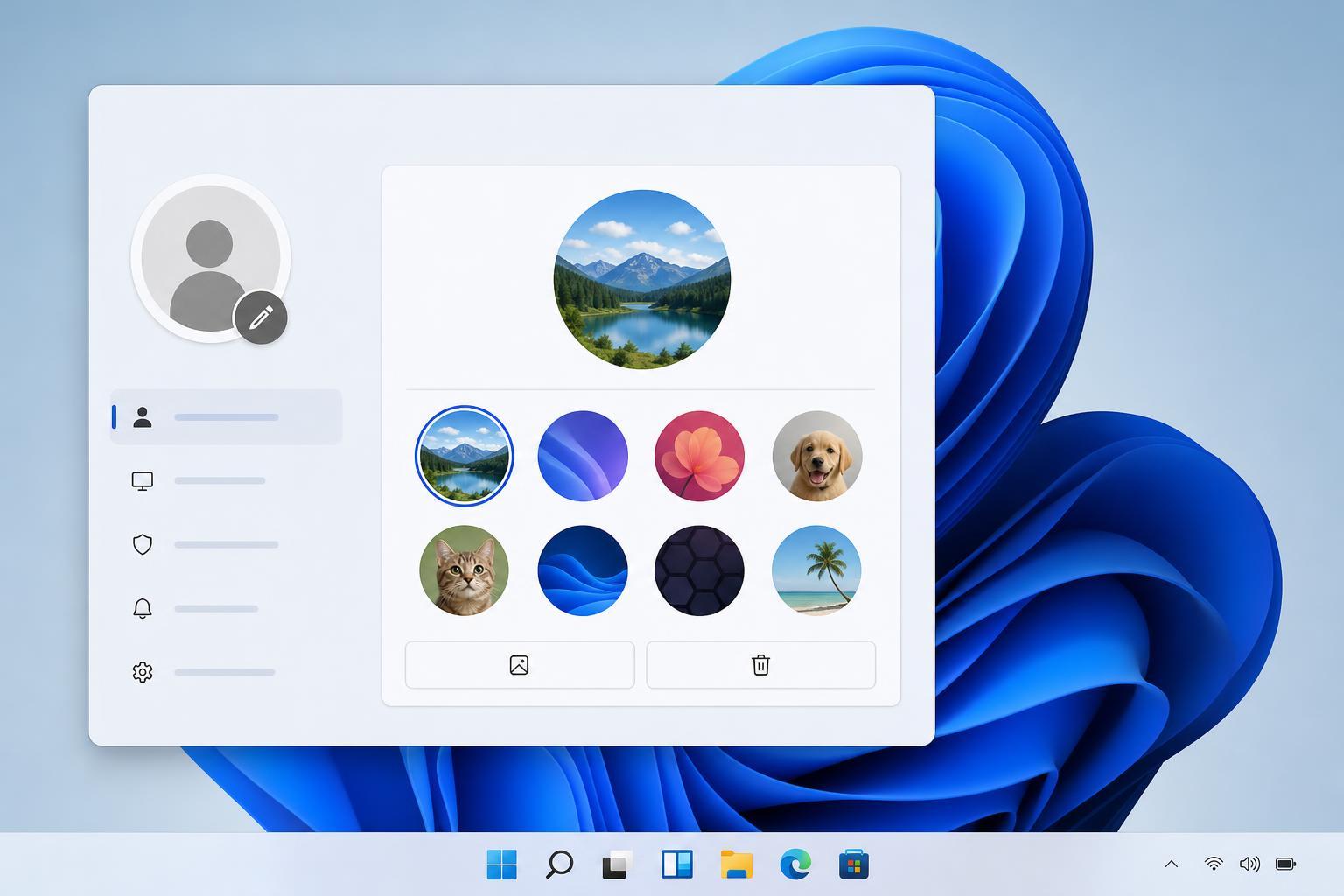
How to Change Your Account Picture in Windows 11
- Press Windows + I to open Settings.
- Select Accounts from the left-hand menu.
- Click Your info.
- Under Choose a photo, select Browse files if you want to use a picture already on your PC, or choose a built-in option if one is shown.
- Pick the image you want and confirm it. Windows will update the account picture right away in most places.
How to Remove the Current Account Picture
Windows 11 does not always offer a simple visible button labeled Remove picture. In many cases, the easiest way to get rid of a custom image is to replace it with a default account icon instead of trying to delete it entirely.
- Open Settings and go to Accounts > Your info.
- Look for the option to choose a new photo.
- Select one of the default account images if Windows provides them.
- If no default choice is available, set a different image you do not mind using, such as a plain placeholder picture.
- Sign out and sign back in if the old image still shows in some locations.
If You Use a Microsoft Account
For Microsoft accounts, Windows may pull your profile picture from Microsoft services. If you change the picture in Windows and it keeps reverting, update the image on your Microsoft account profile as well.
- Open a web browser and sign in to your Microsoft account.
- Go to your profile information and find the option to change your picture.
- Upload the new image and save the change.
- Wait a little while for Windows to sync the updated photo.
- If needed, sign out of Windows and sign back in to force a refresh.
If You Use a Local Account
Local accounts are managed only on the PC itself, so the picture change is usually controlled directly in Windows. This makes it easier to swap the image without affecting any online profile.
If the picture still refuses to change, try selecting a different image file and make sure the file is accessible from your current user profile. Very large or unusual image files can sometimes cause problems, so a standard JPG or PNG is usually the safest choice.
Why the Old Picture May Still Appear
- Windows has not refreshed the sign-in screen yet.
- The image is still cached in your user profile.
- A Microsoft account is syncing an older profile photo from the cloud.
- The account picture was changed in Windows, but not in the Microsoft account itself.
- An organization policy is overriding the picture on a managed device.
A Quick Way to Test Whether the Change Worked
- Open the Start menu and look at the account icon in the lower-left or lower-right area, depending on your layout.
- Lock the PC and check the sign-in screen.
- Sign out and sign back in if needed.
- If the old picture still appears everywhere, check whether your Microsoft account photo was updated online as well.
Choosing a Good Account Image
- Use a square image for the best fit.
- Choose a clear, well-lit picture so it still looks good in a small circle.
- Avoid images with important details near the edges, since Windows crops them.
- Use JPG or PNG for the least hassle.
- Pick a simple image if you mainly want easier recognition on the sign-in screen.
When to Check for Account or Sync Problems
If your picture changes for a moment and then returns to the old one, the issue is usually not the image file itself. It is more often a sync conflict, a policy restriction, or a cached version being reused by Windows.
In that situation, check whether the account is personal, local, work, or school-managed, and confirm whether the same profile picture is still set on Microsoft’s website. Those details usually point you to the right fix much faster than trying random settings.