
You can personalize the Google homepage background with your own image in a few simple steps, as long as you’re using a browser and Google page that supports customization. This guide shows you how to do it, how to choose a good image, and what to check if the option does not appear.
Before You Start
Google background customization works on the Google homepage and new tab page in supported browsers. The exact menu labels may vary a little depending on whether you use Chrome, Edge, or another browser, but the basic process is the same.
- You must be signed in to a Google account on some devices or browser setups.
- A stable internet connection is helpful because the image picker may load from Google or your browser profile.
- Your image should be stored locally or available in your Google Photos or browser customization options, depending on the browser.
- Very large images may take longer to load or may not display well as a background.
Change the Google Background in Chrome
- Open a new tab in Google Chrome and go to the Google homepage or New Tab page.
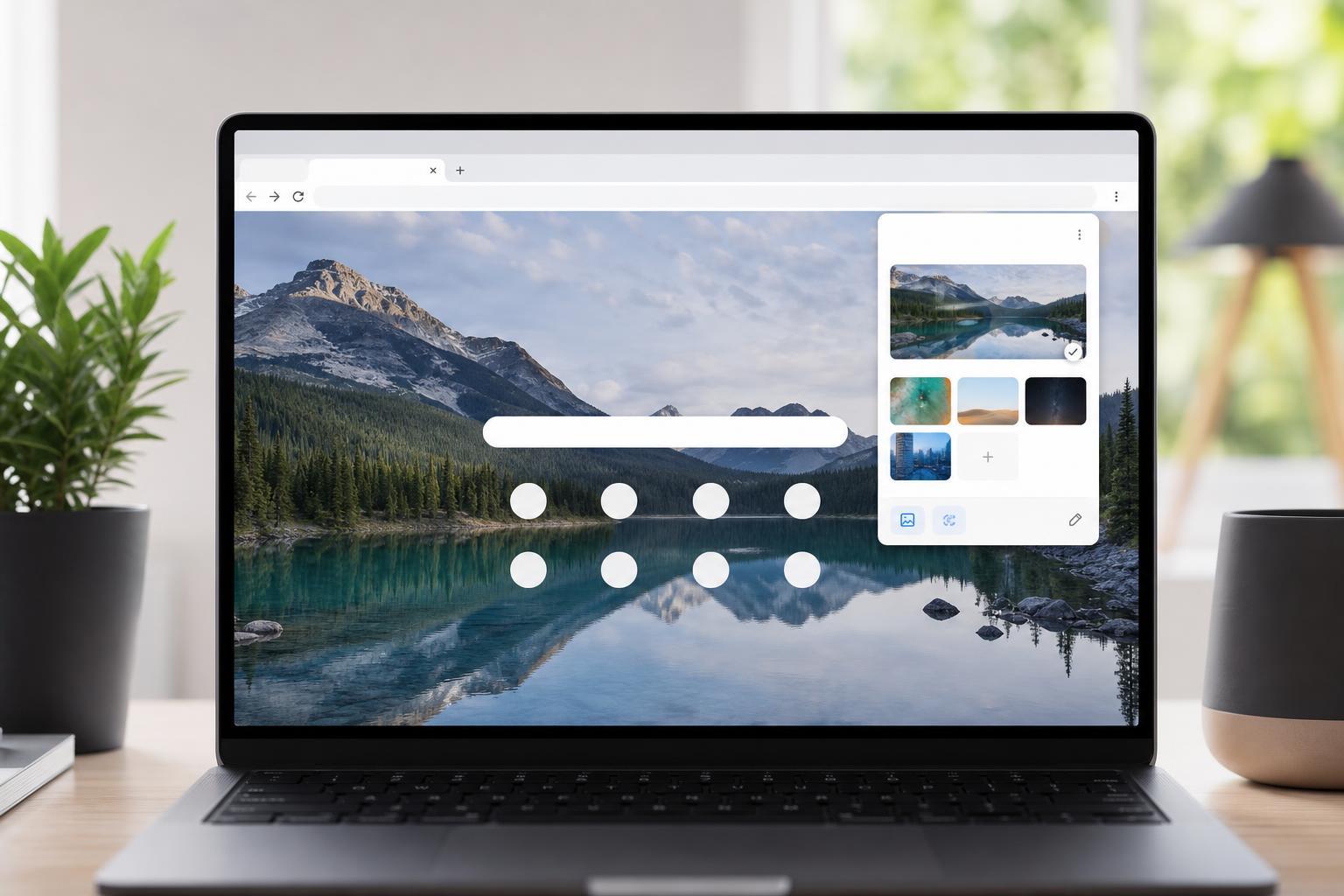
- Look for the Customize Chrome button in the lower-right corner of the page.
- Click Background or Customize Chrome, then open the option for changing the background.
- Choose Upload from device, then select the picture you want to use from your computer.
- Adjust the image if the browser offers cropping or positioning options, then confirm the change.
Once saved, the new image should appear as the background on the Google New Tab page. If you do not see it right away, open a fresh new tab to check the result.
Use Your Own Picture in Other Browsers
If you use Microsoft Edge, Brave, or another Chromium-based browser, the wording may be different, but the process is similar. Open a new tab, look for a settings or gear icon, and find the background or page layout options. From there, choose your own image if the browser allows it.
- Microsoft Edge: open a new tab and use the page settings or gear icon to change the background image.
- Brave: open the new tab customization options and look for a background or wallpaper setting.
- Other browsers: check the new tab page settings, browser theme settings, or customization menu.
Choose the Best Picture
The image you choose matters because the Google homepage layout places search boxes and buttons over the background. A busy or dark image can make text harder to read.
- Use a wide image with a landscape orientation when possible.
- Pick a photo with a simple center area if you want the search box to remain easy to read.
- Avoid images with very bright highlights directly behind the search field.
- Choose a sharp image so it does not look blurry when stretched across the screen.
If the Option to Change the Background Is Missing
If you cannot find any background or wallpaper setting, the most likely reason is that your browser or page layout does not support custom backgrounds in that mode.
- Make sure you are on a supported New Tab page, not a regular Google search results page.
- Update your browser to the latest version.
- Sign in to your Google account if the browser uses account-based settings.
- Check whether a browser extension is changing the new tab page and hiding the background controls.
- Try another Chromium-based browser if your current browser does not support uploads.
How to Remove or Replace the Background Later
- Open the same customization menu you used before.
- Choose Remove background, Reset, or Restore default, depending on the browser.
- Select a different image if you want to replace the current one.
- Open a new tab to confirm the change has been saved.
If you only want the change for a short time, switching back to the default background is usually just as easy as setting a custom one.
Good Alternatives if You Want More Control
If you want a more advanced setup, some browser extensions and custom start-page tools let you change the new tab layout, background, shortcuts, and search box placement. These tools can offer more control than the built-in Google background settings.





