
If you use more than one Google account, the wrong one often becomes the default without you noticing. That can affect Gmail, Drive, YouTube, Calendar, and any other Google service you open in a browser or app.
This guide shows how to change the default Google account on desktop and mobile, plus what to do if Google keeps signing you into the wrong account.
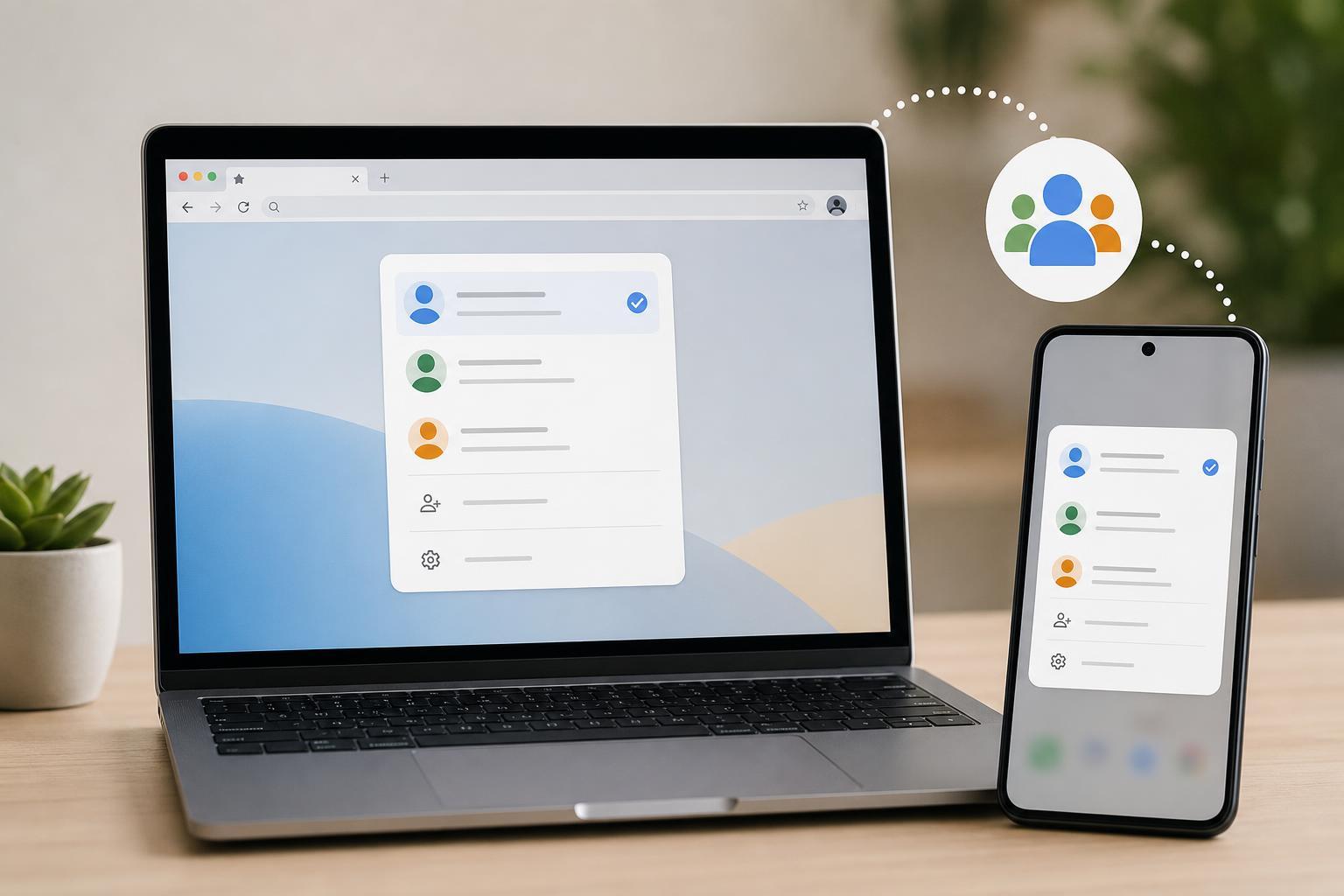
What Google Means by “Default Account”
Your default Google account is the first account Google uses when you open a Google service in a browser or app. If you are signed in to multiple accounts, the default one usually controls which inbox, Drive files, or YouTube profile appears first.
How to Change the Default Google Account on Desktop
On a desktop browser, the most reliable way to change the default Google account is to sign out of all accounts and sign back in in the order you want Google to use them.
- Open a Google service such as Gmail, Google.com, or Drive in your browser.
- Click your profile icon in the top-right corner.
- Choose Sign out of all accounts.
- Close the browser tab, then reopen the browser if needed.
- Go back to Google and sign in with the account you want to be the default first.
- After that, sign in to any additional Google accounts one by one.
The first account you sign in to becomes the default for that browser session and is usually the one Google opens first when you visit its services.
If You Use Chrome on Desktop
Chrome can sync your Google account with browser settings, bookmarks, passwords, and history. If your goal is to change the default Google account in Chrome, signing out and back in still matters, but Chrome profile choice matters too.
- Click your profile icon in Chrome.
- If needed, sign out of the Google account tied to that Chrome profile.
- Open a new browser profile if you want a clean separation between accounts.
- Sign in to the Google account you want to use first.
- Then add any other accounts afterward.
How to Change the Default Google Account on Android
On Android, the default Google account is usually controlled by the first account added to the device for Google services. To change it, remove the accounts from the device and add them again in the order you want.
- Open Settings on your Android device.
- Tap Passwords & accounts, Accounts, or Users & accounts, depending on the phone brand.
- Select the Google account you want to remove.
- Tap Remove account.
- Repeat for any other Google accounts if you want to fully reset the order.
- Go back to Accounts and add the Google account you want as default first.
- Then add the remaining Google accounts afterward.
After re-adding the accounts, Google apps such as Gmail and Drive should open with the account you added first unless you switch accounts manually inside the app.
How to Change the Default Google Account on iPhone and iPad
On iPhone and iPad, Google apps usually follow the account you are signed into inside each app. Safari and other browsers can also remember the account that was last used on Google’s site.
- Open the Google app you use most, such as Gmail or Google.
- Tap your profile icon.
- Choose Manage accounts on this device or sign out of the account in that app if available.
- Remove or sign out of the accounts you do not want to be first, if the app allows it.
- Sign in to the account you want as default first.
- Add your other Google accounts afterward.
If you mainly use Google in Safari, you may need to sign out of Google in the browser and sign back in with the preferred account first.
How to Choose a Different Account in Google Services
Even after changing the default, you can still switch accounts inside most Google services whenever needed.
- Gmail: click or tap your profile icon and choose another account
- Google Drive: use the account menu to switch before uploading or editing files
- YouTube: switch accounts from the profile menu before subscribing or commenting
- Google Calendar: confirm the active account before creating events
- Google Photos: check the account shown at the top before backing up or browsing photos
If Google Keeps Going Back to the Wrong Account
If the wrong account keeps returning, one of these issues is usually the cause:
- You are still signed in to the old account in the browser
- Chrome or another browser profile is linked to the wrong Google account
- Your phone still has the old account added first
- A Google app has cached the previous sign-in
- You are opening a bookmarked Google link that always uses the old account
- Sign out of all Google accounts in the browser or app.
- Clear browser cookies only if the browser is sticking to an old sign-in.
- Check Chrome profiles and make sure you are using the correct one.
- On mobile, remove and re-add accounts in the correct order if needed.
- Open Google from a fresh tab or the homepage instead of an old bookmark.
Which Method Is Best?
The best method depends on how you use Google:
- Desktop browser only: sign out of all accounts and sign back in with the desired one first
- Chrome users: consider separate Chrome profiles for cleaner account separation
- Android users: remove and re-add Google accounts in the order you want
- iPhone or iPad users: manage the active account inside each Google app and browser
What to Check After Changing the Default
After you change the default account, open the Google services you use most and confirm they show the correct profile in the top corner. Check Gmail, Drive, Calendar, and YouTube if those matter to you.
If one service still opens the wrong account, that app may be remembering a separate login or browser profile, so you may need to switch it manually once before it stays correct.





