
If the “Customize Chrome” button has vanished from Chrome’s New Tab page, the cause is usually a browser setting, a corrupted profile, an extension, or a company-managed policy. In most cases, you can bring it back without reinstalling Chrome.
This guide walks through the most likely reasons the button is missing and the quickest ways to restore it.
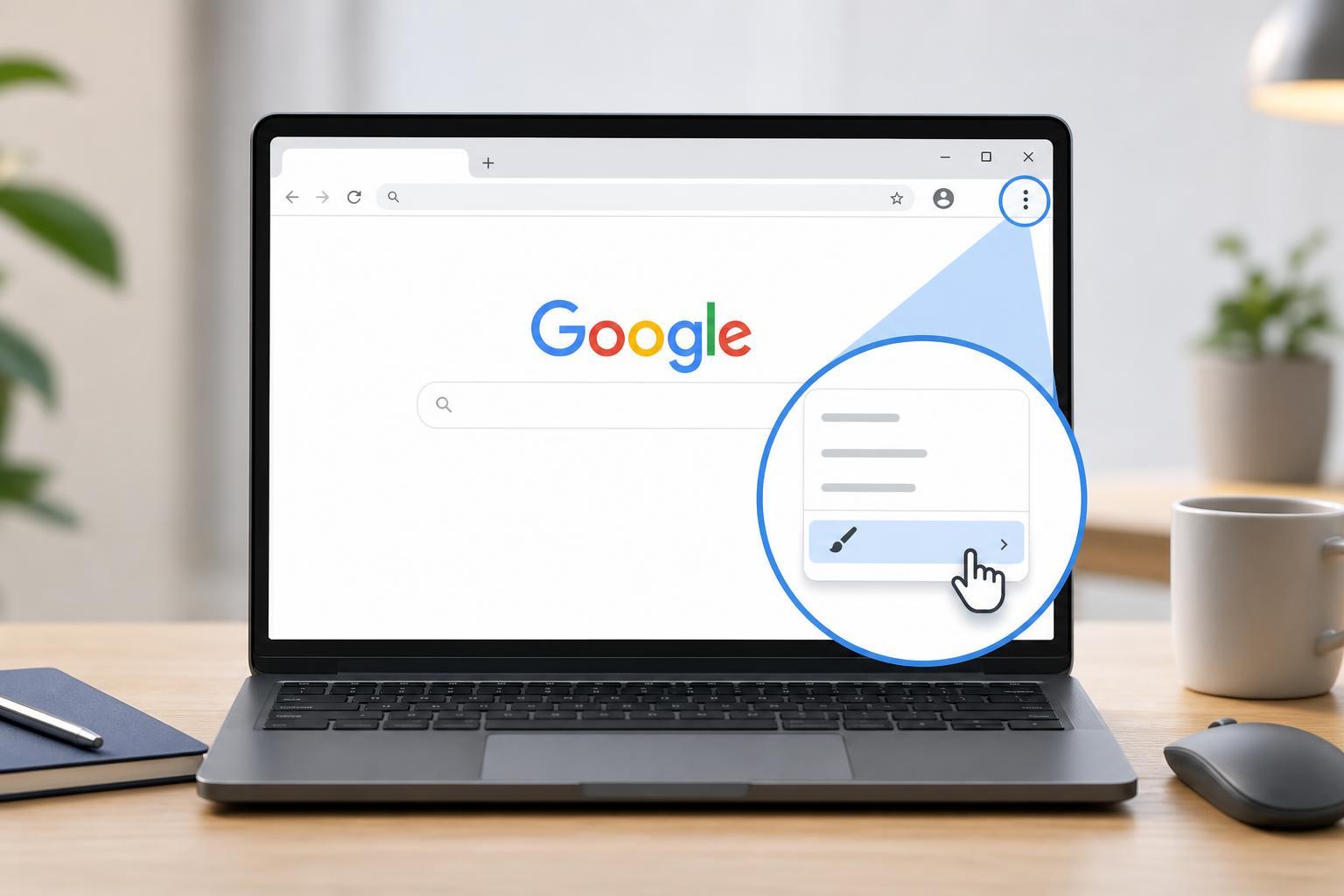
First, make sure you’re on the New Tab page
The “Customize Chrome” button normally appears on Chrome’s New Tab page, not on regular websites. Open a new tab and look in the bottom-right corner of the page.
- Press Ctrl + T to open a new tab.
- If you are already on a website, the button will not appear.
- If you use a custom New Tab extension, it may replace Chrome’s built-in page entirely.
Check whether an extension is replacing the New Tab page
Some extensions replace Chrome’s New Tab page with their own layout. When that happens, Chrome’s built-in “Customize Chrome” button may disappear.
- Open Chrome and type chrome://extensions in the address bar.
- Look for extensions related to New Tab pages, themes, dashboards, or productivity tools.
- Temporarily turn off those extensions one by one.
- Open a new tab again and check whether the “Customize Chrome” button returns.
Make sure Chrome’s New Tab shortcuts are not hidden
Chrome can show shortcut tiles on the New Tab page, and depending on your layout or settings, the page may look different from what you expect. If the button is missing only because the page looks unusual, try resetting the New Tab appearance from Chrome’s settings.
- Open a new tab.
- If you see a gear icon or page customization option, use it to restore the default layout.
- If the page is heavily customized, switch back to the standard Chrome New Tab page if that option is available.
Check for a managed browser policy
If this is a work, school, or managed device, an administrator may have disabled New Tab customization. In that case, the button may be intentionally hidden.
- Look for a message such as "Managed by your organization" in Chrome.
- Type chrome://policy in the address bar to see whether policies are applied.
- If policies are present, personal settings may be restricted by the administrator.
Reset Chrome settings that affect the New Tab page
If the page used to show the button and suddenly stopped, resetting Chrome’s settings can remove a bad customization without deleting your bookmarks or saved passwords.
- Open Chrome’s menu and go to Settings.
- Select Reset settings.
- Choose Restore settings to their original defaults.
- Confirm the reset and then open a new tab to check for the button.
Create a fresh Chrome profile
A damaged browser profile can cause odd behavior on the New Tab page, including missing customization controls. Testing with a new profile helps you tell whether the issue is tied to your current profile.
- Click your profile icon in the top-right corner of Chrome.
- Select Add new profile or Add.
- Sign in if needed, or continue without signing in.
- Open a new tab in the new profile and check whether the “Customize Chrome” button appears.
Update Chrome
An outdated browser can sometimes miss newer interface changes or bug fixes. Updating Chrome is a simple way to rule out a version-specific issue.
- Open Chrome’s menu.
- Go to Help, then About Google Chrome.
- Let Chrome check for updates and finish installing them.
- Restart the browser if prompted, then check the New Tab page again.
When the button is still missing
If the button is still not there after checking extensions, policies, settings, profiles, and updates, the most likely cause is either a browser experiment, a customized New Tab replacement, or a profile-specific issue that needs deeper cleanup.
- Try signing out of Chrome and back in if you normally use sync.
- Remove or disable any theme or New Tab extension you recently installed.
- Test Chrome in a completely new Windows user account if the problem follows the browser installation rather than your profile.
What usually fixes it fastest?
In most cases, the missing “Customize Chrome” button is caused by a New Tab extension or a managed policy. If you want the fastest path, check those two things first, then move on to resetting settings or creating a fresh profile if needed.





