
Archiving in Gmail is a simple way to clean up your inbox without deleting anything. Archived emails are removed from the inbox view, but they stay in your account and can still be searched, labeled, or moved back to the inbox later.
This guide shows how to archive and unarchive emails in Gmail on the web and in the Gmail mobile app, plus how to find messages that were archived by mistake.
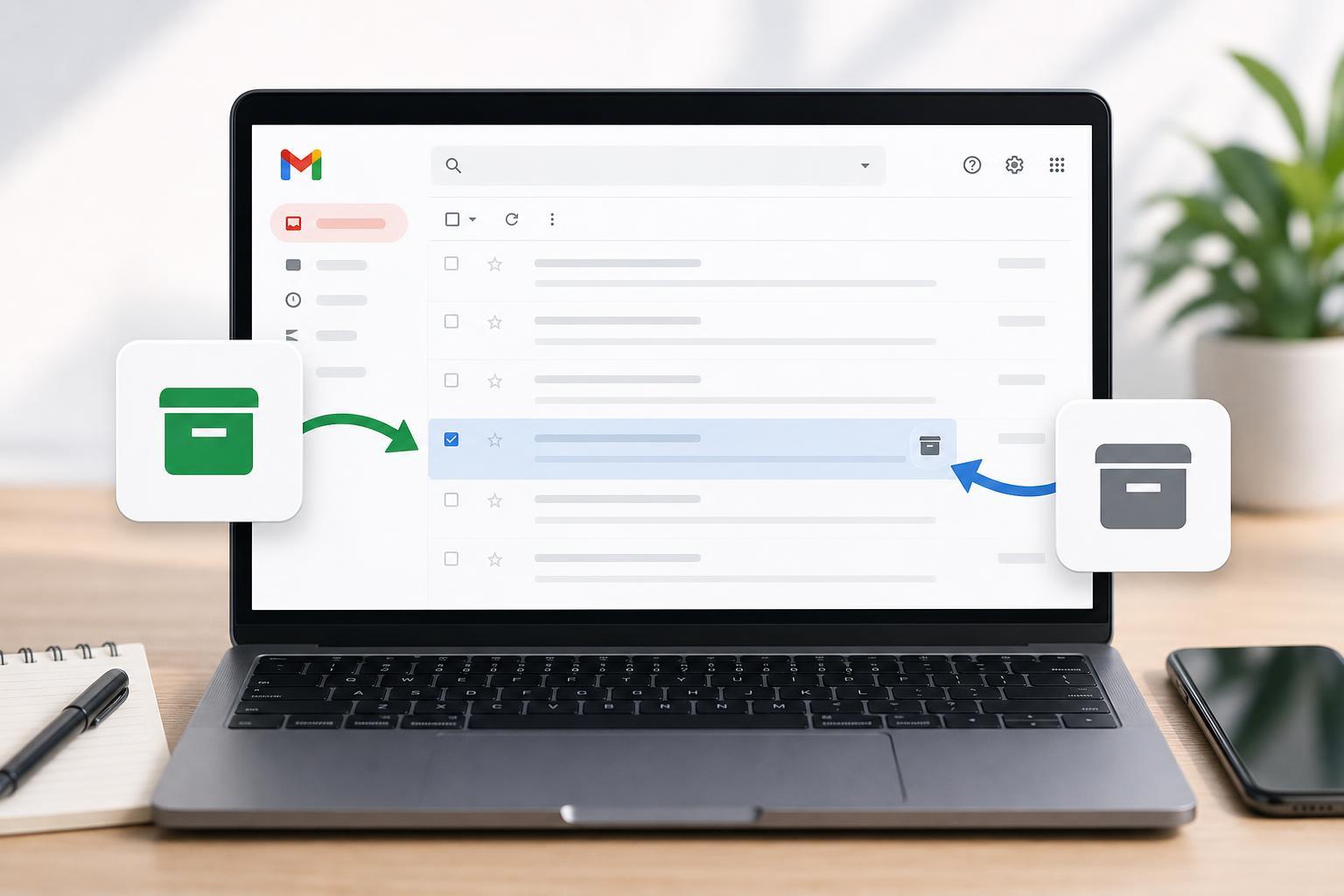
What Archiving Does in Gmail
When you archive an email in Gmail, the message is taken out of your Inbox but kept in your account. It does not get deleted, and it remains available through search, labels, and the All Mail folder.
How to Archive an Email in Gmail on the Web
- Open Gmail in your browser and sign in if needed.
- Find the email in your Inbox.
- Hover over the message and click the Archive button, which looks like a box with a downward arrow.
- The message disappears from the Inbox and moves to All Mail.
How to Archive Emails in the Gmail Mobile App
- Open the Gmail app on your phone or tablet.
- Find the message you want to archive.
- Swipe the email left or right if your swipe action is set to Archive, or open the message and tap the Archive icon at the top.
- The email is removed from the Inbox but remains in Gmail.
How to Unarchive an Email in Gmail
Unarchiving simply moves a message back into your Inbox. The message stays in Gmail the whole time, so you do not need to recover it from a backup or trash folder.
- Open Gmail and search for the archived message if you do not see it in the Inbox.
- Open the email.
- Click or tap the Move to Inbox button. On the web, it appears in the top toolbar; in the app, it is usually under the three-dot menu or toolbar depending on the device.
- The message returns to the Inbox.
How to Find Archived Emails
If you cannot remember where an archived email went, the easiest way to find it is to search Gmail by sender, subject, keyword, or attachment name. Archived messages do not show in the Inbox, but they do show in search results.
- Use the Gmail search bar at the top of the page or app.
- Search by sender name or email address.
- Search by subject line, company name, or a unique word from the message.
- Open All Mail on the web if you want to browse every message, including archived ones.
Difference Between Archive and Delete
- Archive: removes the message from the Inbox but keeps it in Gmail.
- Delete: moves the message to Trash, where it may be permanently removed after a period of time.
- Archive is better for messages you may need later.
- Delete is better for mail you are sure you no longer need.
When Archiving Is the Best Choice
A good rule is to archive anything that matters but does not require immediate action. That keeps your inbox focused on current tasks while still preserving older messages for later.
If an Email Keeps Disappearing from the Inbox
If a message seems to vanish, it may have been archived automatically, filtered into a label, or deleted. Search for the sender or subject first, since archived mail is still searchable. If you find it in All Mail, you can move it back to the Inbox.
- Check search results for the message.
- Look in All Mail.
- Review Gmail filters and labels if messages are being moved automatically.
- Check Trash if the email was deleted instead of archived.
A Simple Way to Keep Gmail Organized
If your inbox gets crowded, archive messages after you finish with them instead of leaving them in the Inbox forever. That way, important mail stays accessible without constantly sitting in front of you.





